One step ahead with these plugins

Inventory Pro – Documentation

Table of Contents

Table of Contents

Quick Videos

Playlist

13 Videos

Installation

Requirements

  • Perfex CRM 3.0.0 or higher
  • PHP 7.4 or higher
  • MySQL 5.7 or higher

Installation Steps

  1. Download the module ZIP file
  2. Log in to your Perfex CRM as Administrator
  3. Navigate to Setup → Modules
  4. Click Upload Module
  5. Select the downloaded ZIP file (inventory_pro.zip)
  6. Click Install
  7. The module will appear in the modules list – click Activate
Tip: After activation, you will find “Inventory” in the left sidebar menu. The module automatically creates all required database tables.

File Structure

modules/inventory_pro/
├── inventory_pro.php         # Main module file
├── install.php               # Database migrations
├── controllers/
│   └── Inventory_pro.php     # Admin controller
├── models/
│   ├── Inventory_pro_model.php
│   ├── Warehouse_model.php
│   ├── Document_model.php
│   └── Stock_model.php
├── views/
├── helpers/
├── libraries/
├── assets/
└── language/                 # 24 languages

License Activation

After installing and activating the module, you need to activate your license to unlock all features.

Activation Steps

  1. Go to Inventory → License Settings (visible to admins only)
  2. Enter your License Key for this module (from your order confirmation email)
  3. Enter the domain where Perfex CRM is installed (e.g., yourdomain.com)
  4. Click Activate License
  5. You should see a green confirmation message
Note: The license is validated daily via cron job. If your license expires, you have a 30-day grace period before the module is restricted. Renew at vollstart.com.

License Status

StatusMeaning
ActiveLicense valid, all features available
WarningGrace period active – renew soon
Expiring SoonLicense expires within 30 days
BlockedGrace period expired – module restricted until renewed

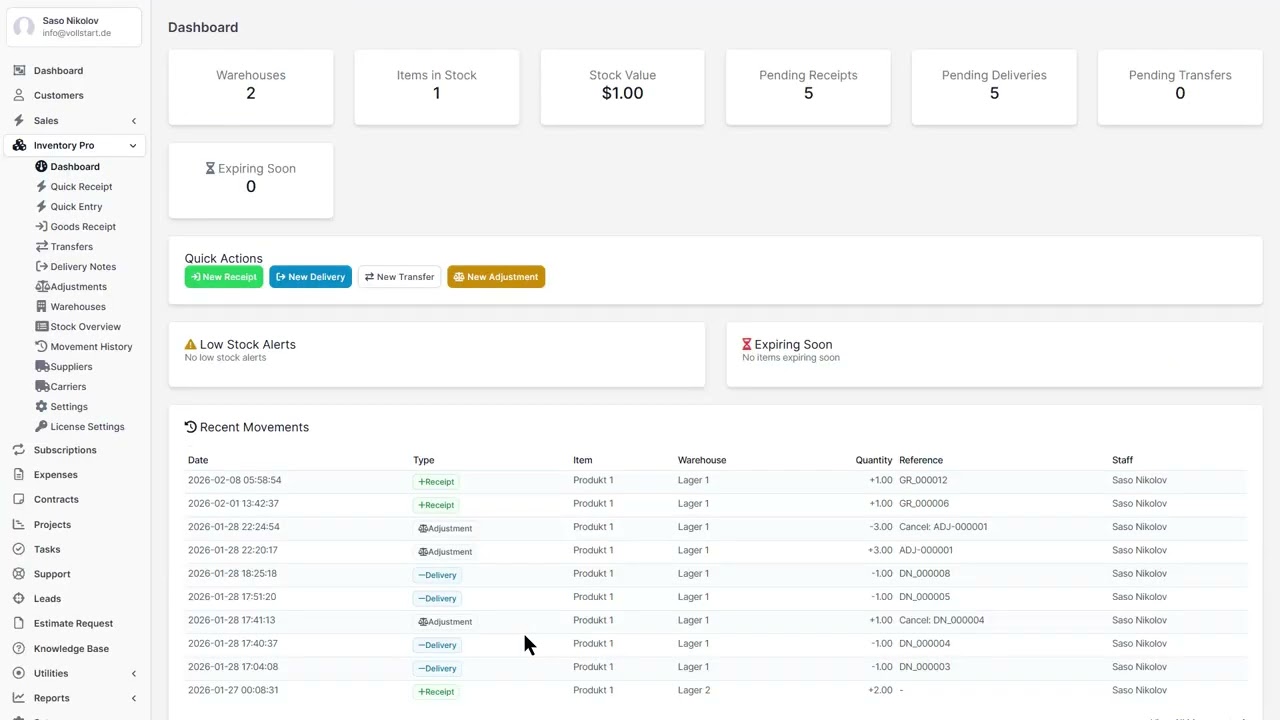
Dashboard

The Dashboard is your central overview when opening the Inventory module. It shows real-time statistics and alerts at a glance.

Statistics Cards

  • Total Stock Value – Combined value across all warehouses (based on FIFO/FEFO/Average valuation)
  • Items in Inventory – Number of distinct items tracked
  • Warehouse Count – Active warehouses
  • Low Stock Alerts – Items below their minimum stock level

Alerts & Widgets

  • Low Stock Items – Table of items below their min_stock threshold, with current quantity and warehouse
  • Expiring Soon – Items with expiry dates within the configured warning period (default: 30 days)
  • Recent Movements – Last 10 stock movements (receipts, deliveries, transfers, adjustments)
Tip: Configure the expiry warning period in Settings → General → Expiry Warning Days.

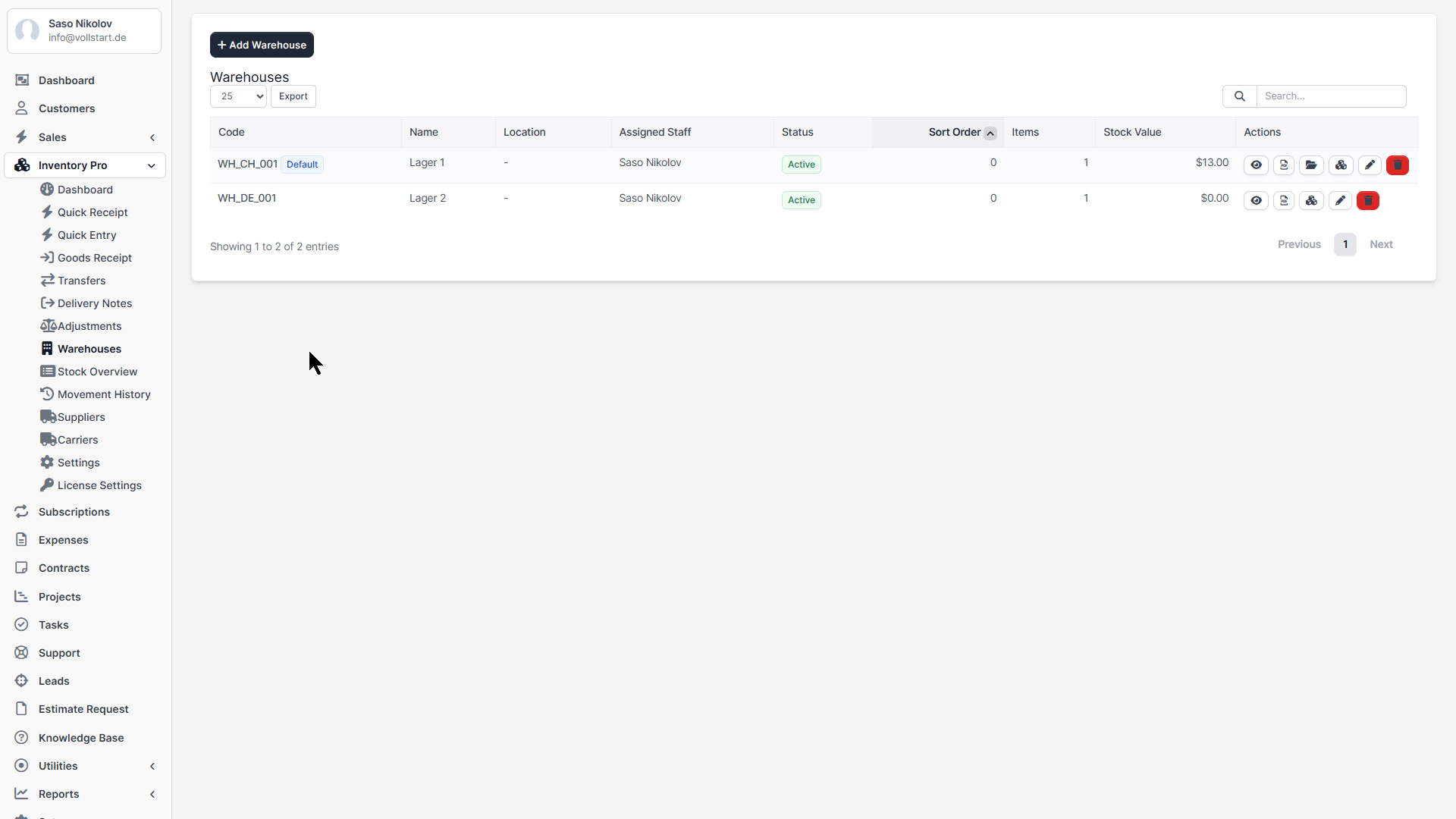
Warehouses

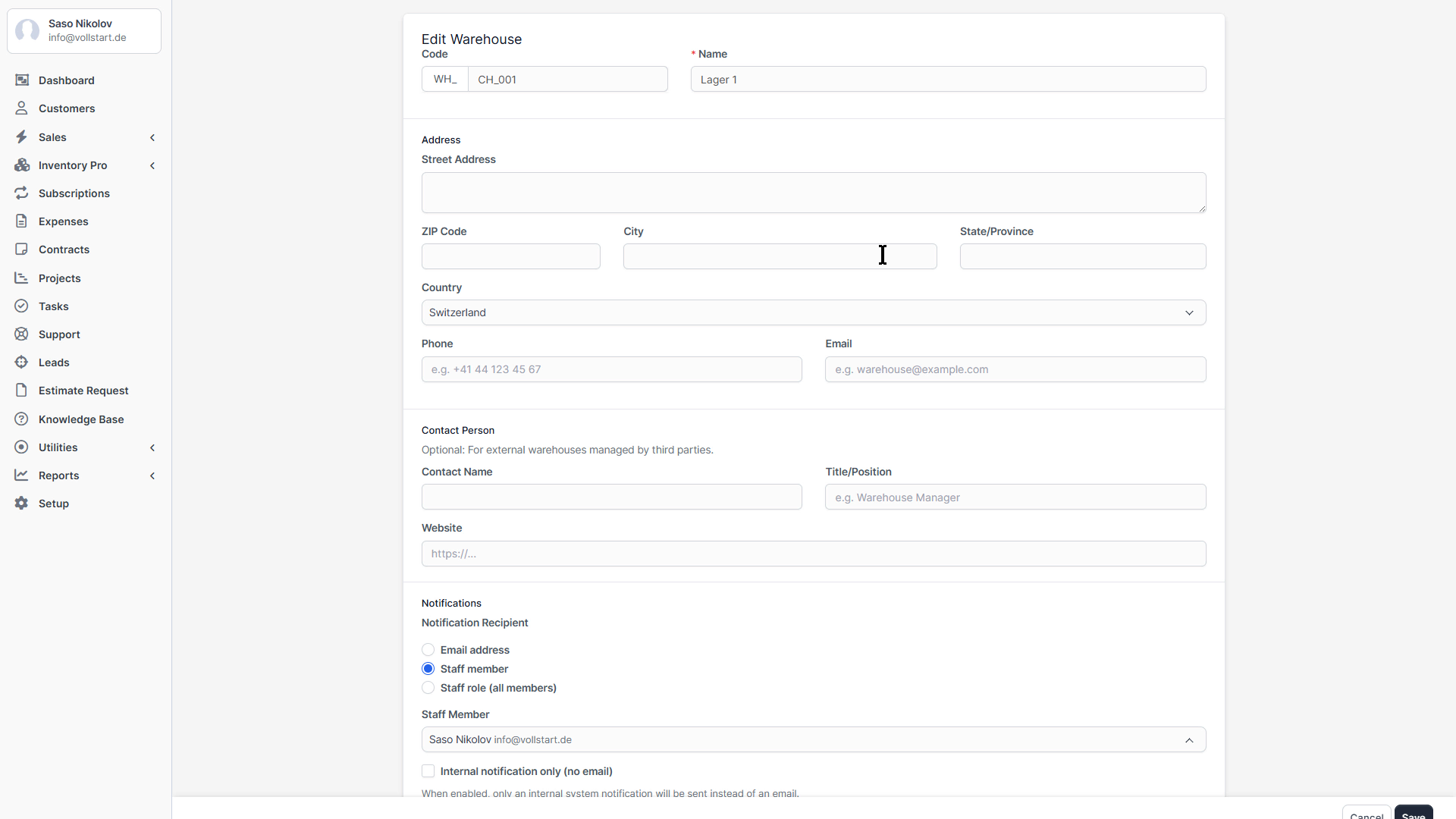
Creating a Warehouse

  1. Go to Inventory → Warehouses
  2. Click New Warehouse
  3. Fill in the details:
    • Name: e.g., “Main Warehouse”
    • Code: e.g., “WH-01” (auto-generated or manual)
    • Address: Physical location
    • Manager: Assign a staff member
    • Default: Set as default warehouse for new documents
  4. Click Save

Warehouse Settings

SettingDescription
Code PrefixPrefix for auto-generated warehouse codes (e.g., “WH-“)
Default WarehousePre-selected warehouse when creating documents
Allow Negative StockAllow stock to go below zero (not recommended)

Warehouse Configuration

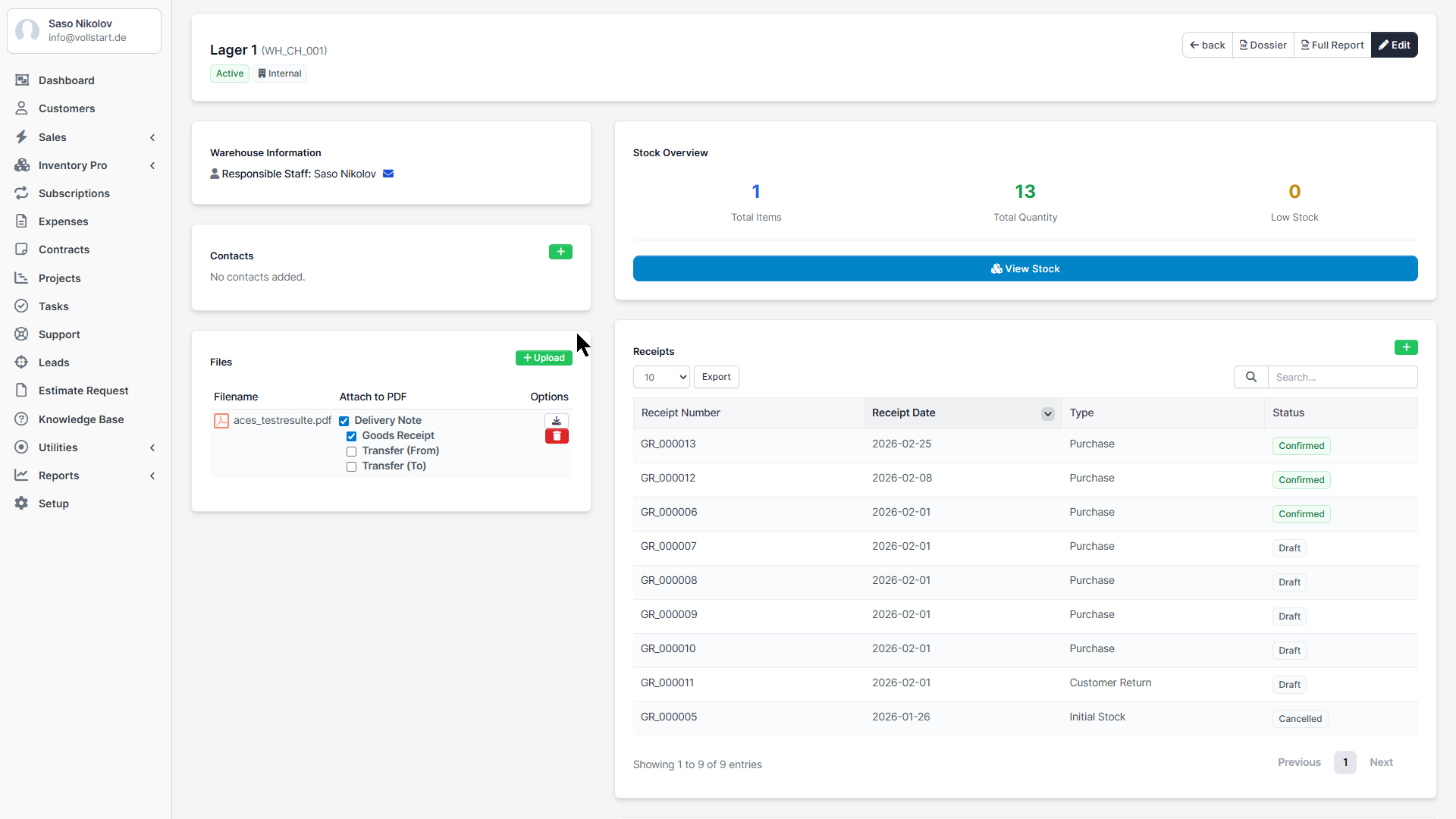
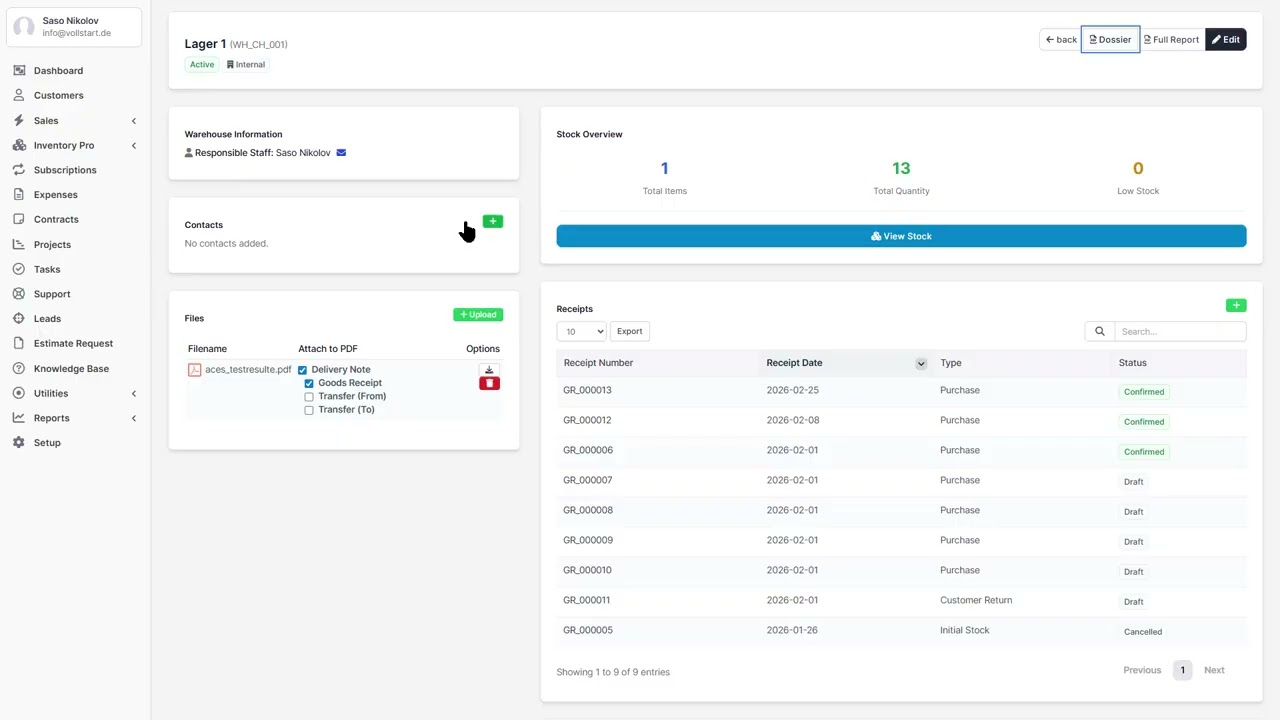
Beyond the basics, each warehouse offers detailed configuration options for contacts, notifications, and file attachments.

Warehouse Types

TypeDescription
InternalCompany-owned warehouse – full control over stock and operations
ExternalThird-party warehouse (3PL, consignment) – managed externally

Warehouse Contacts

Each warehouse supports multiple contacts with different roles:

  • Name, Email, Phone – Contact details
  • Position – Manager, Supervisor, Warehouse Clerk, etc.
  • Primary Contact – Mark one contact as the main point of contact

Add contacts via the Contacts tab on the warehouse detail page.

Warehouse Notifications

Get notified automatically when stock arrives or ships from a warehouse.

SettingOptionsDescription
Notify on ReceiptOn / OffSend email when a Goods Receipt is confirmed
Notify on DeliveryOn / OffSend email when a Delivery Note is confirmed
Notify TypeEmail / Staff / RoleWho receives the notification
Notify StaffStaff dropdownSpecific staff member (if type = Staff)
Notify RoleRole dropdownAll staff with this role (if type = Role)
Internal OnlyOn / OffSend as internal notification only (no email)

Warehouse Files

Attach documents to warehouses for reference:

  • Floor plans and layout diagrams
  • Safety certifications
  • Operating procedures
  • Insurance documents

Upload via the Files tab on the warehouse detail page.

Items & Products

Adding an Item

  1. Go to Inventory → Items
  2. Click New Item
  3. Fill in:
    • Name: Product name
    • SKU: Stock Keeping Unit (unique identifier)
    • Unit: Piece, kg, liter, etc.
    • Purchase Price: Default buying price
    • Sale Price: Default selling price
    • Track Batch Numbers: Enable for lot tracking
    • Track Serial Numbers: Enable for individual item tracking
    • Min Stock Level: Alert threshold
    • Max Stock Level: Maximum threshold

Linking to Perfex Items

Inventory Pro can link to existing Perfex CRM items (used in invoices and estimates). This allows you to track stock for items you already use in your CRM.

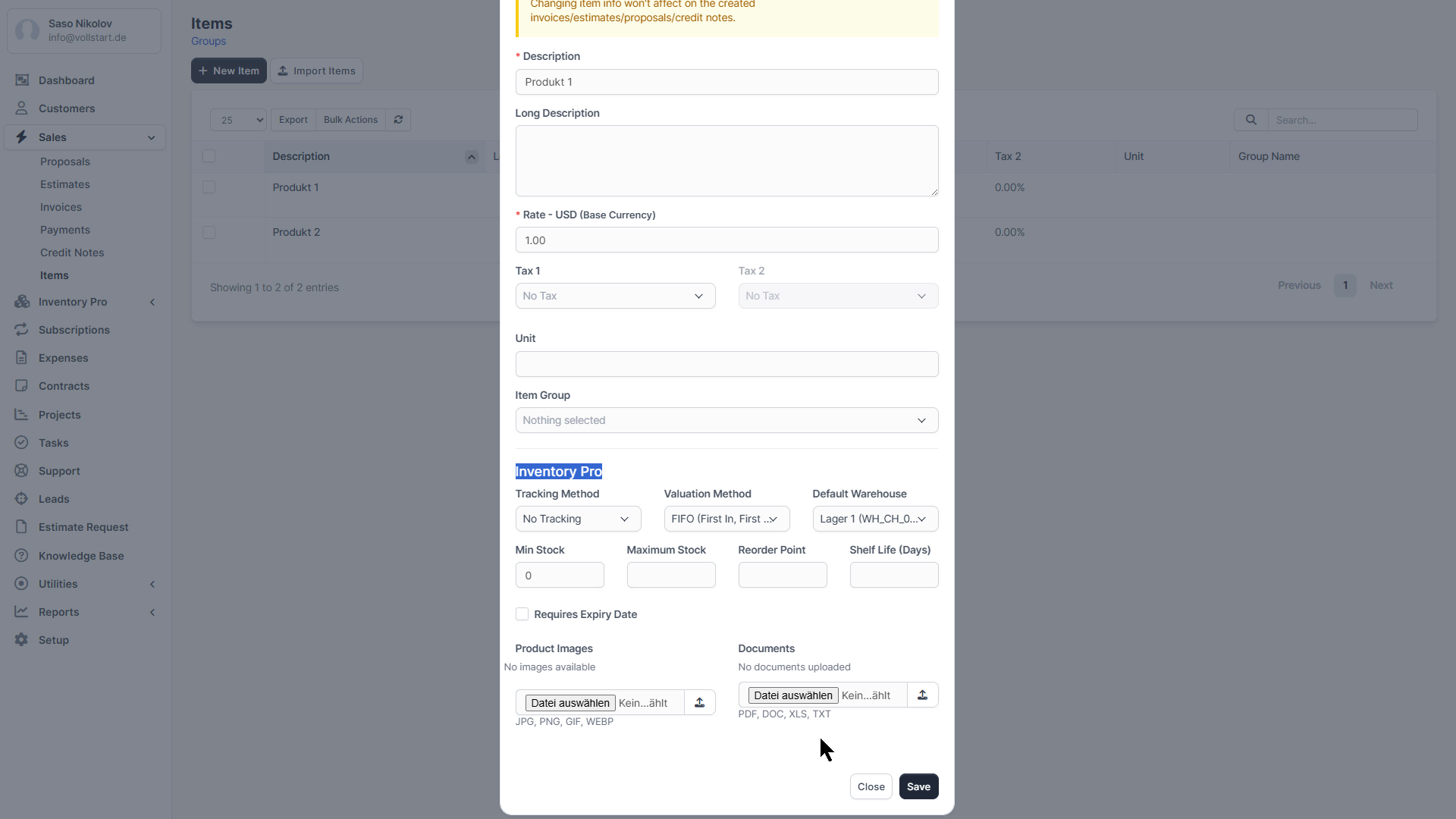
Item Inventory Settings

Each item in Perfex CRM can have individual inventory tracking settings. Access these via Sales → Items → Edit Item → Inventory Pro tab.

Tracking Method

MethodUse Case
NoneStandard items – track quantity only
Lot/BatchGroup tracking – food, chemicals, bulk materials
Serial NumberIndividual tracking – electronics, equipment, vehicles
Lot + SerialCombined – production batch with individual serial numbers

Valuation Method (Per Item)

MethodHow It WorksBest For
FIFOOldest stock consumed first (by received date)Non-perishable goods (default)
FEFOEarliest expiry consumed firstPerishable goods, pharmaceuticals
Average CostWeighted average of all stock layersStandard accounting

Stock Thresholds

  • Min Stock Level – Triggers low stock alert when quantity drops below this value
  • Max Stock Level – Informational capacity limit
  • Reorder Point – Suggested quantity at which to reorder

Expiry & Shelf Life

  • Requires Expiry Date – Make expiry date mandatory on goods receipts
  • Shelf Life (Days) – Auto-calculate expiry date from receipt date
Tip: Item settings are saved via AJAX – changes apply immediately without saving the entire item form.

Quick Receipt & Quick Entry

For fast day-to-day operations, Inventory Pro offers two streamlined entry modes accessible directly from the sidebar menu.

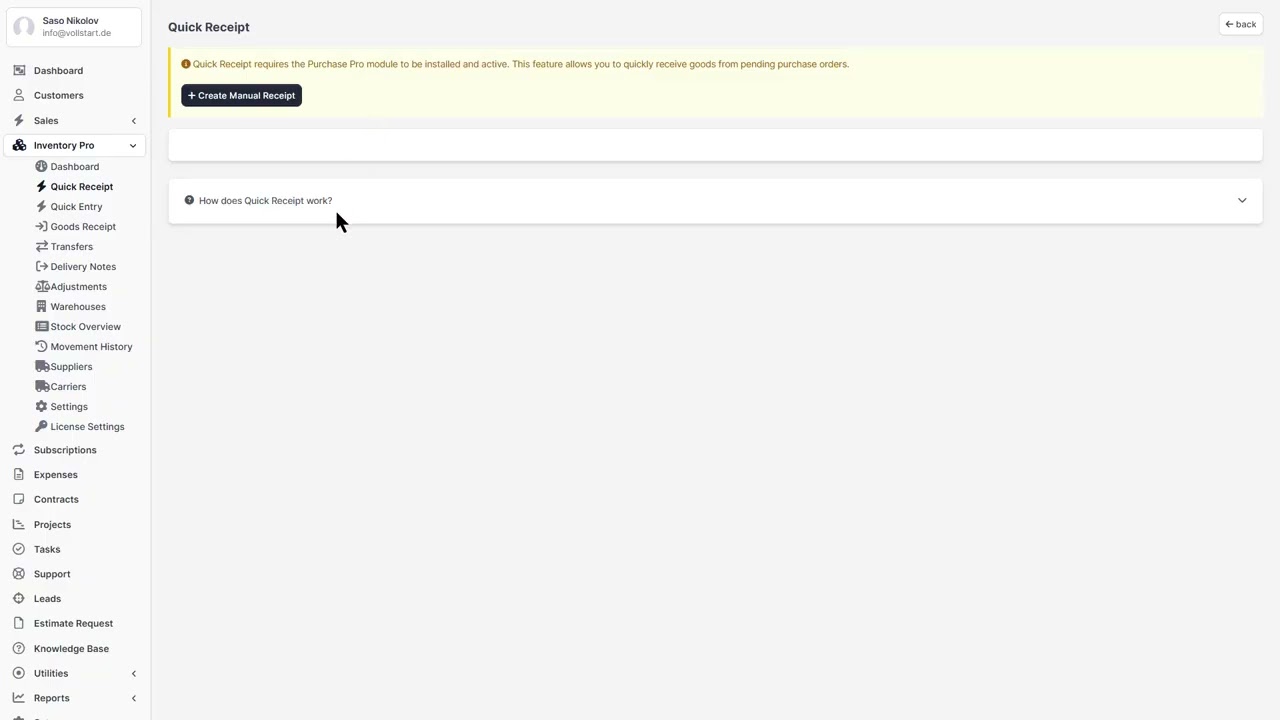
Quick Receipt

A simplified form for recording incoming stock:

  1. Go to Inventory → Quick Receipt
  2. Select the warehouse
  3. Add items with quantities, lot/serial numbers, and costs
  4. Click Save & Confirm to immediately book the stock

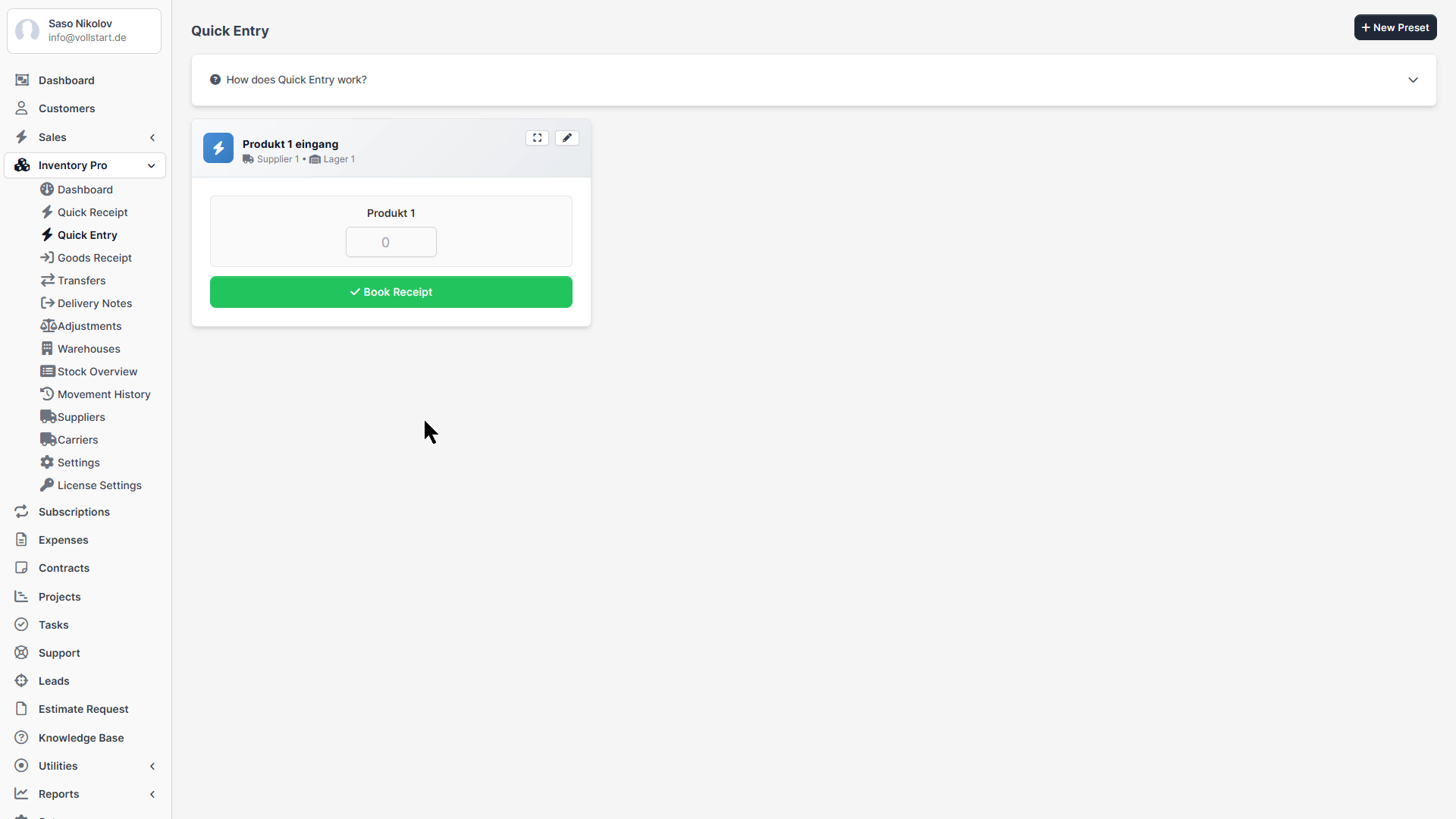
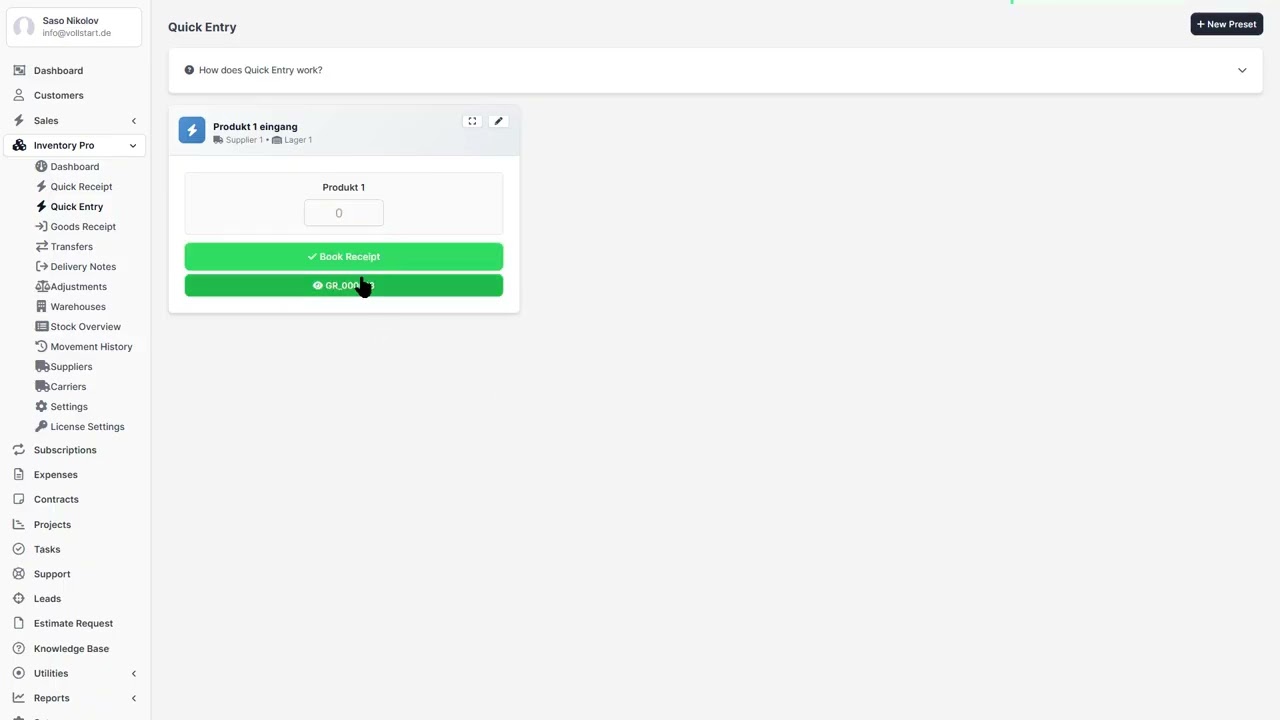
Quick Entry with Presets

Create reusable presets for recurring receipts (e.g., weekly supplier deliveries):

  1. Go to Inventory → Quick Entry
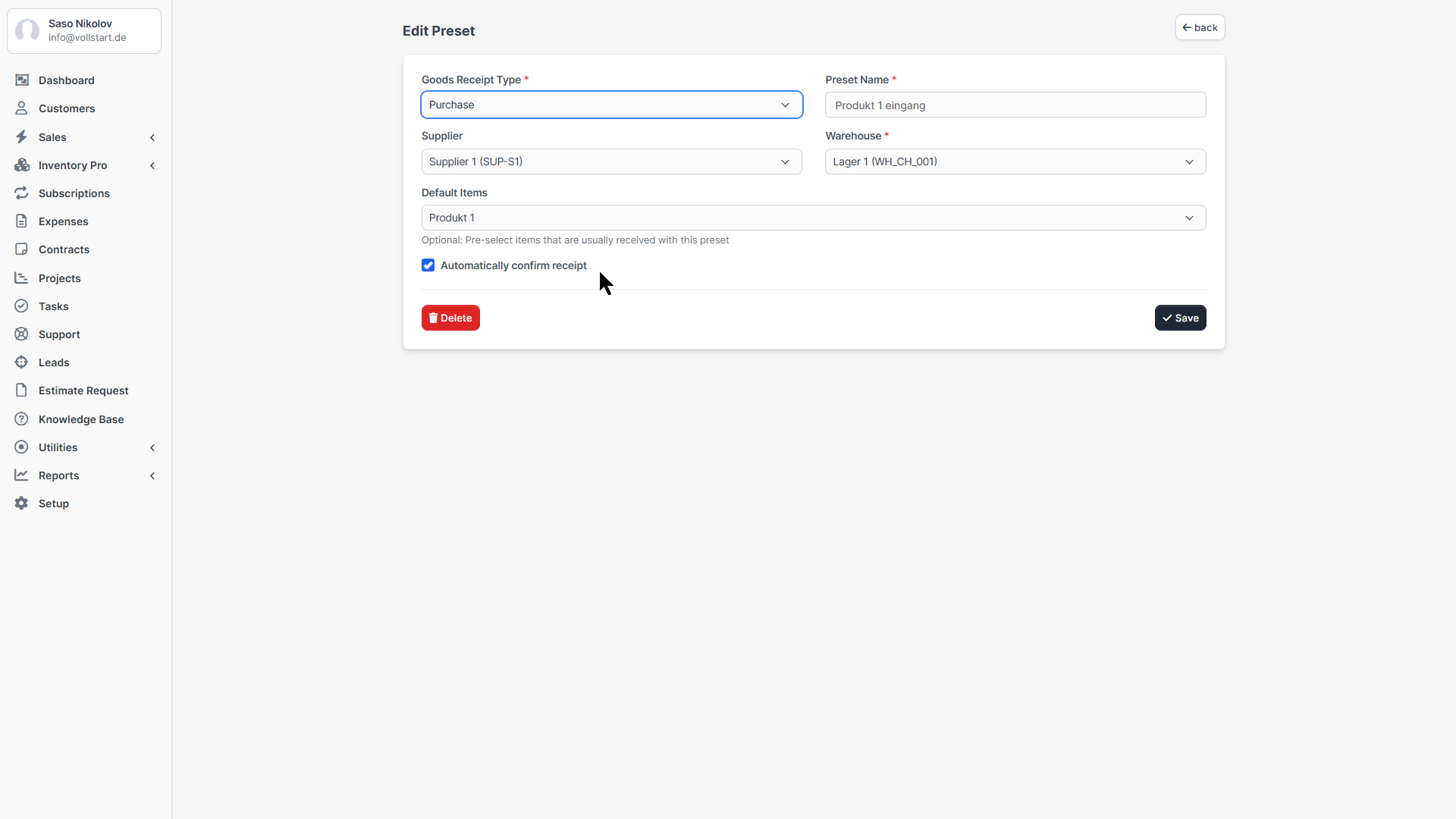
  2. Click Manage Presets to create a new preset
  3. Define items, default quantities, warehouse, and supplier
  4. Next time: select the preset, adjust quantities if needed, and confirm
Tip: Presets save time when you regularly receive the same items from the same suppliers.

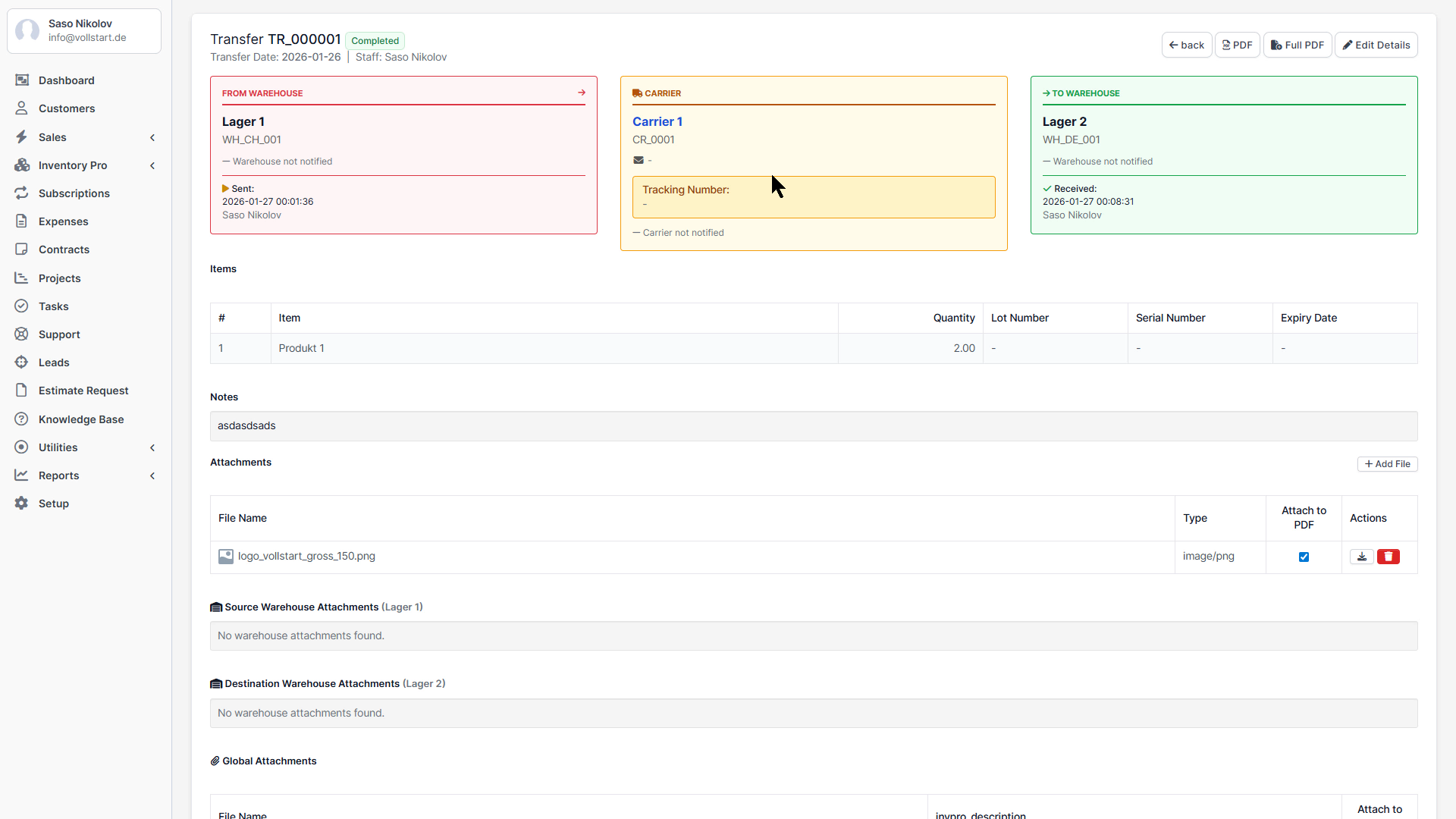
Document Types

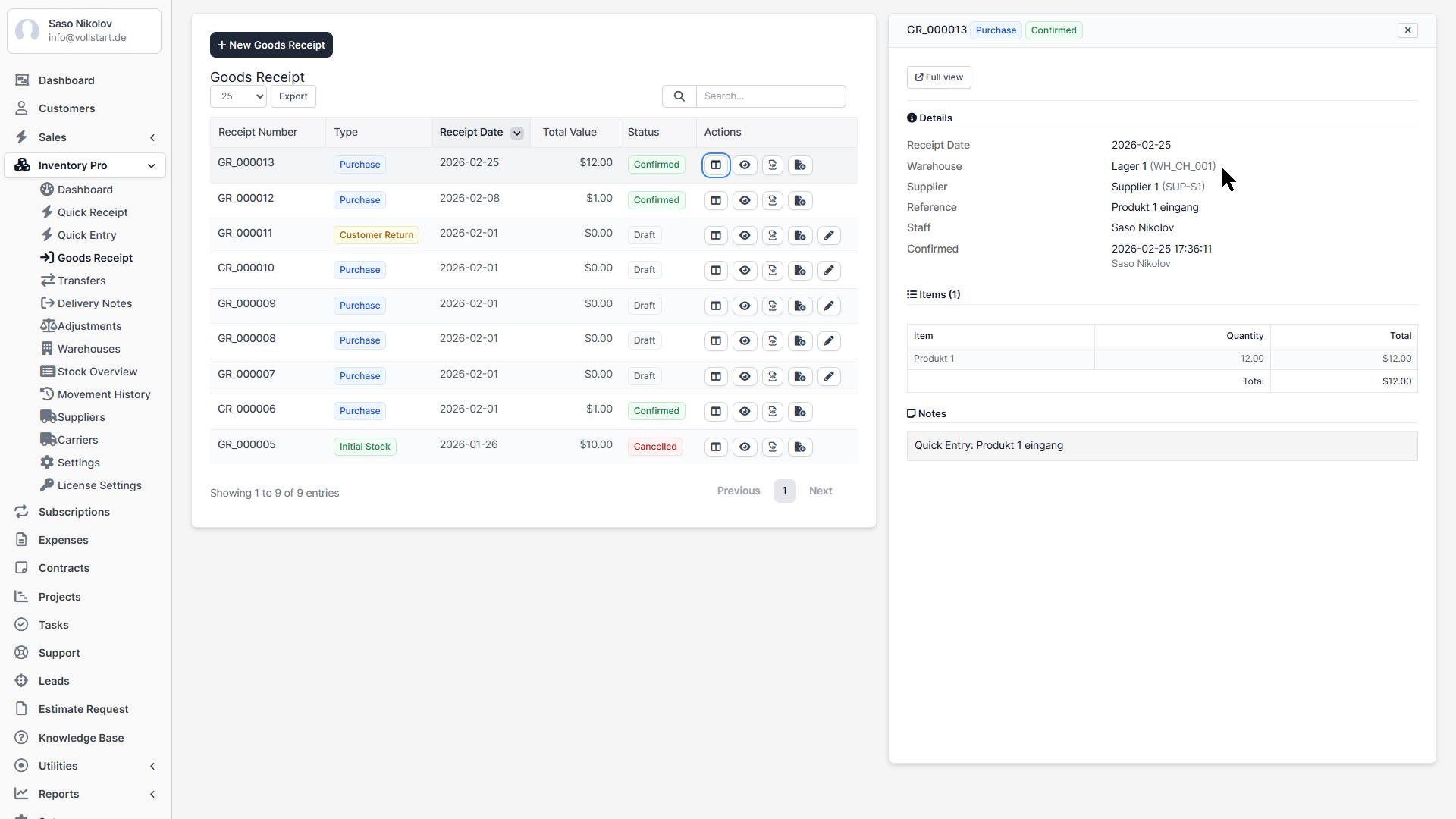
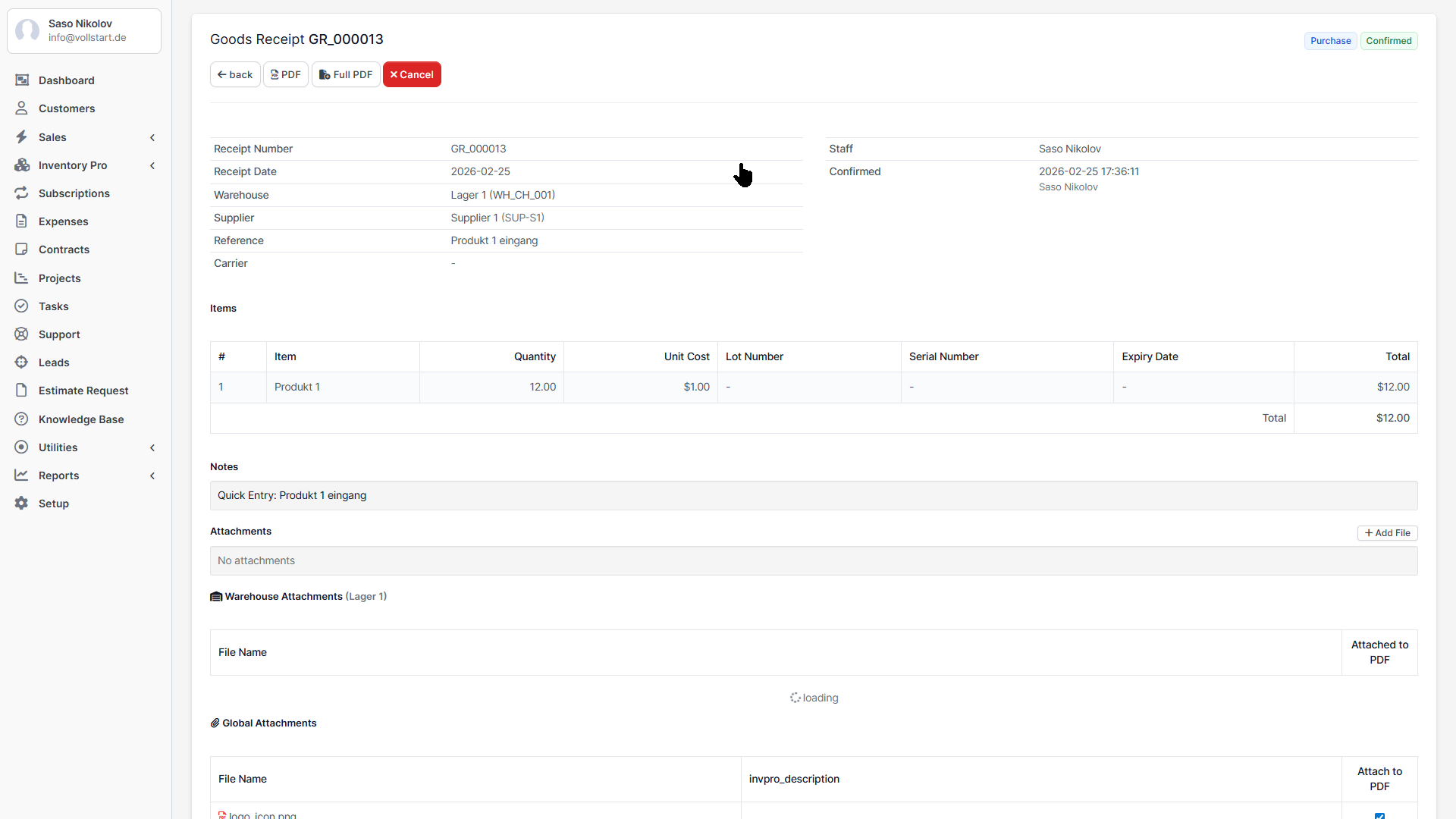
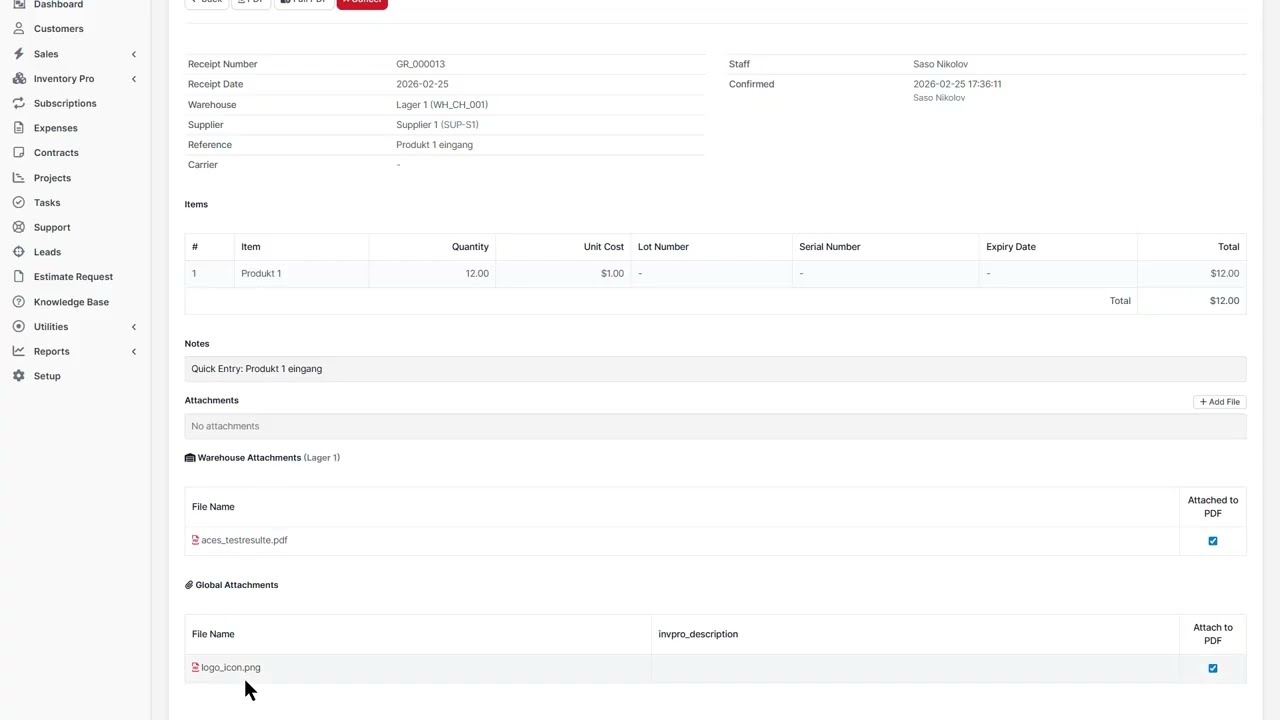
Goods Receipt (GR)

Record incoming stock into a warehouse.

  • Use case: Receiving goods from a supplier
  • Required: Target warehouse, items with quantities
  • Optional: Supplier, purchase price, batch/serial numbers
  • Effect: Increases stock in target warehouse

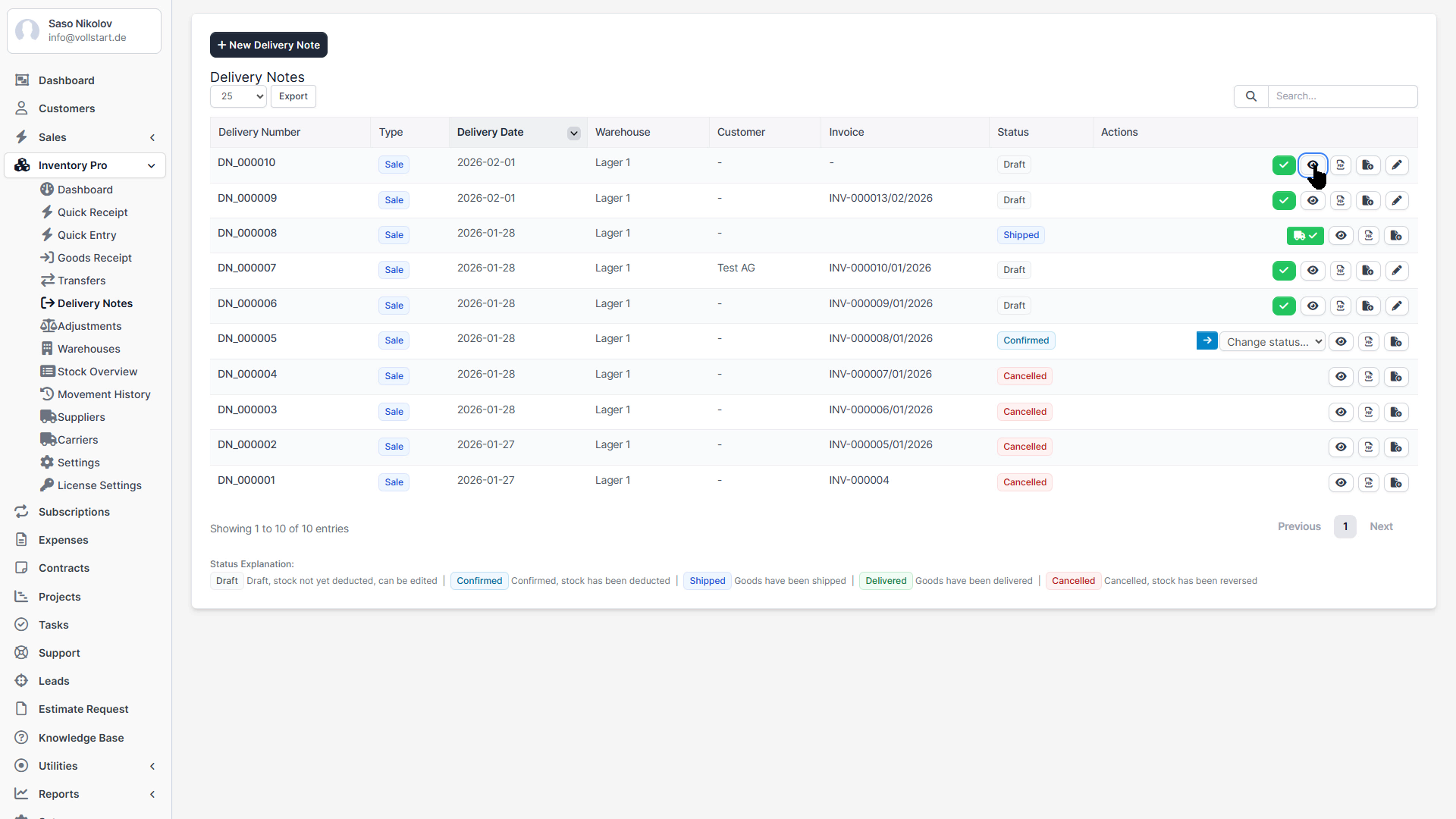
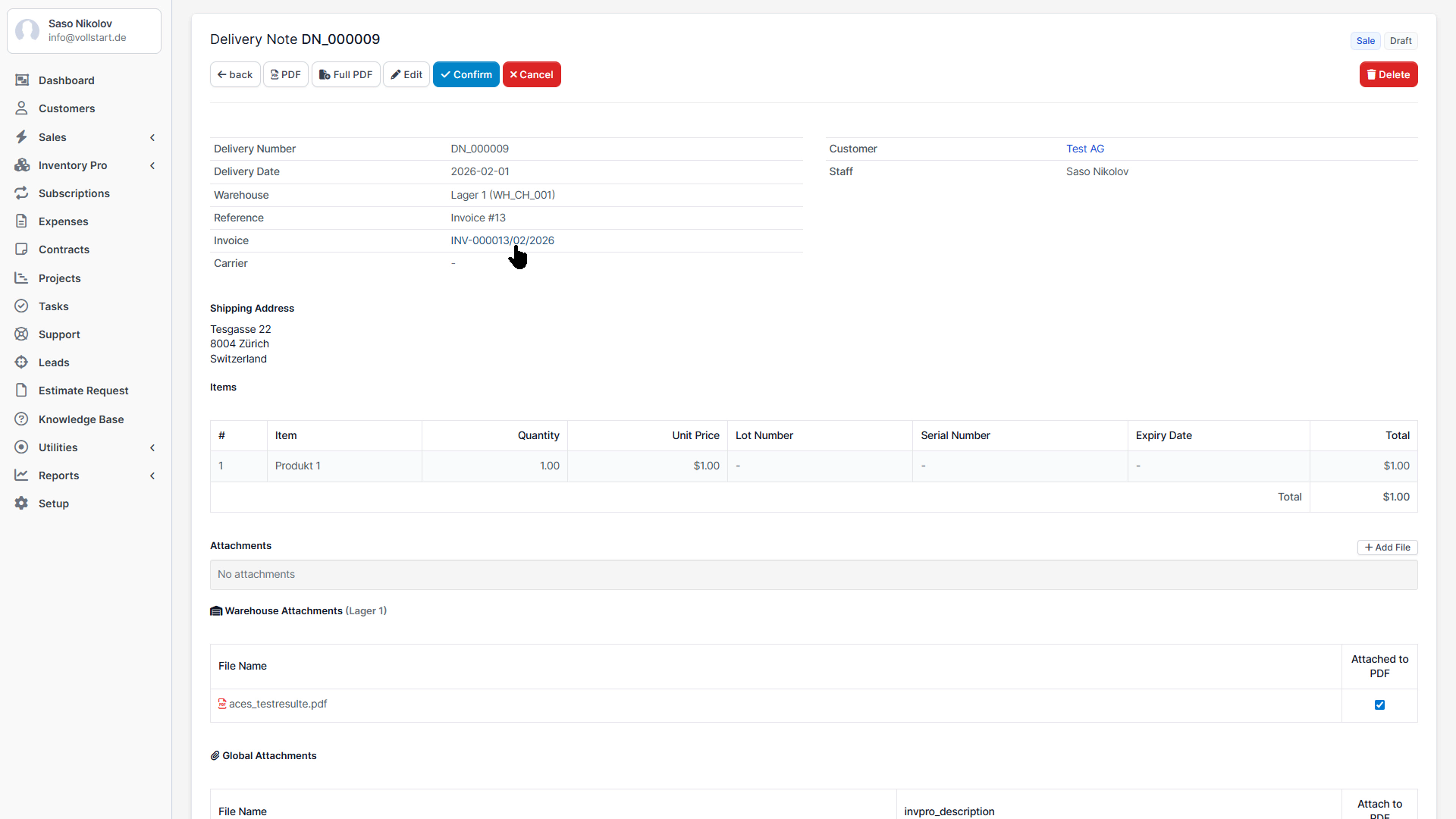
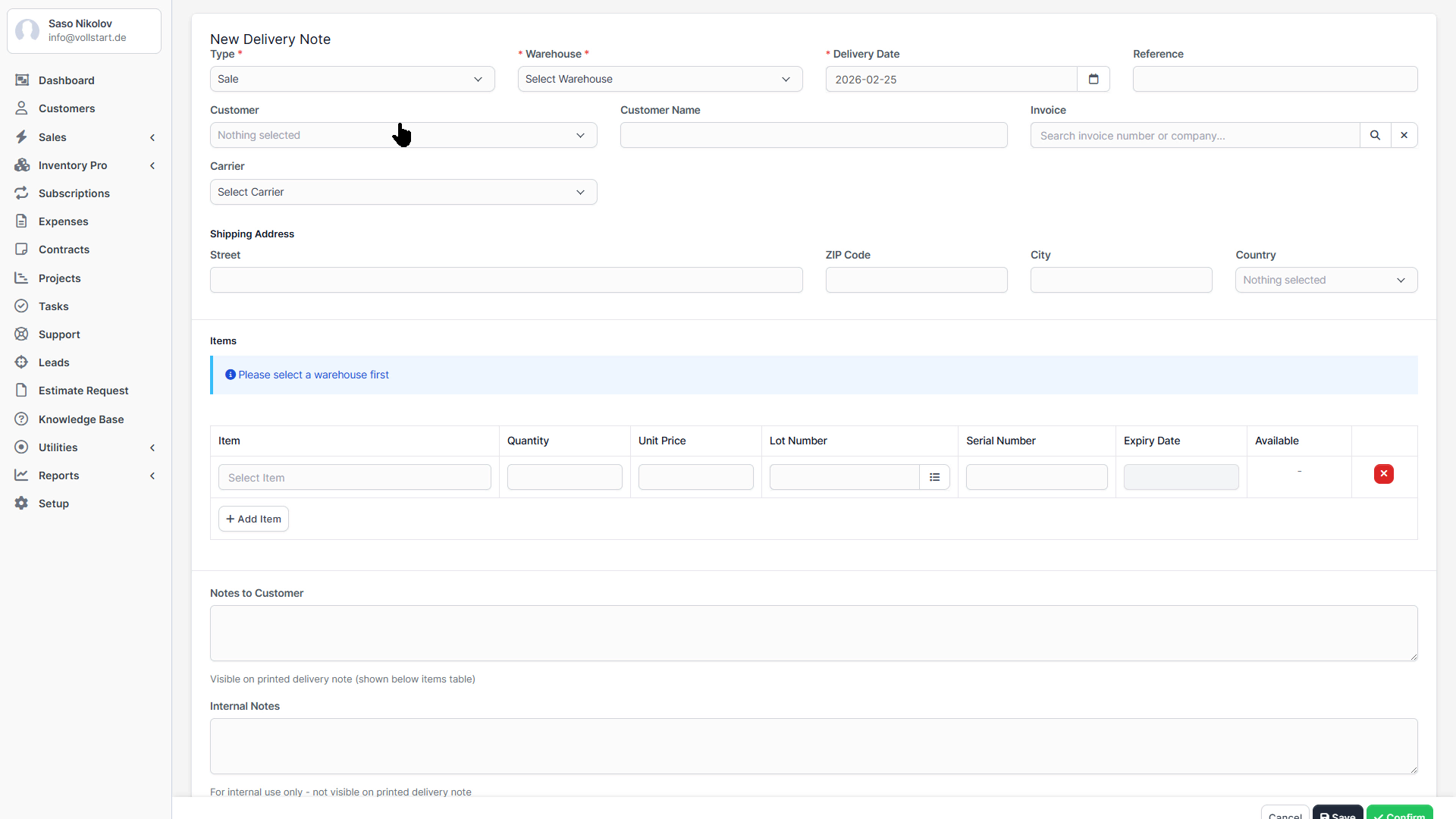
Delivery Note (DN)

Record outgoing stock from a warehouse.

  • Use case: Shipping goods to a customer
  • Required: Source warehouse, items with quantities
  • Optional: Customer, invoice link, shipping info
  • Effect: Decreases stock in source warehouse
  • Auto-create: Can be automatically created when an invoice is generated

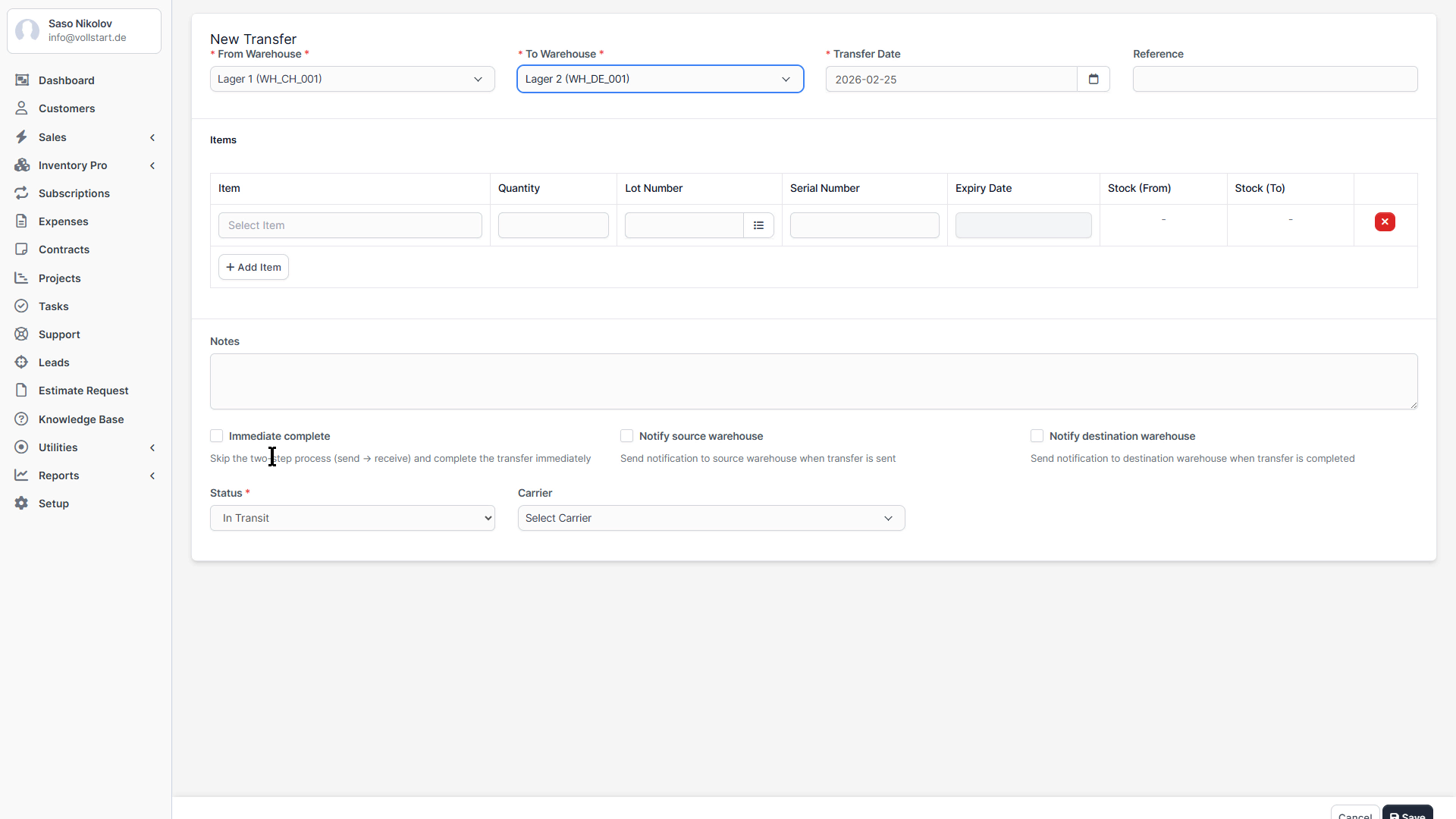
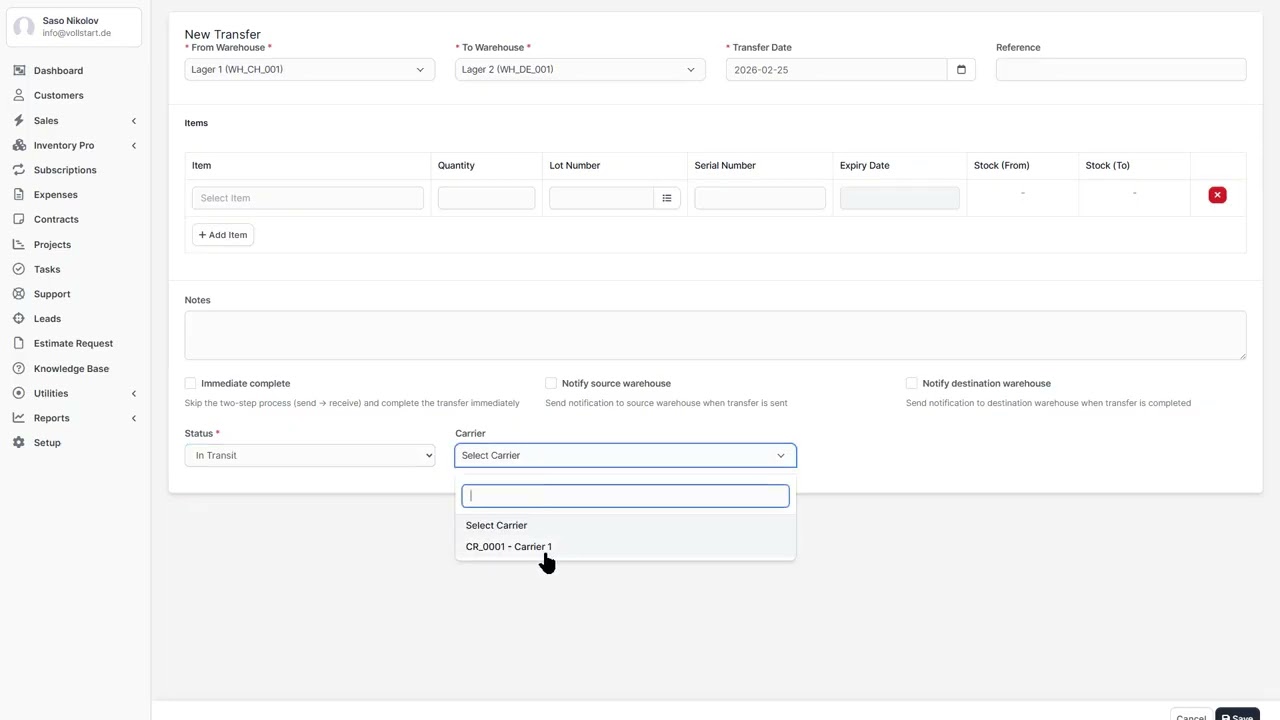
Stock Transfer (ST)

Move stock between warehouses.

  • Use case: Replenishing a branch location from central warehouse
  • Required: Source warehouse, target warehouse, items with quantities
  • Effect: Decreases stock in source, increases in target warehouse

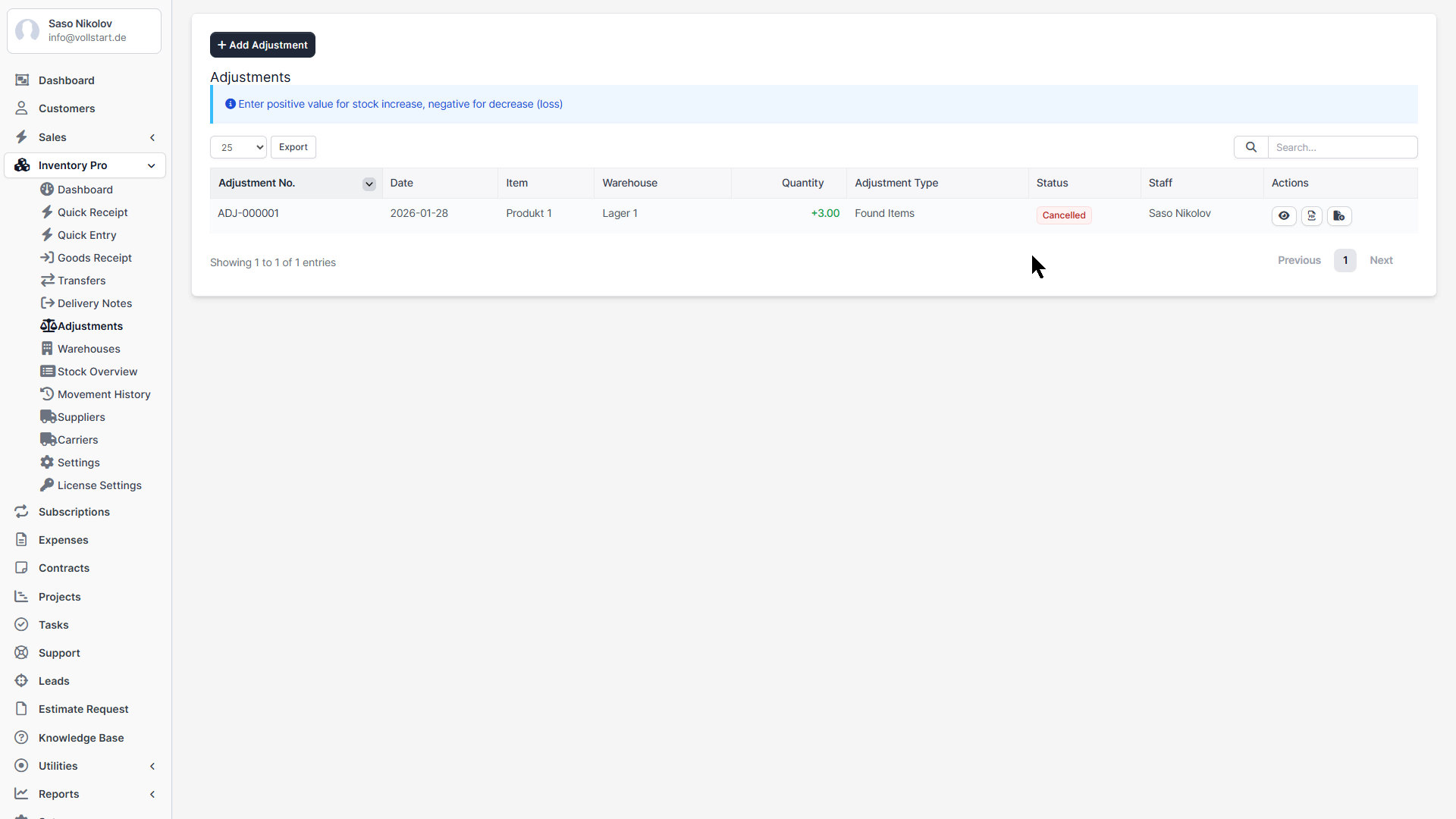
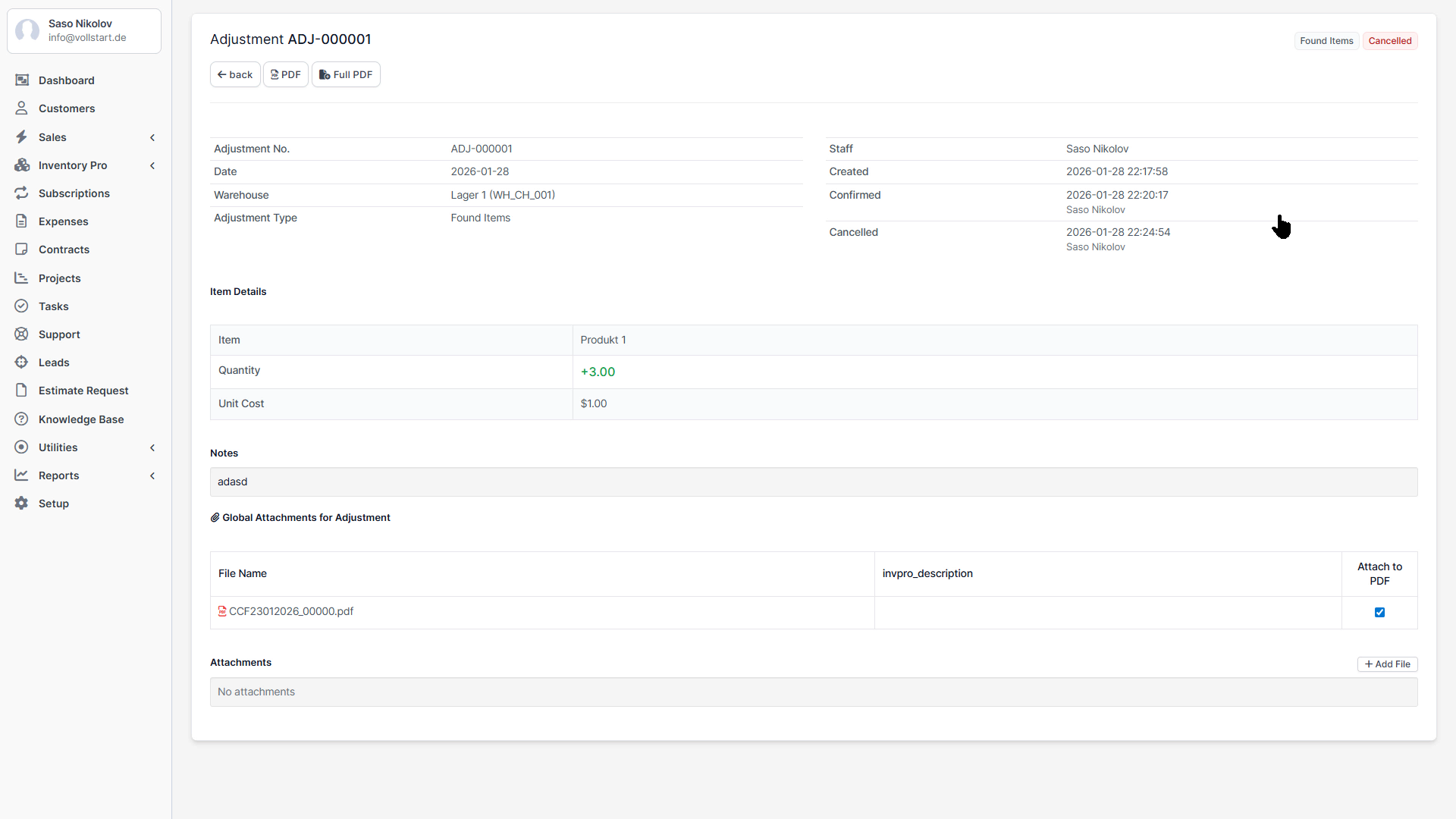
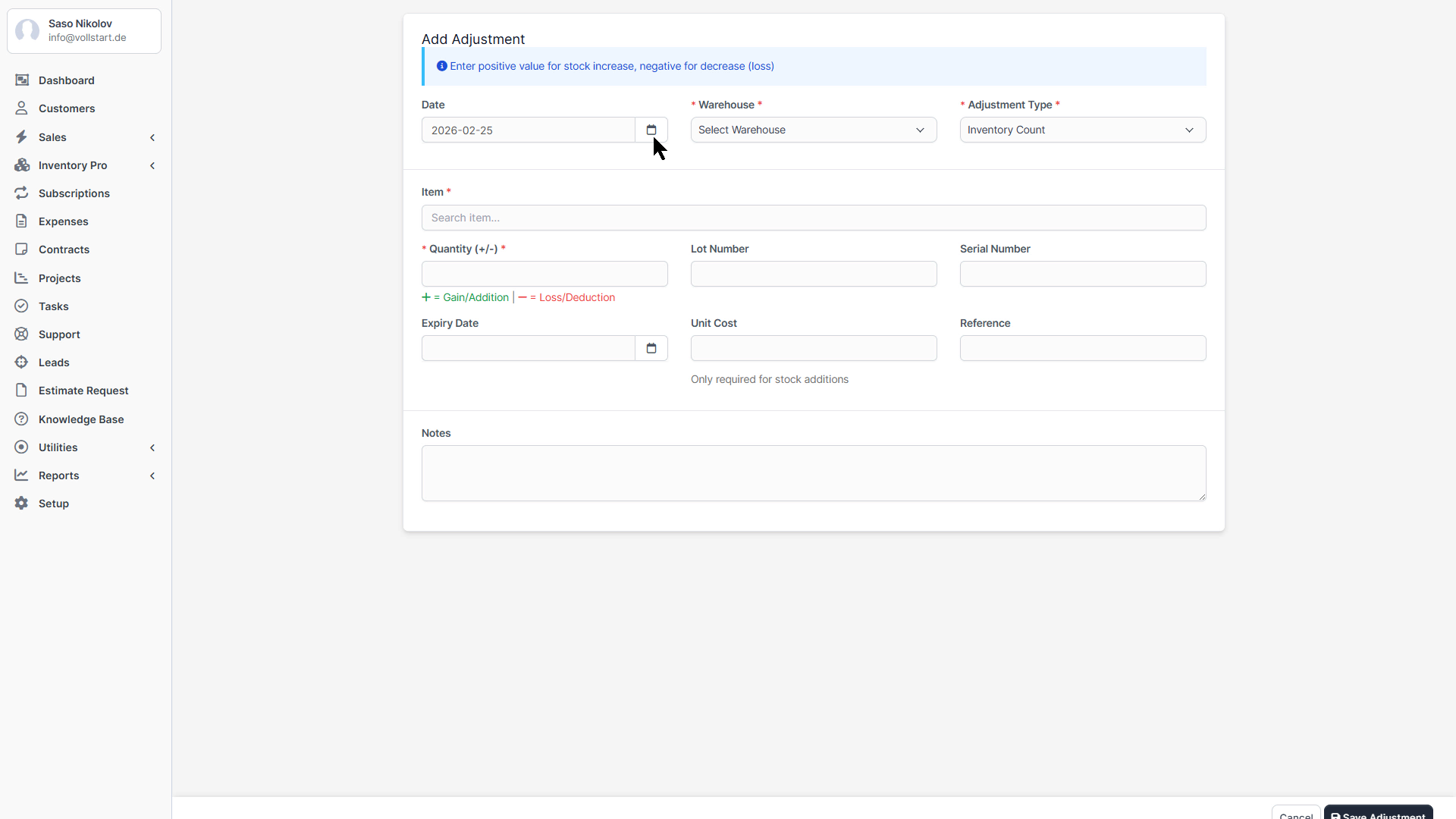
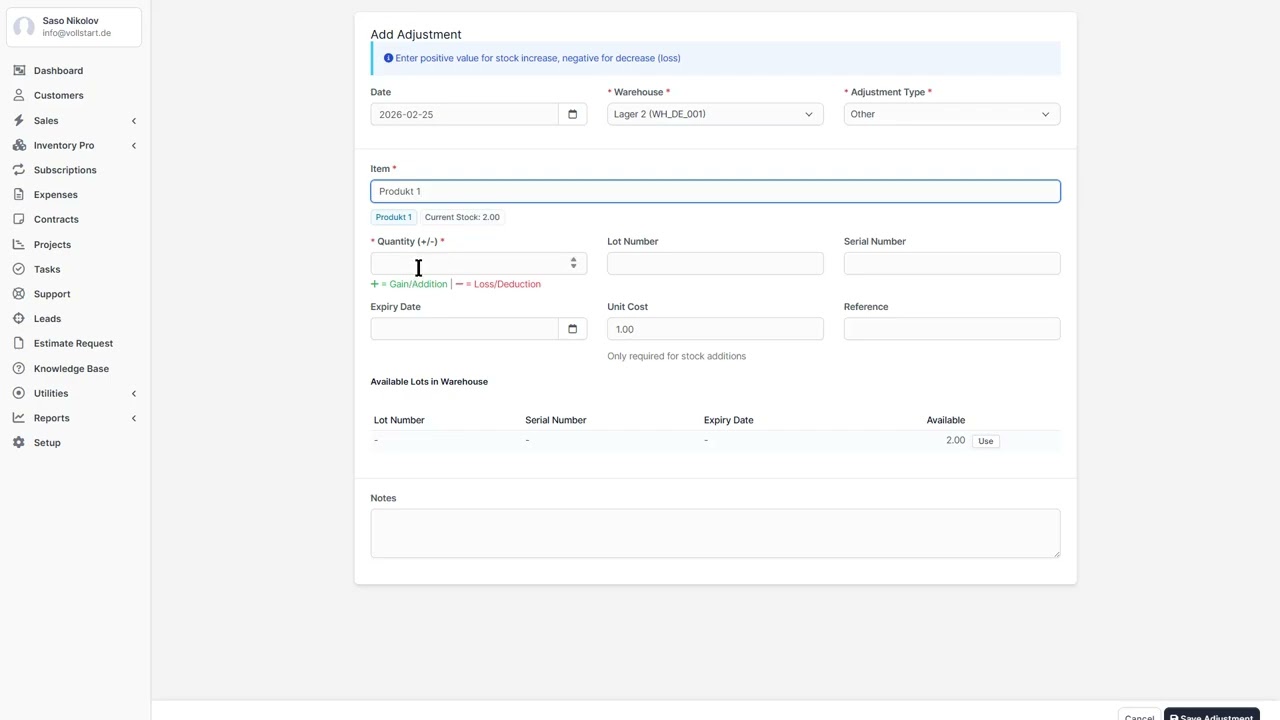
Stock Adjustment (SA)

Correct stock levels with a reason.

  • Use case: Damaged goods, theft, counting errors
  • Required: Warehouse, items with quantities, reason code
  • Reason codes: Damage, Theft, Correction, Write-off, Other
  • Effect: Increases or decreases stock (positive or negative adjustment)

Inventory Count (IC)

Perform physical stock counts.

  • Use case: Annual or periodic stock verification
  • Required: Warehouse, counted quantities per item
  • Output: Variance report (system stock vs. counted stock)
  • Follow-up: Create Stock Adjustments for variances

Document Workflow

StatusDescription
DraftDocument created but not yet confirmed. No stock effect.
ConfirmedDocument confirmed. Stock levels updated.
CancelledDocument cancelled. Stock effect reversed.
Important: Stock levels only change when a document status is set to “Confirmed”. Draft documents have no effect on stock.

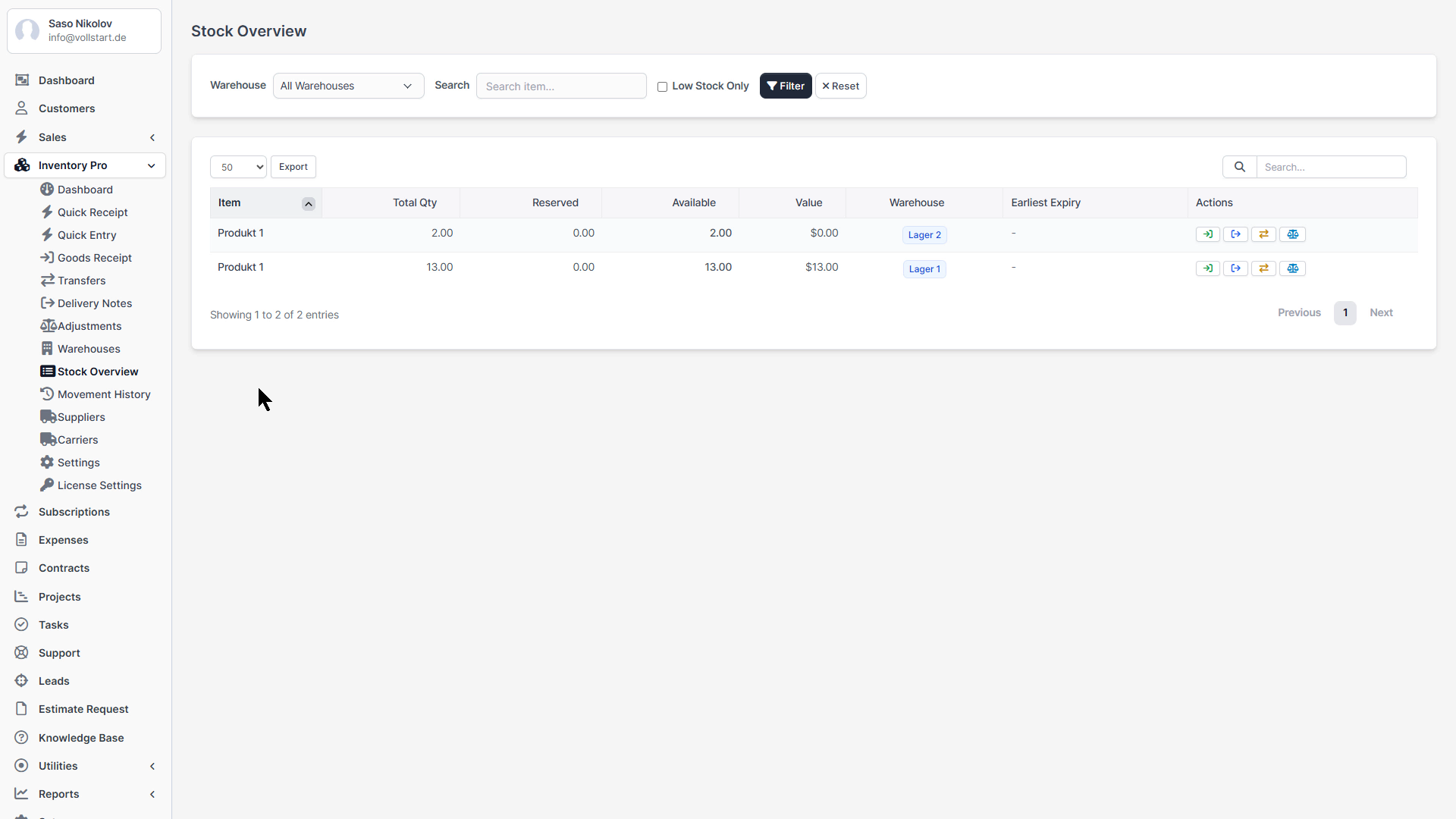
Stock Overview

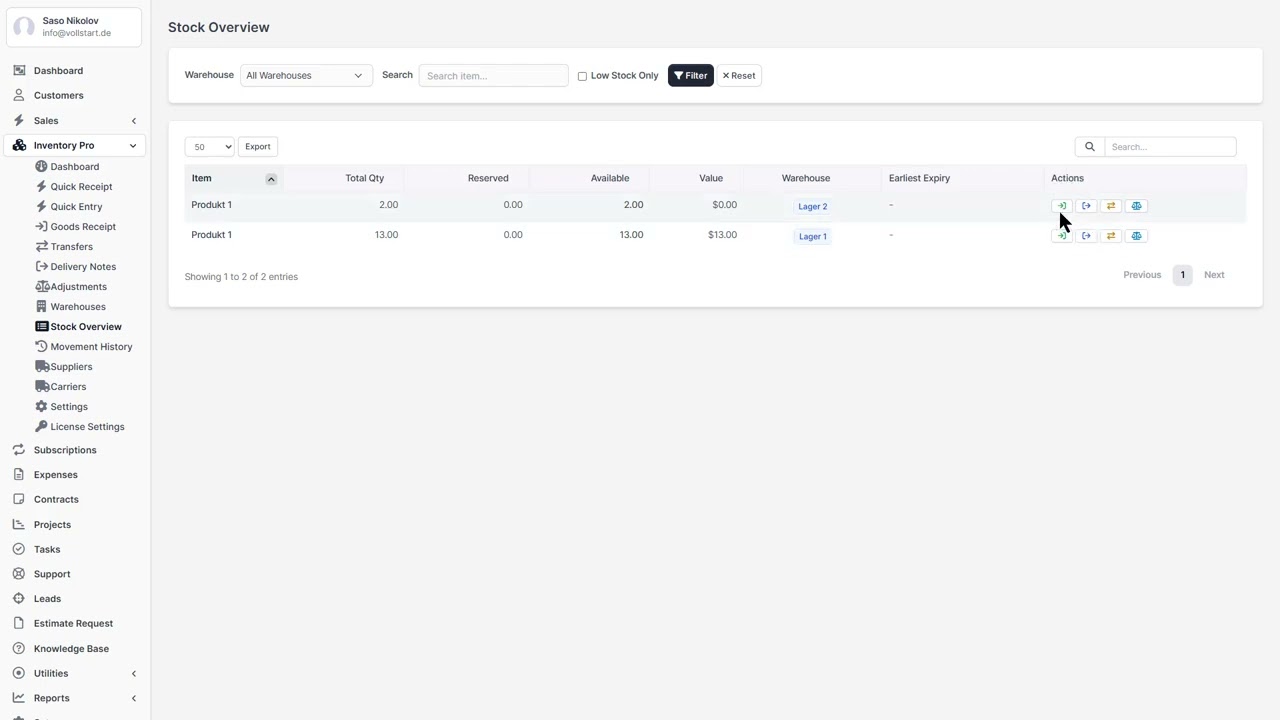
The Stock Overview provides a comprehensive, filterable view of all stock across your warehouses.

Available Filters

  • Warehouse – Filter by specific warehouse
  • Item – Search by item name or SKU (autocomplete)
  • Stock Status – In Stock, Low Stock, Out of Stock, Expired, Expiring Soon
  • Lot/Serial Number – Search by specific lot or serial number

Displayed Information

ColumnDescription
ItemName and SKU
Lot / SerialBatch number and/or serial number
Expiry DateExpiration date (highlighted if expiring soon or expired)
QuantityTotal quantity in stock
ReservedQuantity reserved for pending deliveries
AvailableQuantity − Reserved = actually available
WarehouseStorage location
Unit CostCost per unit (from goods receipt)

Quick Actions

From the stock overview, you can directly:

  • Create Receipt – Pre-populated with item and warehouse
  • Create Delivery – Pre-populated with item and warehouse
  • Create Adjustment – Correct the stock level

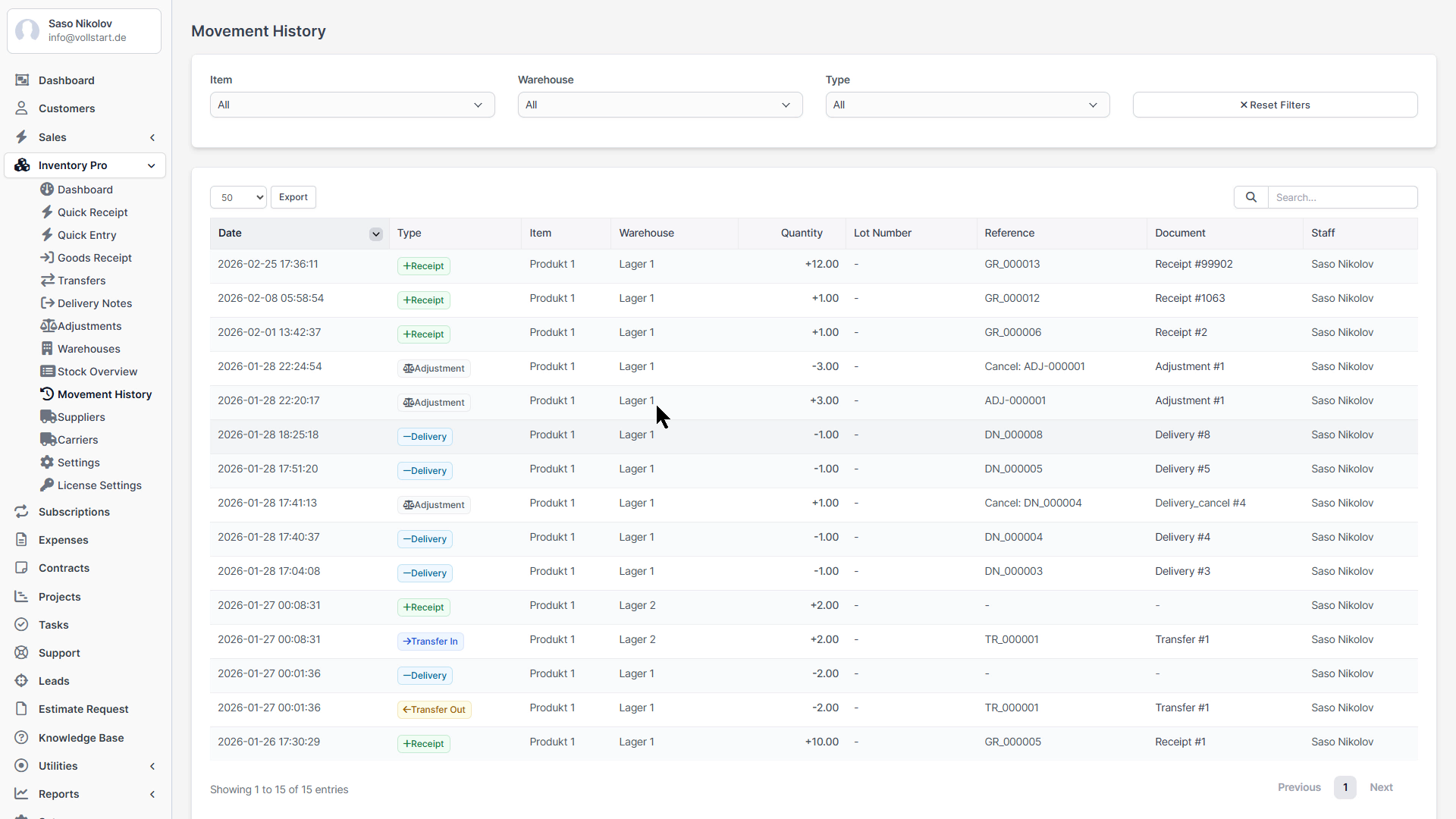
Movement History

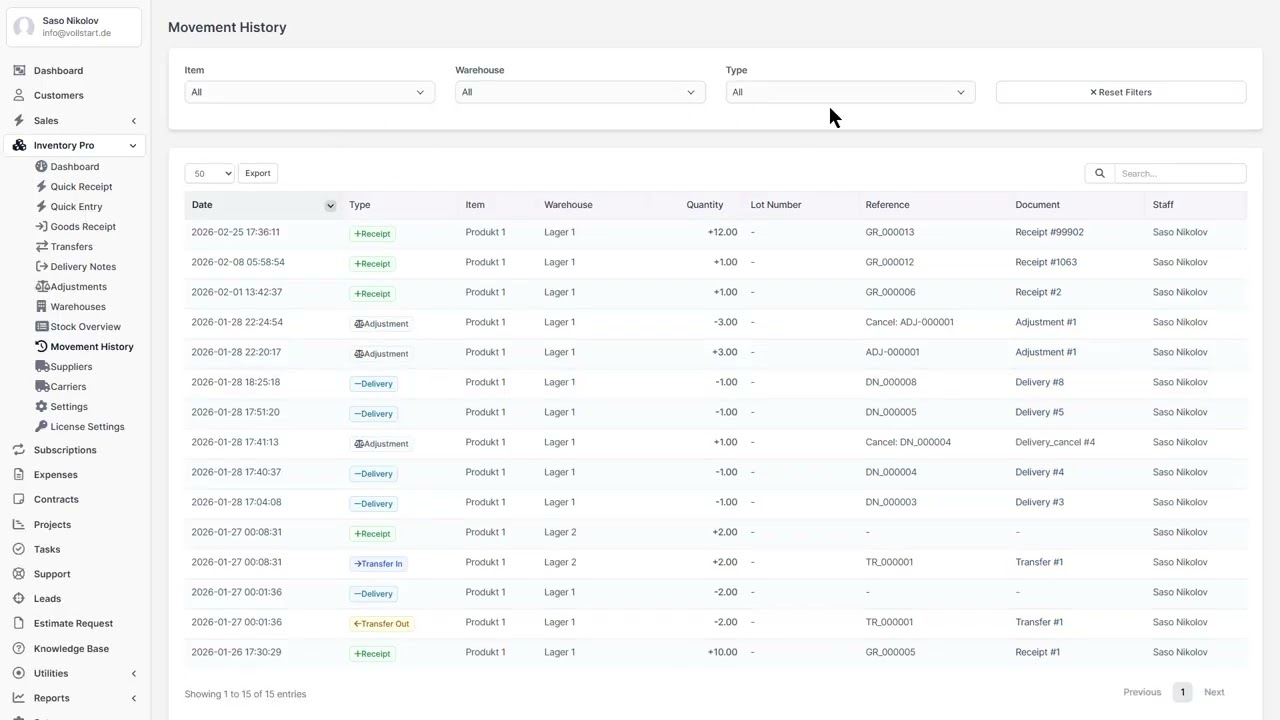
Every stock change is recorded as a movement, creating a complete audit trail. Access via Inventory → Movement History.

Movement Types

TypeTrigger
ReceiptGoods receipt confirmed
DeliveryDelivery note confirmed
Transfer OutTransfer sent from source warehouse
Transfer InTransfer received at destination warehouse
Adjustment InPositive stock adjustment
Adjustment OutNegative stock adjustment
Production InManufacturing output (if Manufacturing Pro active)
Production OutManufacturing consumption (if Manufacturing Pro active)

Tracked Data

  • Quantity Before / After – Stock level before and after the movement
  • Document Reference – Link to the source document (receipt, delivery, transfer, etc.)
  • Staff Member – Who created the movement
  • Timestamp – Exact date and time
  • Lot / Serial – Batch or serial number involved

Filters

  • Movement type (multi-select)
  • Date range
  • Warehouse
  • Item
Tip: Use the movement history for audits, stock reconciliation, and investigating discrepancies.

FIFO / FEFO Valuation

FIFO (First In, First Out)

The oldest stock is consumed first. This is the standard cost flow assumption used in most businesses.

  • Each goods receipt creates a “stock layer” with quantity and cost
  • When stock is consumed (delivery note), the oldest layer is used first
  • Cost of Goods Sold (COGS) is calculated based on the consumed layers

FEFO (First Expired, First Out)

Stock with the earliest expiry date is consumed first. Ideal for perishable goods.

  • Requires batch tracking with expiry dates
  • System suggests batches with nearest expiry date
  • Expired stock alerts and reports

Stock Valuation Report

View the total value of your inventory per warehouse, calculated using FIFO or FEFO.

Batch & Serial Number Tracking

Batch/Lot Numbers

  • Assign batch numbers during goods receipt
  • Track which batches were delivered to which customers
  • Expiry date per batch for FEFO
  • Full traceability: batch → goods receipt → delivery notes

Serial Numbers

  • Assign unique serial numbers to individual items
  • Track each unit from receipt to delivery
  • Useful for electronics, equipment, high-value items
Tip: Enable batch or serial tracking per item in the item settings. You can mix items with and without tracking in the same warehouse.

Stock Reservations

Reservations prevent overselling by holding stock for pending orders or deliveries.

How Reservations Work

  1. When a delivery note is created in Draft status, the required stock is reserved
  2. Reserved stock is excluded from the “Available” quantity (Available = Total − Reserved)
  3. When the delivery is confirmed, the reservation is consumed and stock is deducted
  4. When the delivery is cancelled, the reservation is released

Expiration

Reservations can have an expiry time. If a draft delivery is not confirmed before the reservation expires, the stock becomes available again. This prevents indefinite blocking of stock.

Note: Reservations are managed automatically. You don’t need to create or release them manually – the system handles this based on document status changes.

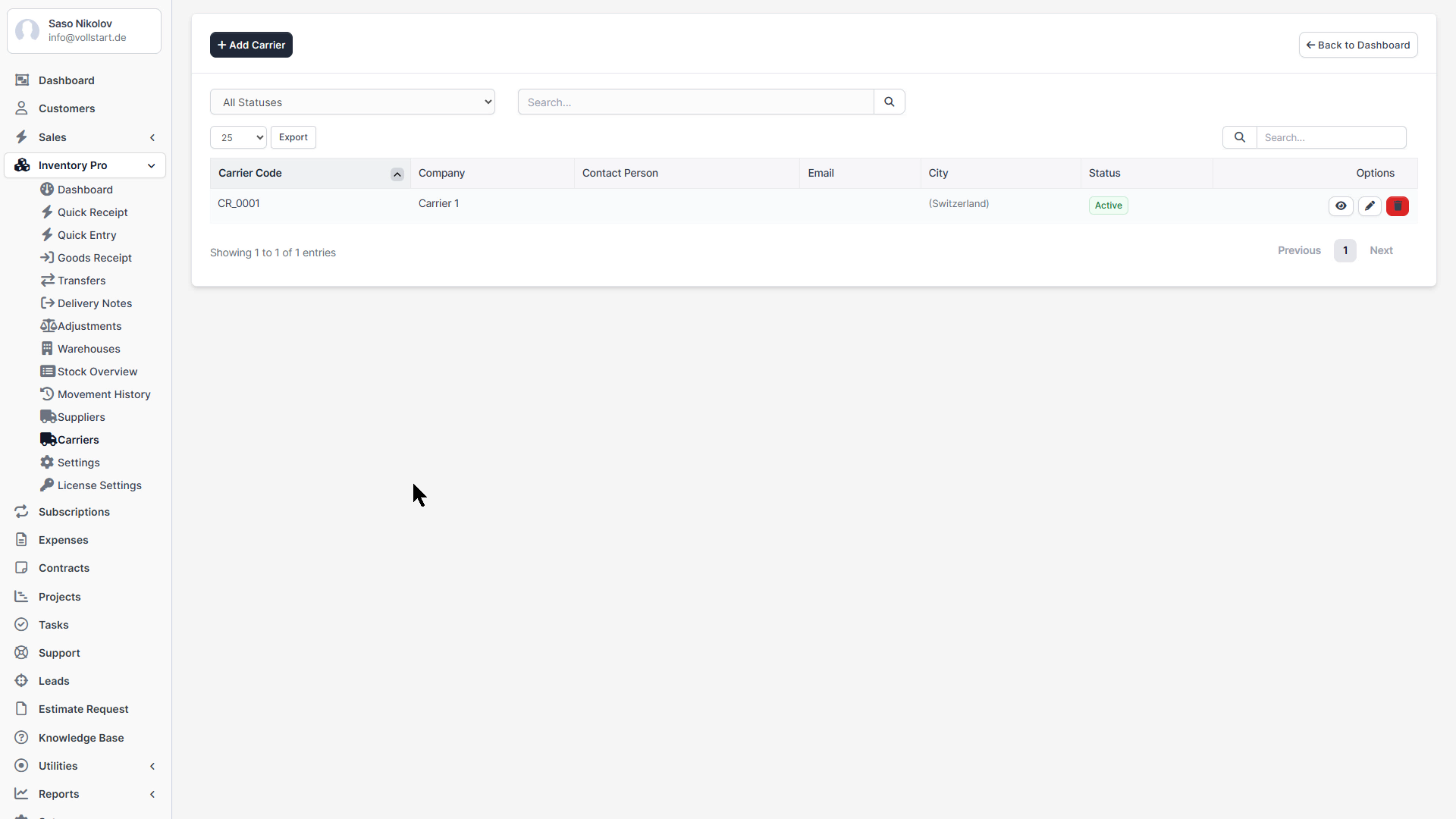
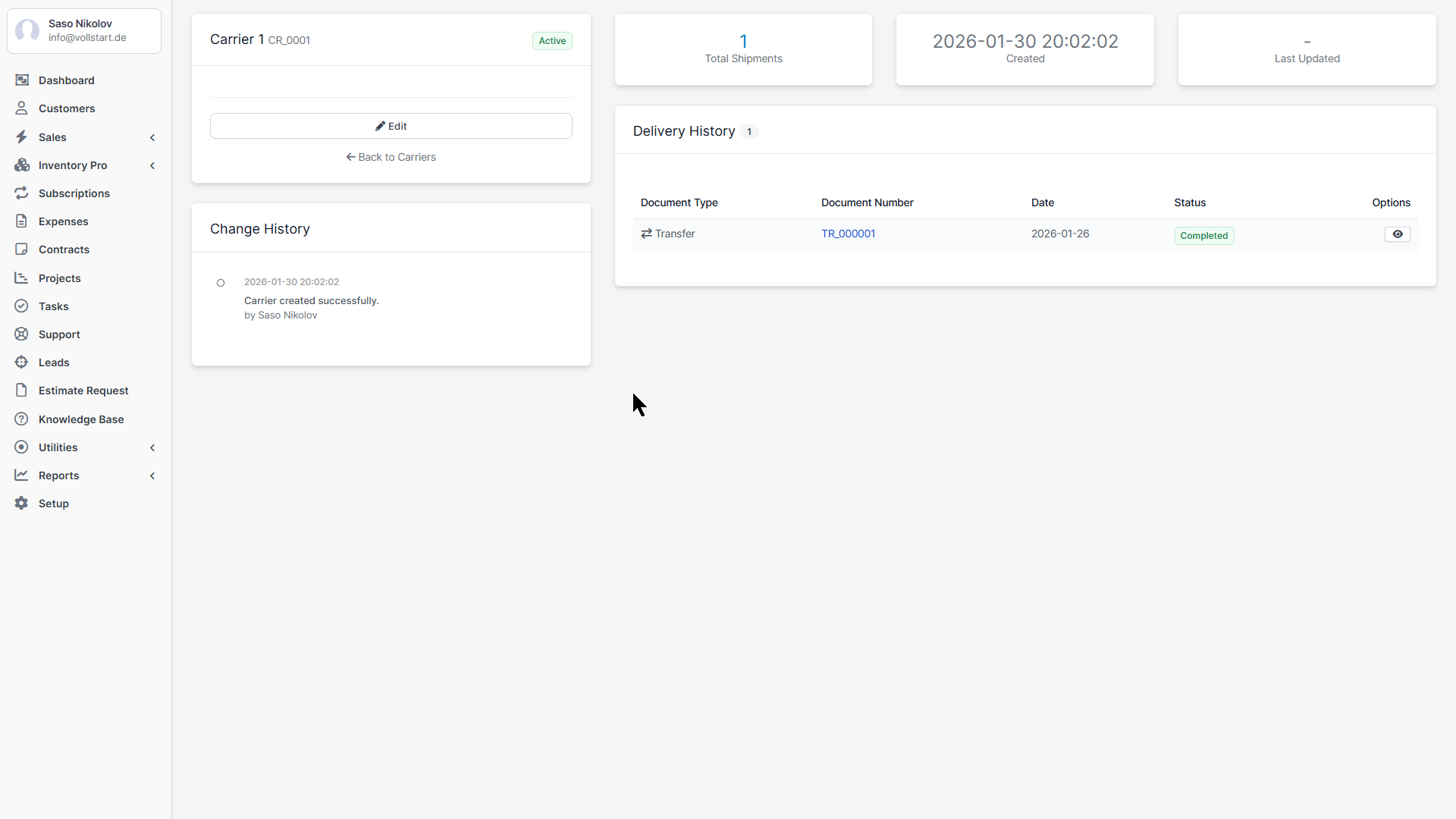
Carrier Management

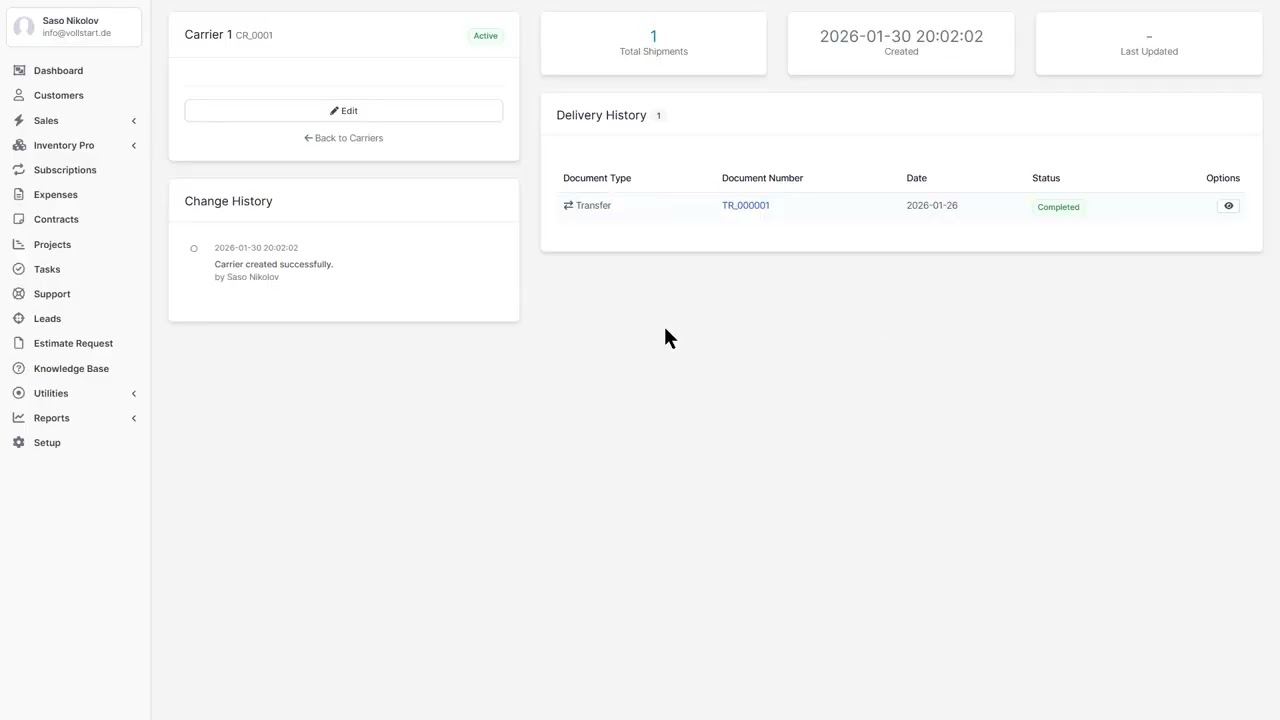
Manage your shipping carriers and freight companies. Access via Inventory → Carriers.

Carrier Information

  • Code – Short code (e.g., “DHL”, “FDX”, “UPS”)
  • Company Name – Full name
  • Contact Details – Address, email, phone, website
  • Status – Active / Inactive
  • Notes – Internal notes

Carrier Documents

Attach documents to carriers that can be automatically included in delivery and transfer PDFs:

  • Shipping label templates
  • Tracking sheets
  • Standard operating procedures

Mark a document as “Attach to PDF” to automatically merge it when generating delivery or transfer documents.

Usage in Documents

When creating a delivery note, transfer, or goods receipt, you can select a carrier from the dropdown. The carrier’s tracking number field will appear for shipment tracking.

Note: If you have the Logistic Pro module installed, carrier management is handled there instead. Inventory Pro will redirect to Logistic Pro automatically.

Client Settings

Assign a default warehouse per client to streamline delivery note creation.

Setup

  1. Go to Customers → [Client Name]
  2. Click the Inventory Pro tab (after Billing/Shipping)
  3. Select a Default Warehouse from the dropdown
  4. Click Save

When creating a delivery note for this client, the selected warehouse will be pre-selected automatically.

Tip: This is especially useful for B2B clients who always receive from the same warehouse or distribution center.

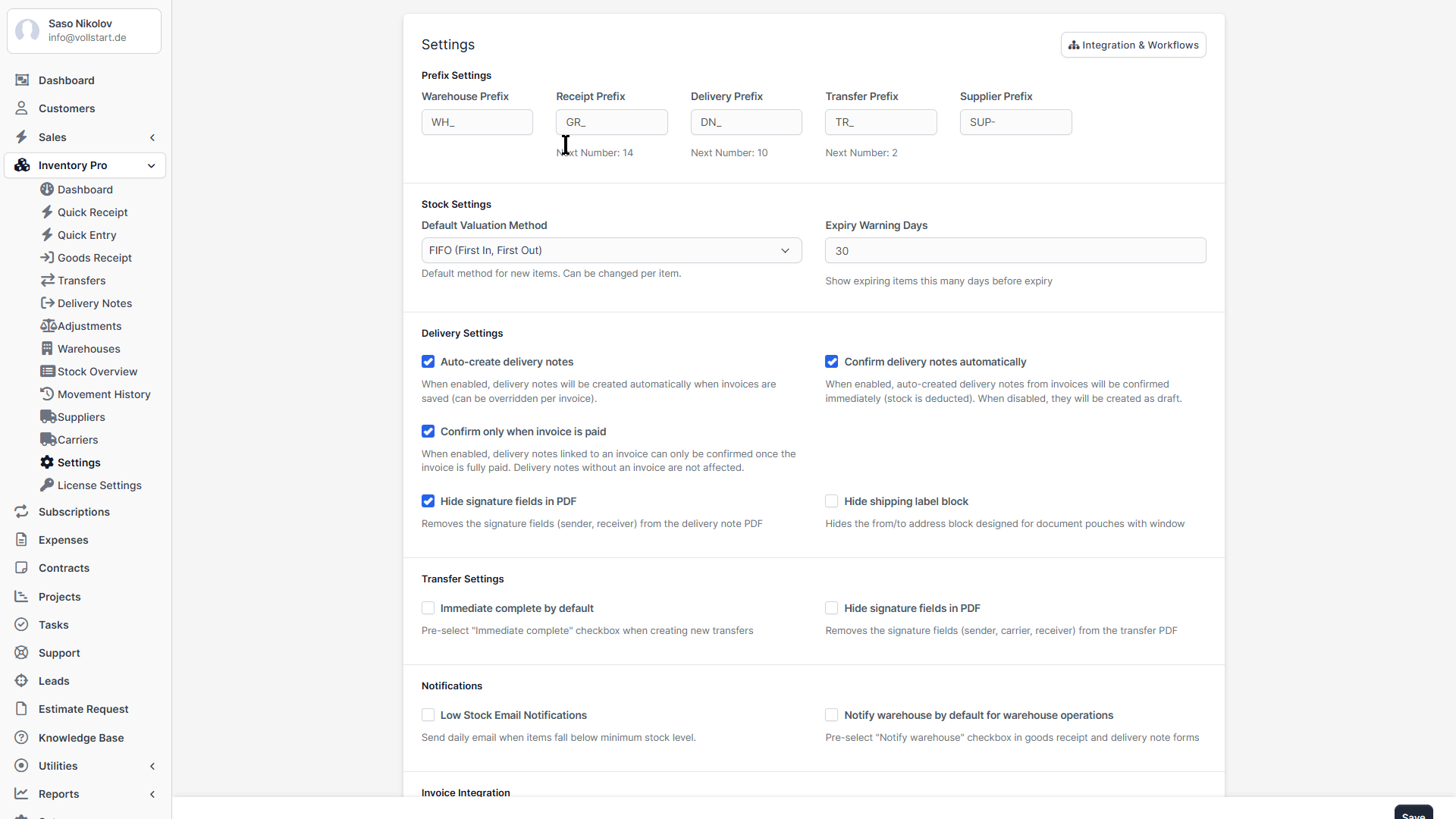
Settings

General Settings

SettingDefaultDescription
Default Valuation MethodFIFOFIFO or FEFO for stock valuation
Auto Delivery NoteOFFAuto-create DN when invoice is generated
Allow Negative StockOFFAllow outgoing documents when stock is zero
Document Number PrefixGR-, DN-, ST-, SA-, IC-Prefix for document numbers per type
Default Warehouse(first created)Pre-selected warehouse in forms

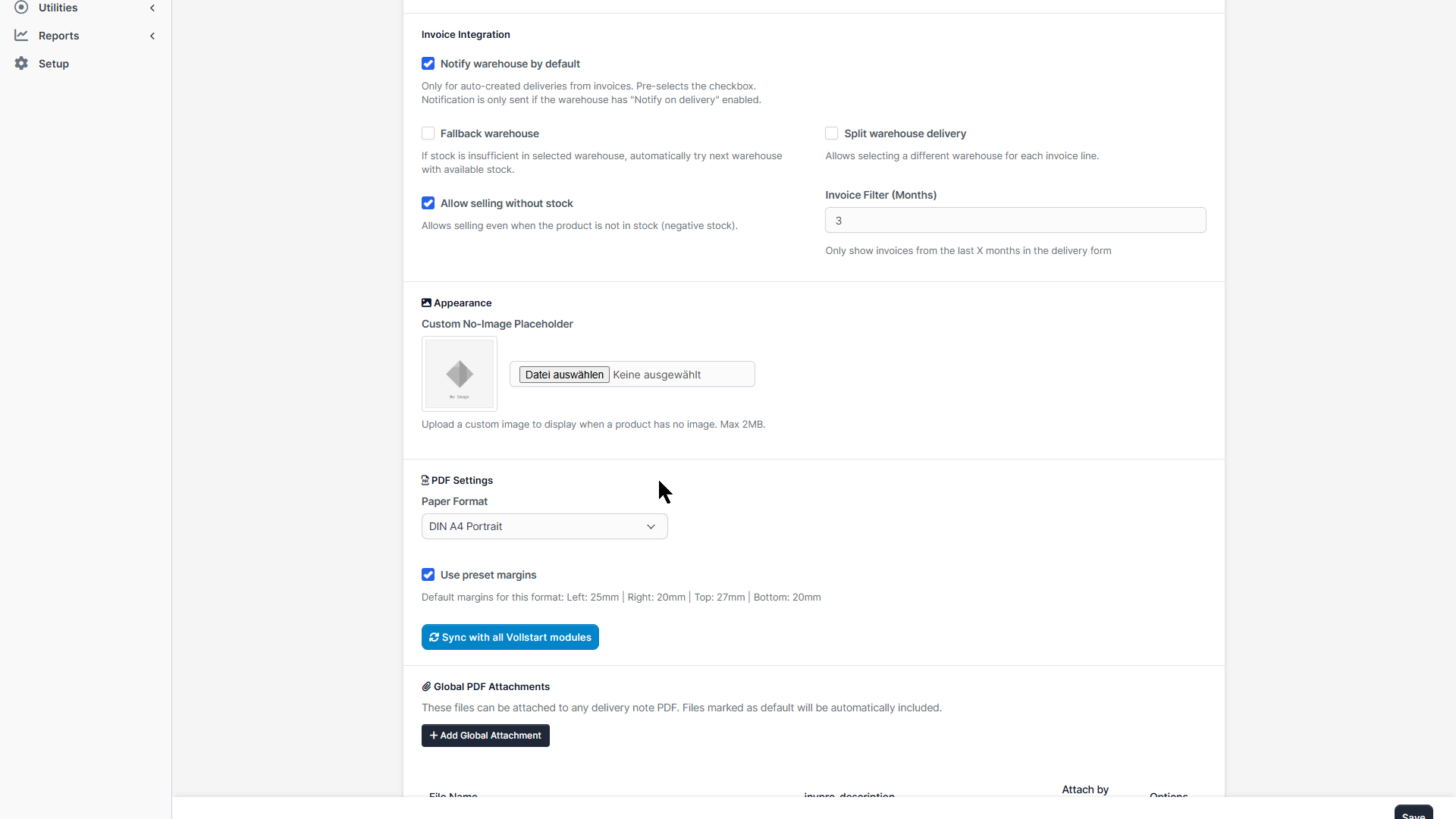
PDF Settings

SettingDescription
Company LogoLogo displayed on PDF documents
Terms & ConditionsText printed on documents
Footer TextCustom footer for PDFs

Invoice Integration

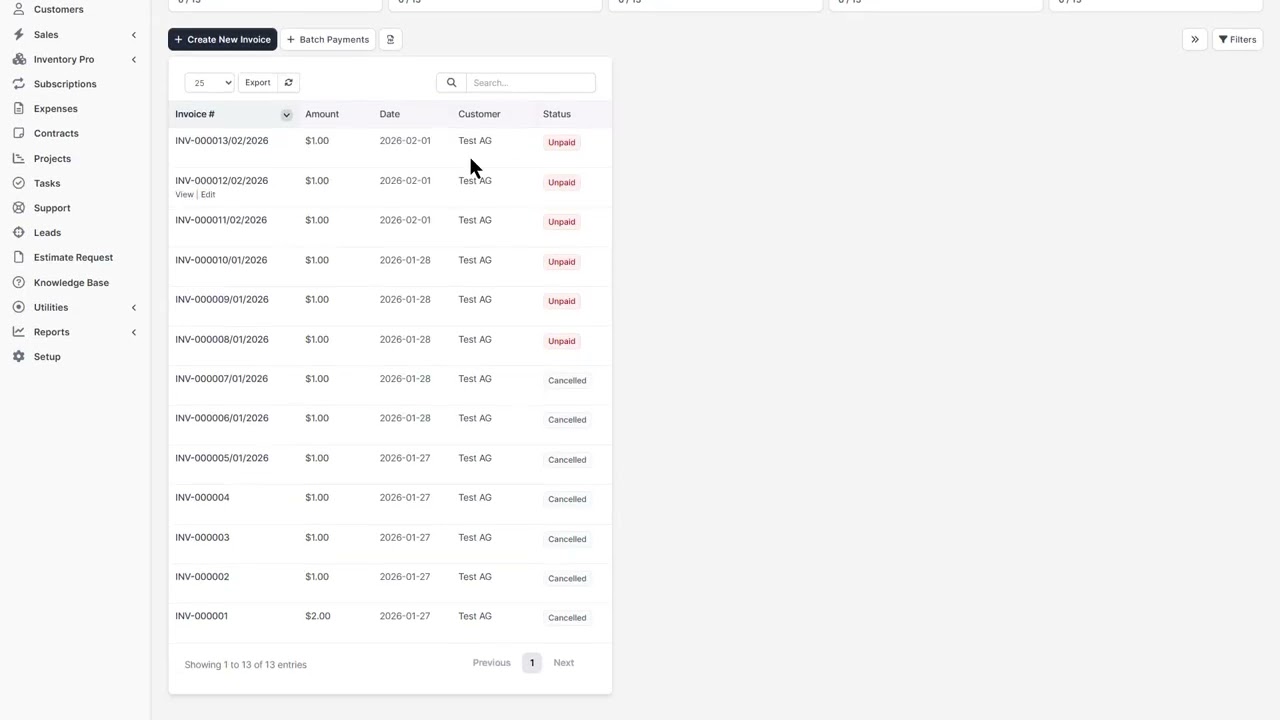
Inventory Pro integrates deeply with Perfex CRM invoices to automatically create delivery notes when invoices are generated.

Auto-Delivery Note Workflow

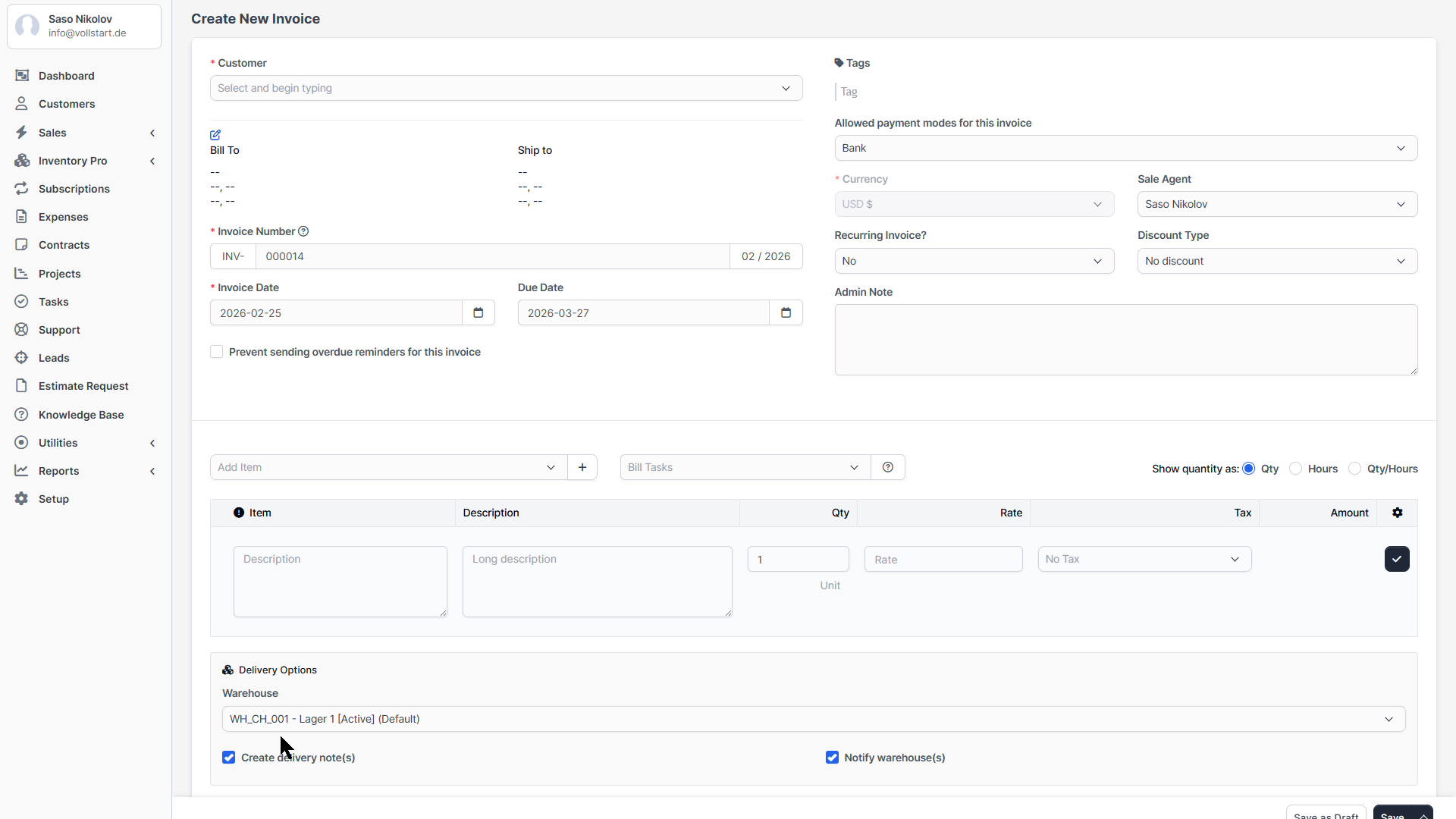
  1. Create an invoice with items that are linked to inventory items
  2. Select the warehouse per invoice line (or use the client’s default warehouse)
  3. When the invoice is created, Inventory Pro automatically generates delivery notes
  4. If multiple warehouses are selected, one delivery note per warehouse is created
  5. Optionally: delivery notes are auto-confirmed (configurable in Settings)

Per-Line Warehouse Selection

On the invoice form, each line item shows a warehouse selector. This allows you to fulfill different items from different warehouses in a single invoice.

Fallback Logic

  1. Per-line warehouse selection (if set)
  2. Client’s default warehouse (if configured in Client Settings)
  3. System default warehouse (from module Settings)

Invoice Cancellation

When an invoice is cancelled, related delivery notes are automatically cancelled and stock is reversed.

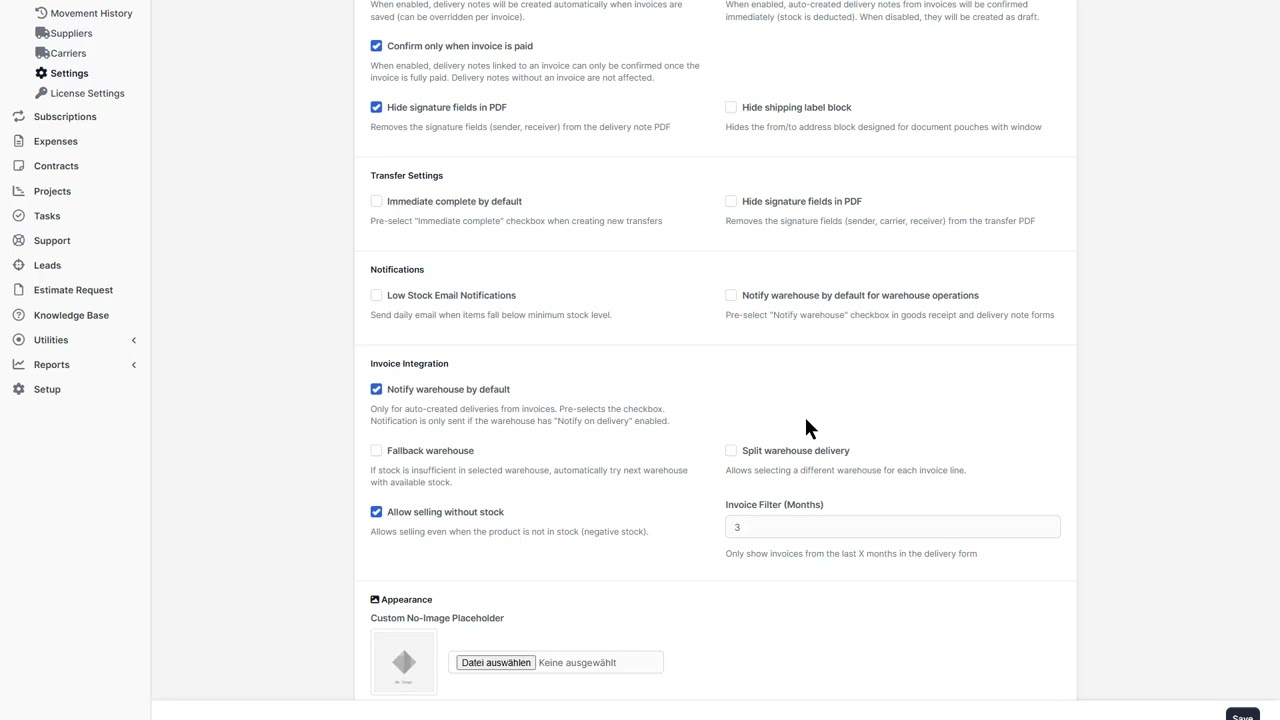
Note: Enable auto-delivery notes in Settings → Delivery → Auto Delivery Note from Invoice.

Email Notifications

Inventory Pro sends three types of email notifications, all configurable via Setup → Email Templates → Inventory Pro.

Delivery Notification

  • Trigger: Delivery note confirmed
  • Recipients: Warehouse contacts (based on notification settings)
  • Content: Delivery number, date, items, customer, shipping address

Receipt Notification

  • Trigger: Goods receipt confirmed
  • Recipients: Warehouse contacts (based on notification settings)
  • Content: Receipt number, date, items, supplier, quantities

Low Stock Notification

  • Trigger: Daily cron job at configured hour
  • Recipients: Warehouse staff → Default email → All admins (fallback chain)
  • Content: Table of items below minimum stock level, grouped by warehouse

Configuration

SettingLocationDefault
Enable Low Stock AlertsSettings → NotificationsOn
Notification HourSettings → Notifications9:00
Default RecipientSettings → NotificationsAdmin email
Expiry Warning DaysSettings → General30 days

Template Merge Fields

Available in all templates:

  • {invpro_delivery_number}, {invpro_receipt_number} – Document number
  • {invpro_warehouse_name}, {invpro_warehouse_code} – Warehouse info
  • {invpro_delivery_items}, {invpro_receipt_items} – HTML item table
  • {invpro_customer_name}, {invpro_supplier_company} – Contact info
  • {invpro_low_stock_items}, {invpro_low_stock_count} – Low stock data

PDF Configuration

Configure the format and appearance of PDF documents generated by Inventory Pro.

Format Presets

PresetDimensionsMargins (L/R/T/B)
A4 Portrait210 × 297 mm25 / 20 / 27 / 20 mm
A4 Landscape297 × 210 mm25 / 20 / 27 / 20 mm
US Letter Portrait216 × 279 mm25 / 20 / 27 / 20 mm
US Letter Landscape279 × 216 mm25 / 20 / 27 / 20 mm
CustomUser-definedUser-defined

PDF Documents Available

  • Goods Receipt PDF – Receipt details with items, lot/serial numbers, costs
  • Delivery Note PDF – Delivery details with items, shipping info, optional signature field
  • Transfer PDF – Transfer details with from/to warehouses, carrier info
  • Adjustment PDF – Adjustment details with reason codes, before/after quantities
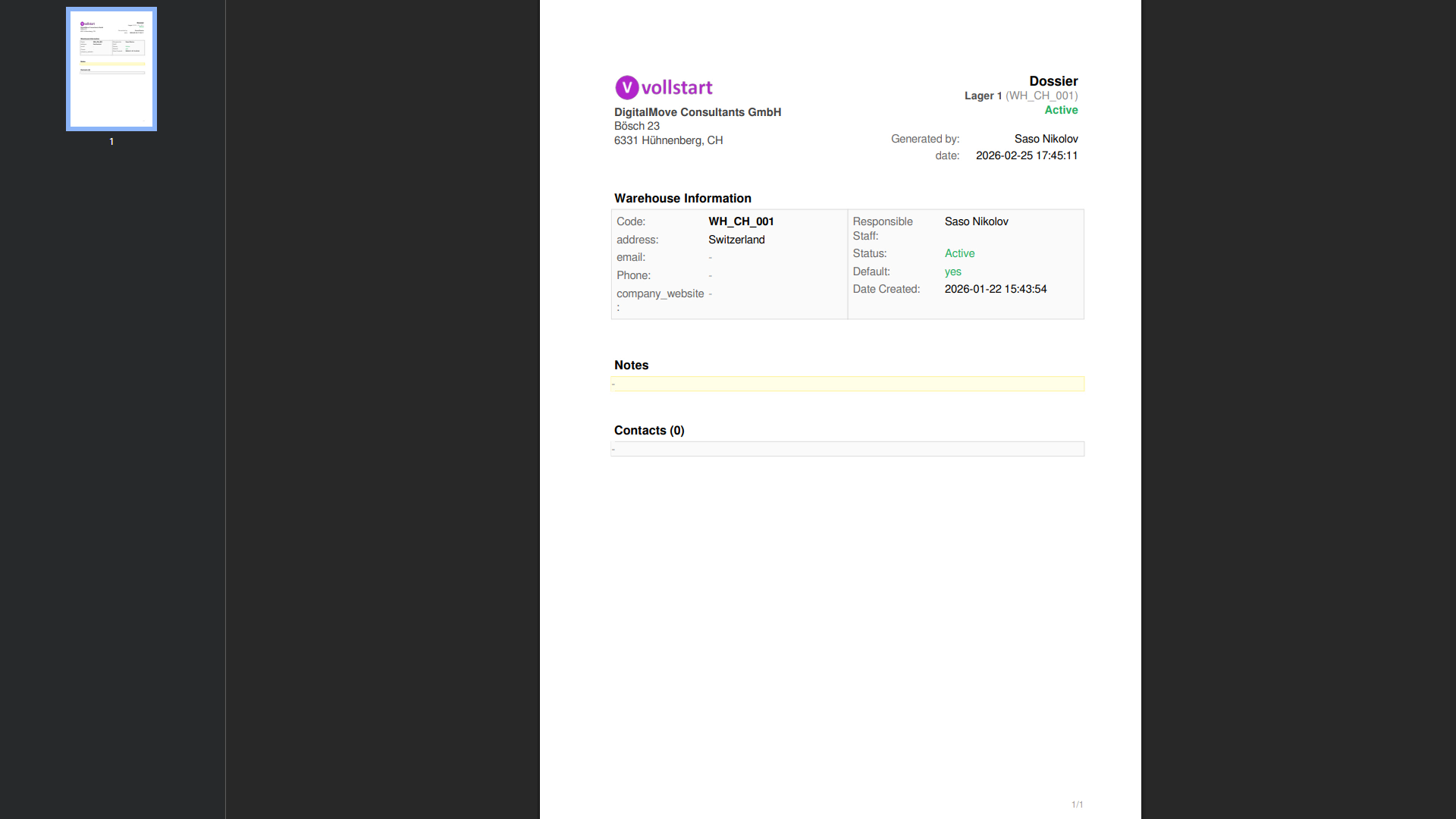
  • Warehouse Dossier – Complete warehouse report with contacts, stock summary

Full PDF Merge (Delivery Notes)

Delivery note PDFs can automatically merge attached documents:

  • Image attachments (JPG, PNG, GIF) are added as new pages
  • PDF attachments are imported and appended (preserving original layout via FPDI)
  • Only attachments marked “Attach to PDF” are included
  • Carrier documents marked for attachment are also merged
Tip: Access the Full PDF via the “Download Full PDF” button on the delivery note detail page.

Signature Fields

Delivery notes and transfers can include signature fields at the bottom of the PDF (configurable in Settings). Options:

  • Hide Signatures – Remove signature fields from PDFs
  • Hide Shipping Label – Remove the shipping label section from delivery PDFs

Global Attachments

Global attachments are reusable documents that can be automatically included with specific document types.

Document Types

Global attachments can be configured per document type:

  • Delivery note attachments (e.g., packing slips, terms & conditions)
  • Receipt attachments (e.g., receiving checklists)
  • Transfer attachments (e.g., chain of custody forms)
  • Adjustment attachments (e.g., audit forms)

Options per Attachment

OptionDescription
DefaultAutomatically included when creating a new document of this type
Attach to PDFMerged into the generated PDF document

Setup

  1. Go to Inventory → Settings → Attachments
  2. Select the document type tab (Delivery, Receipt, Transfer, Adjustment)
  3. Upload files and configure options
Tip: Use global attachments for standardized documents like packing instructions, safety data sheets, or return policies that apply to all shipments.

Supplier Warehouse Mapping

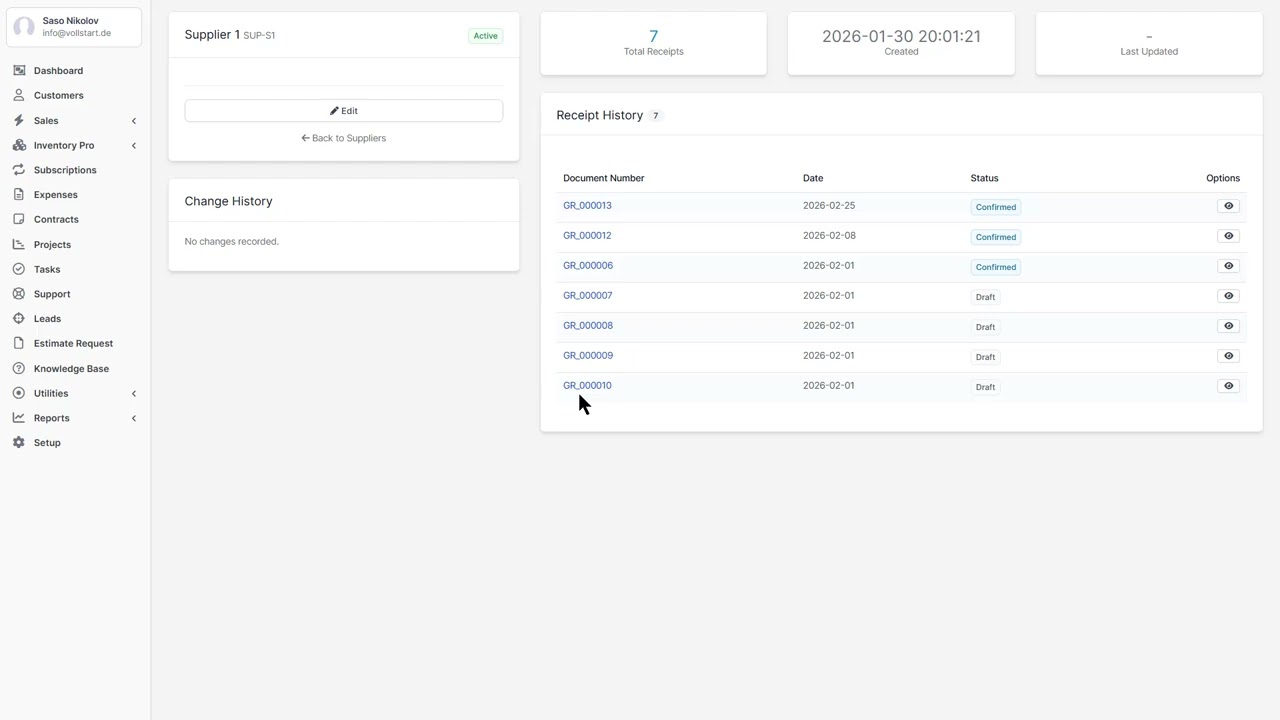
When using Purchase Pro, you can assign a default warehouse to each supplier. This means goods receipts from that supplier automatically pre-select the correct warehouse.

Setup

  1. Go to Purchase Pro → Suppliers → [Supplier Name]
  2. In the Inventory Pro section, select a Default Warehouse
  3. When creating a goods receipt from a purchase order, the warehouse is pre-filled
Note: This feature requires the Purchase Pro module to be installed and active.

Permissions

Inventory Pro uses the Perfex CRM permission system. Assign permissions per staff role:

PermissionDescription
View InventoryView warehouses, items, documents, and reports
Create InventoryCreate new warehouses, items, and documents
Edit InventoryEdit existing warehouses, items, and documents
Delete InventoryDelete warehouses, items, and documents

Navigate to Setup → Roles to configure permissions.

Integrations

Perfex CRM Core

  • Invoices: Auto-create delivery note when invoice is added
  • Items: Link inventory items to Perfex CRM items
  • Customers: Associate delivery notes with customers

VOLLSTART Modules (Optional)

  • Purchase Pro: Goods receipts from purchase orders
  • Manufacturing Pro: Consume raw materials, produce finished goods
  • Shop Pro: Fulfill B2B orders with delivery notes
  • Logistic Pro: Add carrier and tracking info to deliveries
Note: Integration modules are optional. Inventory Pro works fully standalone. When a VOLLSTART module is detected, additional features are automatically enabled.

Troubleshooting

Module Not Appearing in Menu

  • Check that the module is activated in Setup → Modules
  • Verify your user role has “View Inventory” permission
  • Clear browser cache and reload

Stock Levels Not Updating

  • Documents must be in “Confirmed” status to affect stock
  • Draft documents do not change stock levels
  • Check the document status in the document detail page

PDF Generation Fails

  • Ensure the uploads/ directory is writable by the web server
  • Check PHP error logs for detailed error messages
  • Verify that the dompdf or tcpdf library is available (included with Perfex CRM)

Auto Delivery Note Not Created

  • Check that “Auto Delivery Note” is enabled in Inventory Settings
  • A default warehouse must be configured
  • The invoice items must be linked to inventory items

Uninstallation

  1. Go to Setup → Modules
  2. Find “Inventory Pro” and click Deactivate
  3. Optionally click Uninstall to remove module data
Warning: Uninstalling removes all inventory tables and data (warehouses, items, documents, stock history). This action cannot be undone. Create a database backup before uninstalling.

Changelog

Version 1.0.0 (February 2026)

  • Initial release
  • Multi-warehouse management
  • 5 document types: Goods Receipt, Delivery Note, Stock Transfer, Stock Adjustment, Inventory Count
  • FIFO and FEFO inventory valuation
  • Batch and serial number tracking
  • Professional PDF documents with email delivery
  • Auto delivery note from invoice
  • 24 language translations
  • Integration hooks for VOLLSTART module ecosystem

Support

If you need help or have questions contact us via support email.
Login