A valid license is required for each Perfex CRM installation. After purchasing from vollstart.com, you will receive a license key.
Activation
Navigate to Setup → Modules → Purchase Pro → Settings
Enter your License Key
Click Save Settings
The license status will show as Active
Note: Each license is valid for one domain. If you move to a new domain, contact [email protected] to transfer your license.
Dashboard
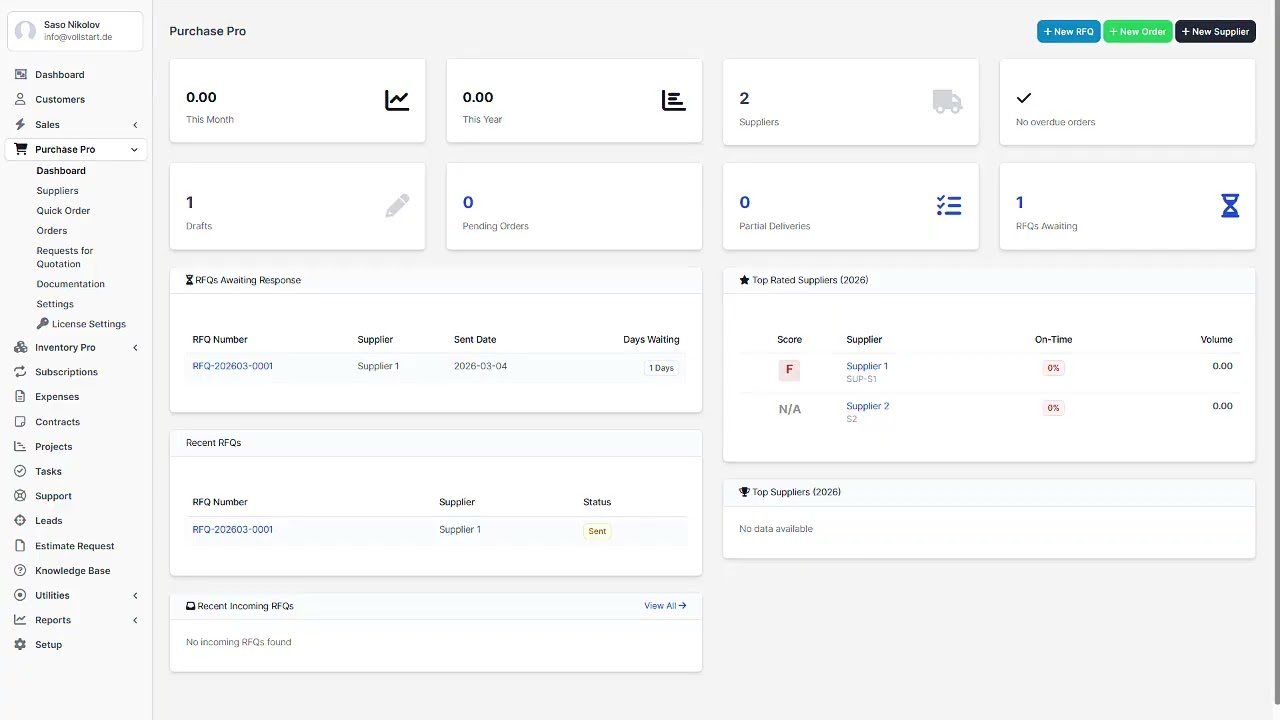
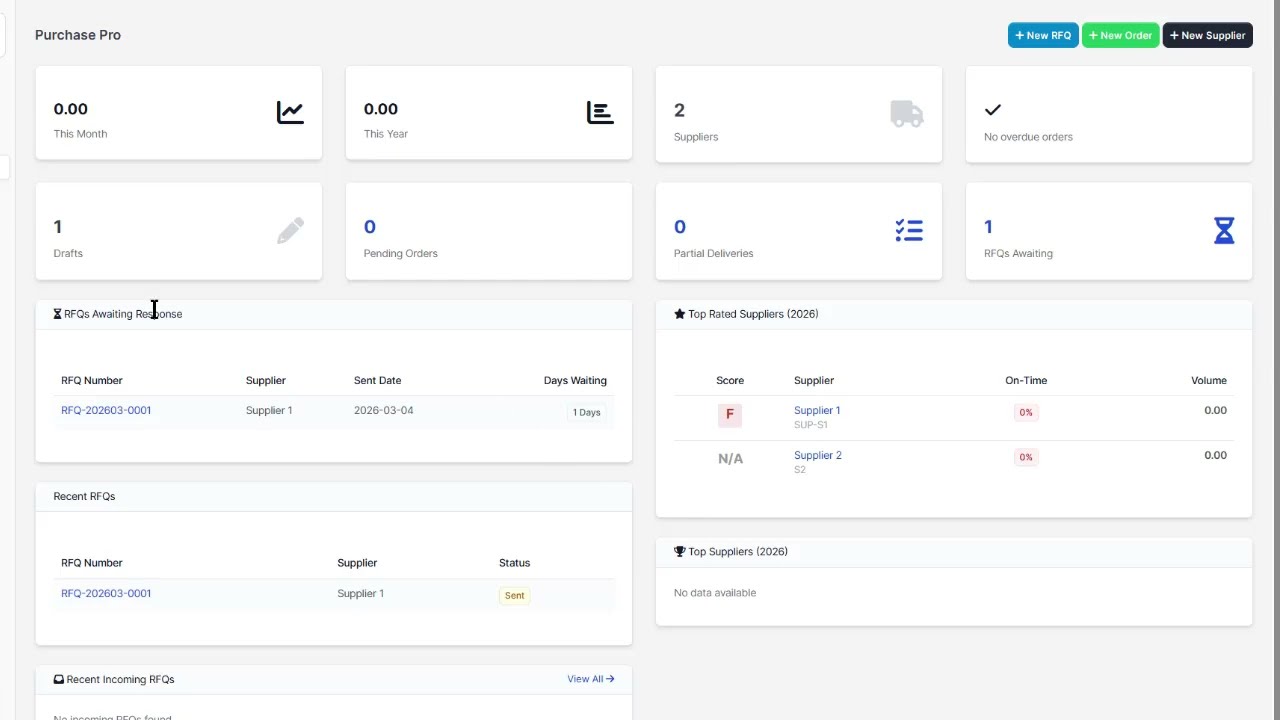
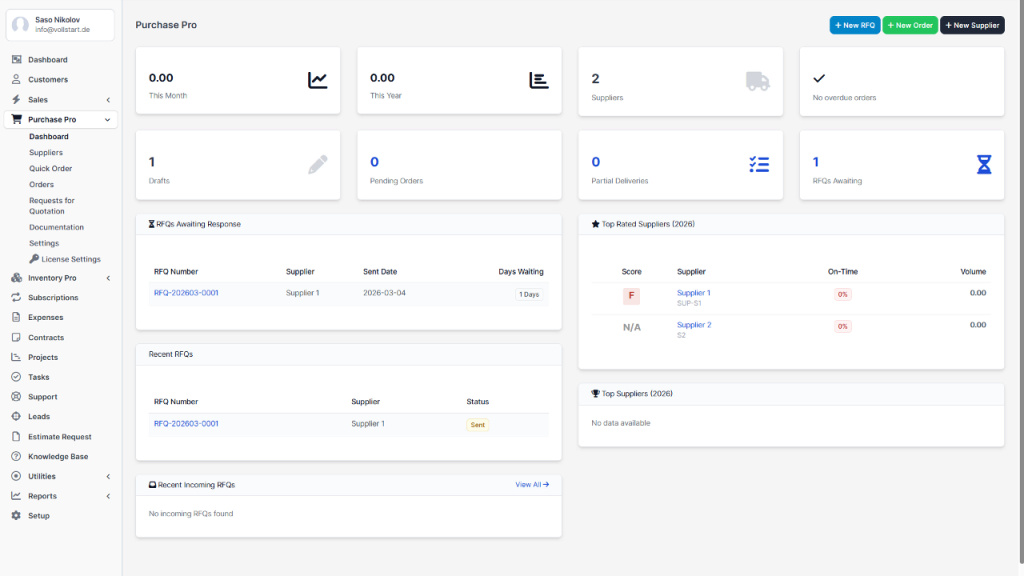
The Purchase Pro dashboard provides a quick overview of your procurement activities with real-time statistics and recent activity.
Dashboard Widgets
Open Orders – Purchase orders awaiting fulfillment
Pending RFQs – Request for Quotations awaiting supplier responses
Active Suppliers – Total number of active suppliers
Monthly Spending – Total purchase order value this month
Recent Activity
Shows the latest purchase orders, received goods, and supplier communications. Click any item to navigate directly to its detail view.
Suppliers
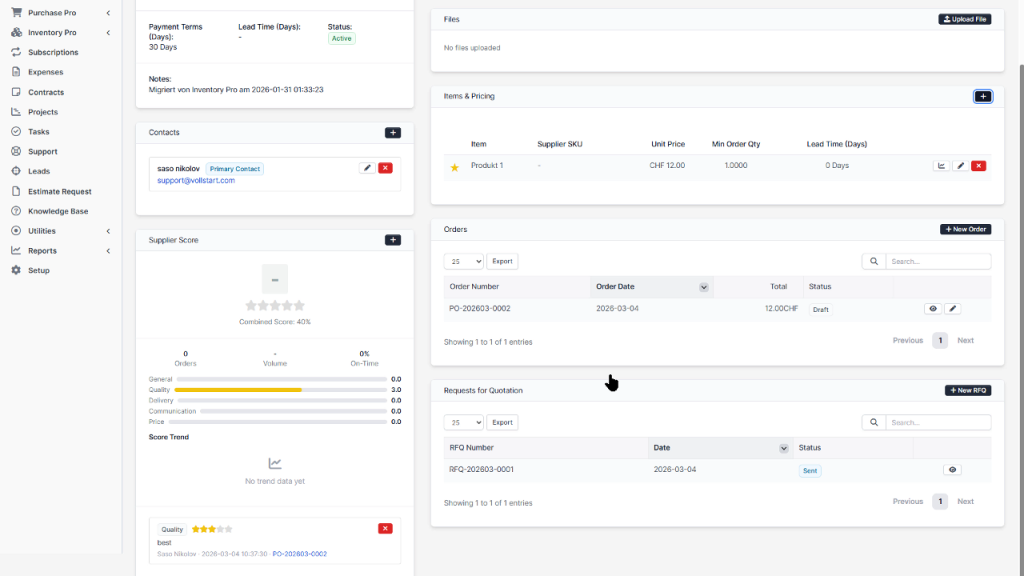
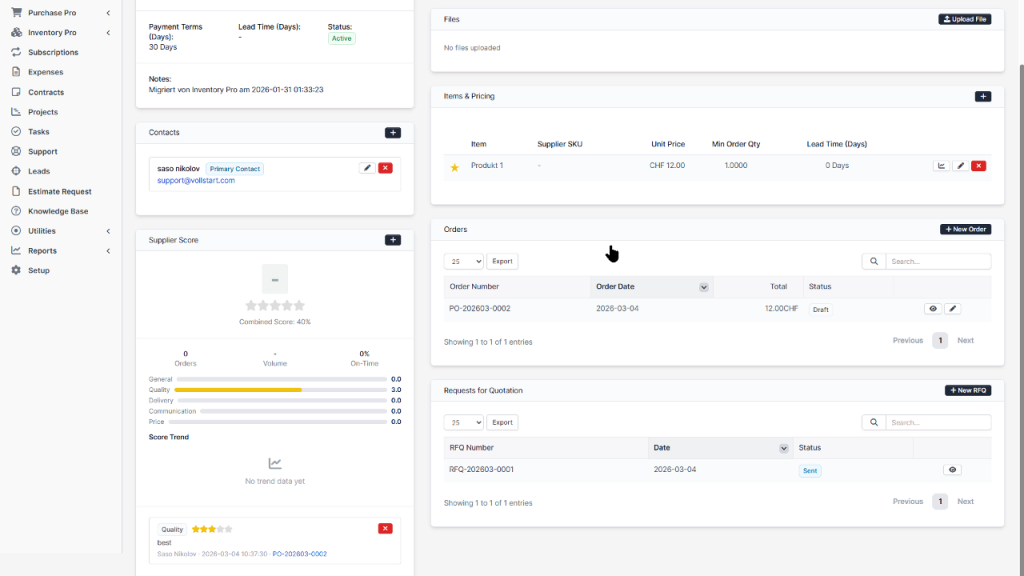
The supplier management system lets you maintain a comprehensive database of your vendors with contact information, preferences, and performance tracking.
Adding a Supplier
Navigate to Purchases → Suppliers
Click + New Supplier
Fill in the supplier details:
Company Name (required)
Code – Auto-generated with configurable prefix (e.g., SUP-001)
Website, Address, City, Country
Tax Number / VAT ID
Payment Terms (days)
Currency – Default currency for POs
Click Save
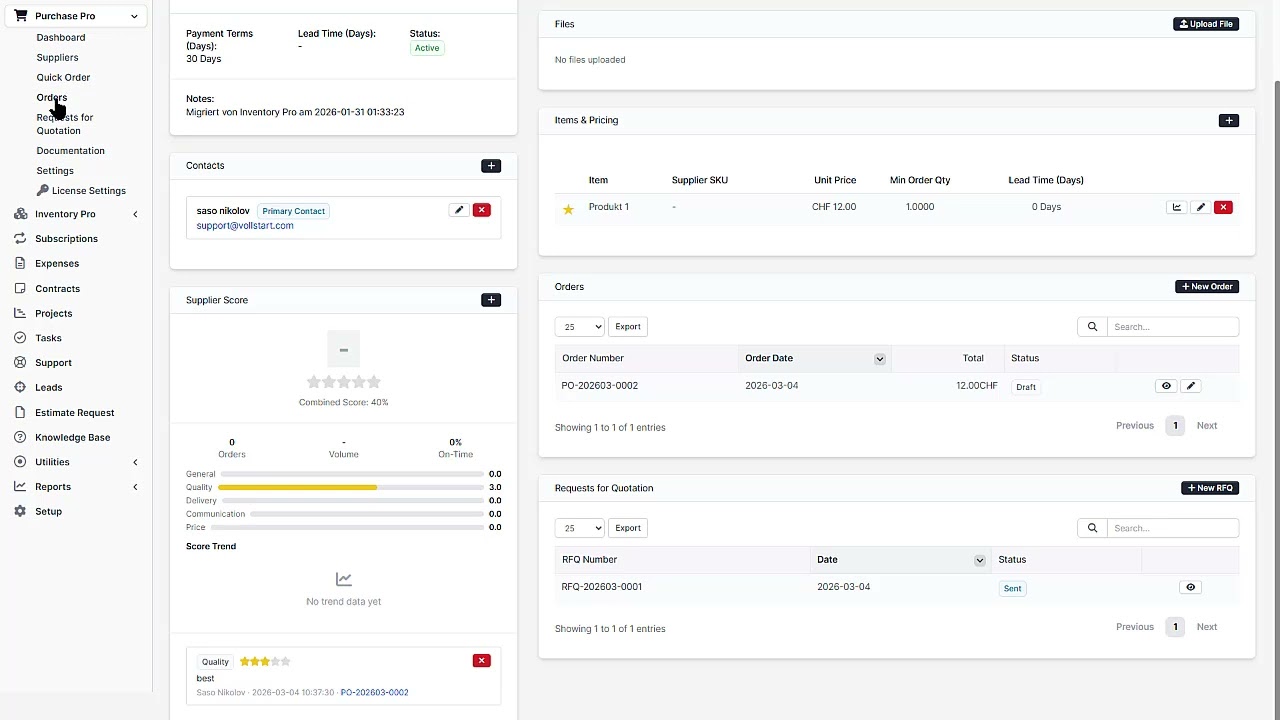
Supplier Contacts
Each supplier can have multiple contacts. Contacts are used for email communication and RFQ routing.
Link specific items to suppliers with pricing and lead time information. This enables:
Quick supplier lookup when creating purchase orders
Automatic price suggestions
Lead time tracking for delivery planning
Integration with inventory_pro supplier dropdown
Tip: When inventory_pro is active, its “Preferred Supplier” dropdown automatically shows suppliers linked to each item via Purchase Pro.
Supplier Scorecard
Track and evaluate supplier performance with a comprehensive scorecard system. Each supplier is rated across four categories.
Rating Categories
Category
Weight
What it Measures
Quality
40%
Product quality, defect rate, quality incidents
Delivery
30%
On-time delivery, lead time accuracy
Communication
15%
Response time, professionalism, issue resolution
Price
15%
Competitiveness, price stability, value for money
Score Overview
The overall score (0–10) is calculated as a weighted average. View trends over time with monthly snapshots and historical graphs on the supplier detail page.
Score Alerts
Configure alerts in Settings → Supplier Scorecard to be notified when a supplier’s score drops below a threshold.
Purchase Orders
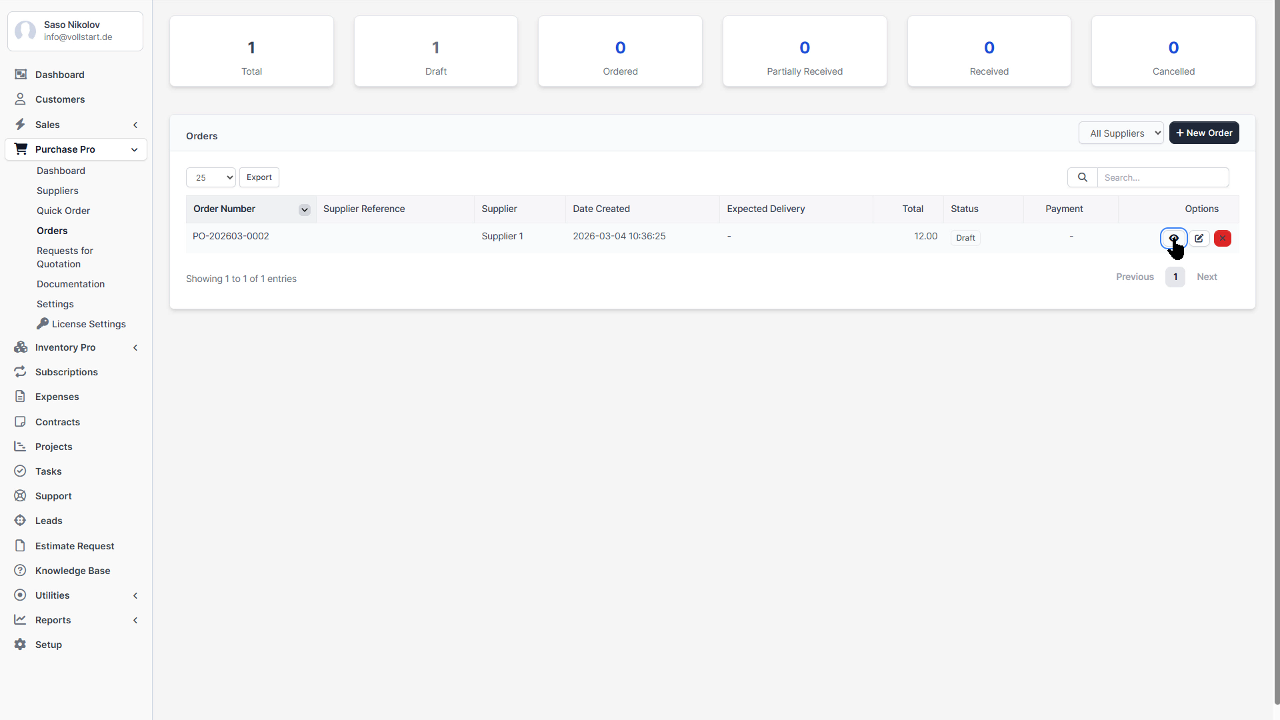
Purchase Orders (POs) are the core of the procurement workflow. Create, track, and manage orders to your suppliers.
Creating a Purchase Order
Navigate to Purchases → Orders
Click + New Order
Select a Supplier
Add line items with quantity, unit price, and tax
Set Expected Delivery Date
Add notes or internal comments
Click Save
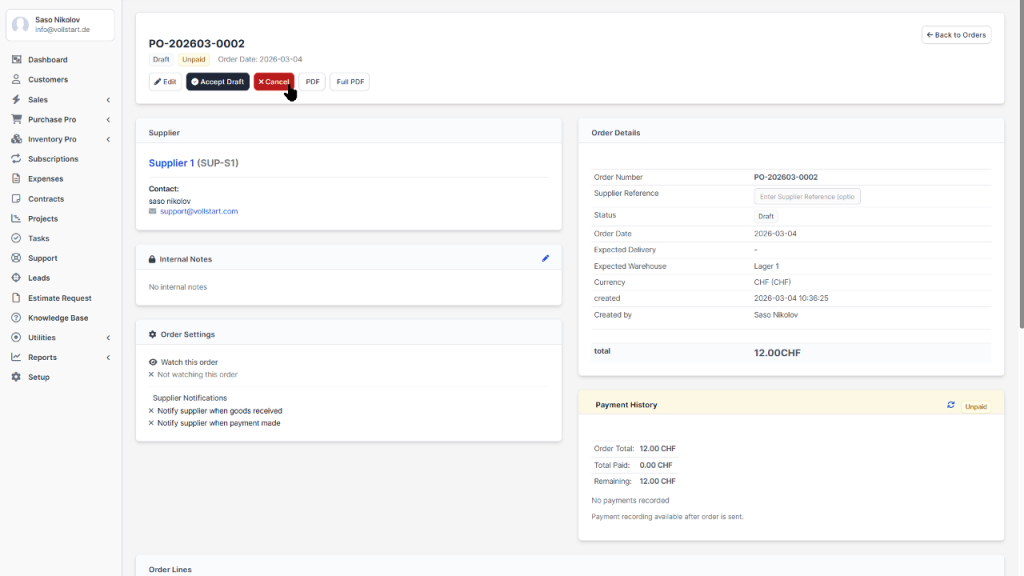
Order Statuses
Status
Description
Draft
Order created but not yet sent to supplier
Sent
Order emailed or marked as sent to supplier
Partial
Some items received, order still open
Received
All items fully received
Cancelled
Order cancelled
Sending to Supplier
Click Send to Supplier to email the PO as a PDF attachment. The email uses your configured template and is sent to the supplier’s primary contact.
Tip: With the entity_emails module, all email communication is tracked bidirectionally on the order timeline.
Goods Receipt
When goods arrive from a supplier, use the Goods Receipt workflow to record received quantities and update your inventory.
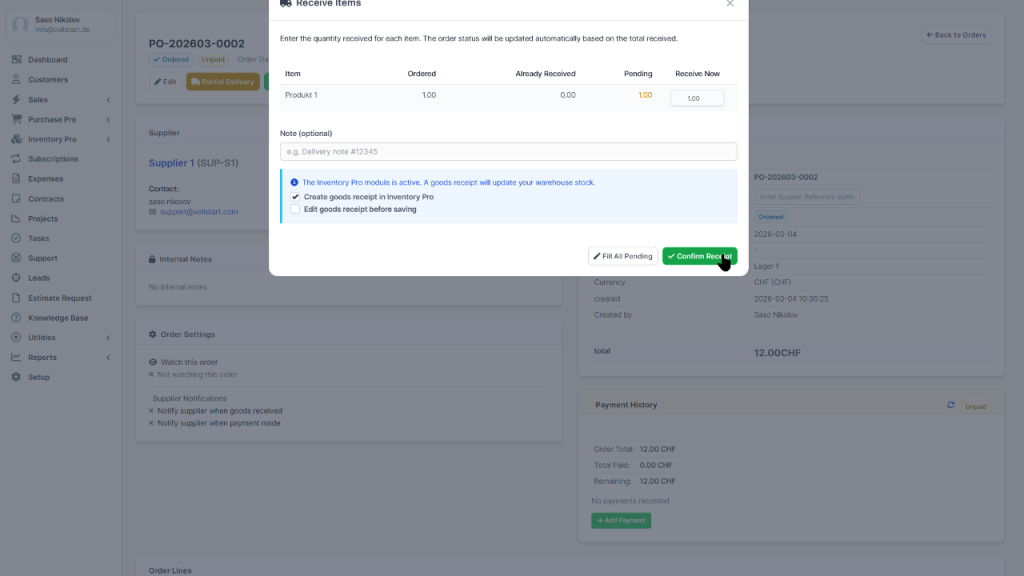
Receiving Items
Open the Purchase Order
Click Receive Items
The modal shows all line items with ordered quantities
Enter the Received Quantity for each item
Click Confirm Receipt
Partial Receipts
You can receive items in multiple batches. The system tracks cumulative received quantities and automatically updates the order status to Partial until all items are fully received.
inventory_pro Integration
When inventory_pro is active, receiving items triggers a choice dialog:
Create Goods Receipt – Opens inventory_pro’s full receipt document with warehouse selection, batch/serial numbers, and FIFO/FEFO tracking
Quick Receive – Instantly adds stock to the default warehouse
Note: Without inventory_pro, goods receipt only updates the PO status. No stock levels are affected.
Inline Corrections
Click on any received quantity to edit it inline. Changes are logged in the order history with before/after snapshots for audit trail.
Request for Quotation (RFQ)
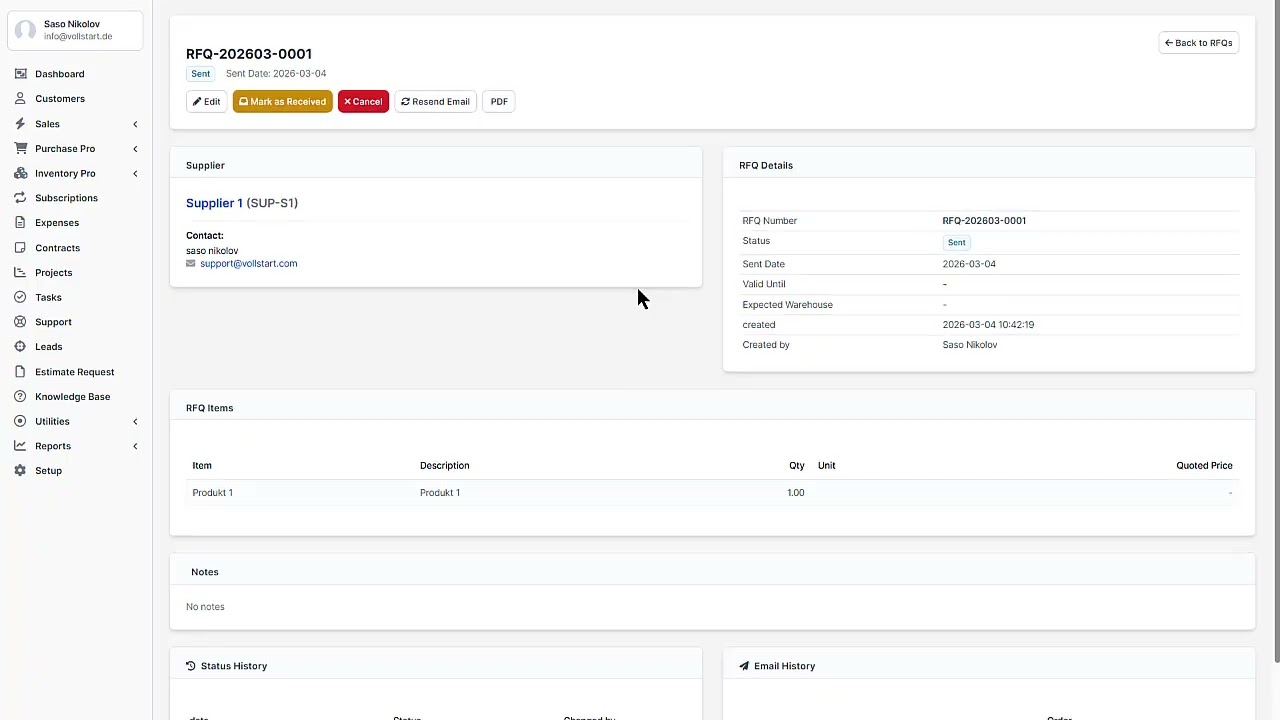
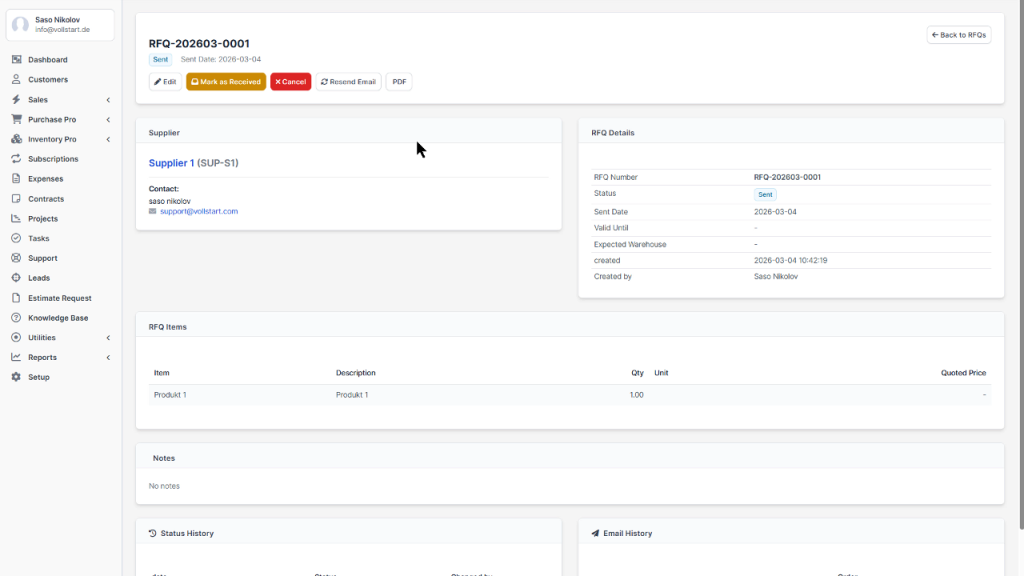
Send RFQs to suppliers (one per RFQ) to compare prices before creating a purchase order.
Creating an RFQ
Navigate to Purchases → RFQs
Click + New RFQ
Add the items you need quotations for
Select one or more suppliers to send the RFQ to
Set a Response Deadline
Click Send RFQ
Comparing Responses
When the supplier responds, review the quoted prices against your existing data.
Converting RFQ to PO
Once you select the best offer, click Convert to PO to automatically create a purchase order with the supplier’s quoted prices and terms.
Tip: With entity_emails active, supplier email responses containing the [VOLLSTART-RFQ-RESPONSE] block are automatically parsed and recorded as RFQ responses.
Email Settings
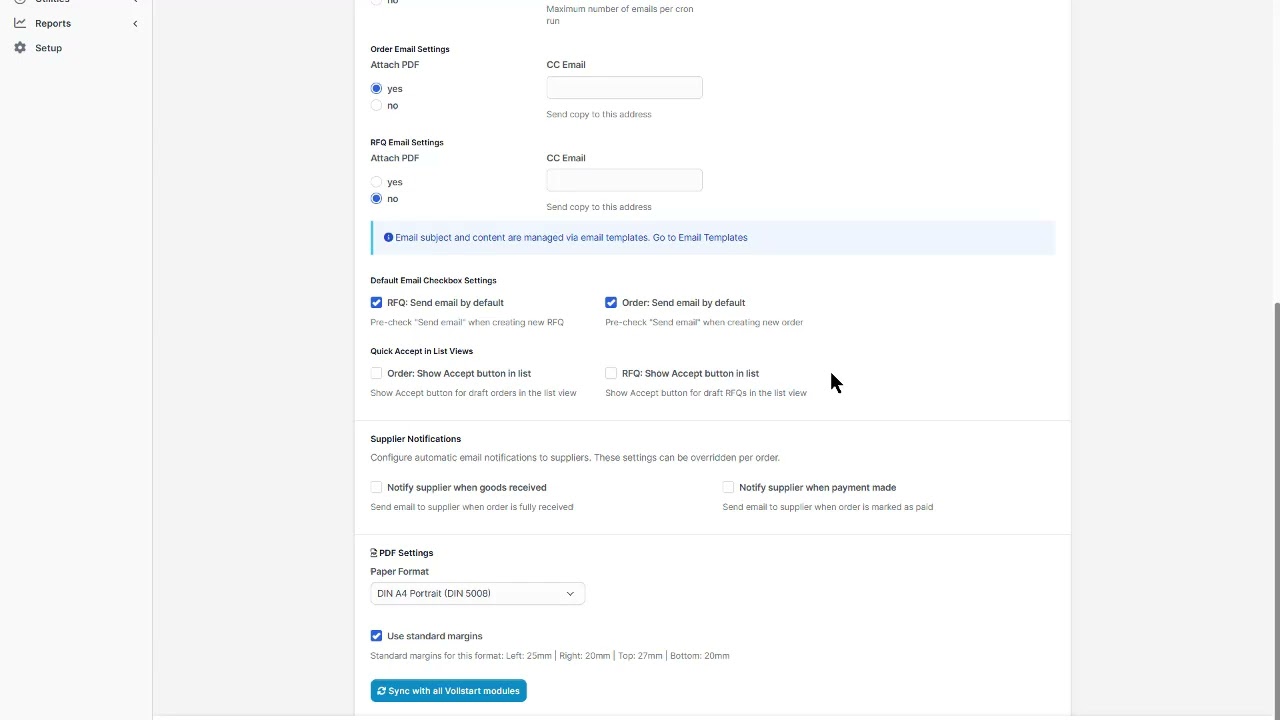
Purchase Pro provides granular control over email notifications with a two-level guard system.
Global Email Guards
In Settings → Email, configure which email types are enabled globally:
Purchase Order Emails – Send PO to supplier
RFQ Emails – Send RFQ to supplier
Payment Confirmation – Notify supplier of payment
Order Status Updates – Internal notifications
Per-Supplier Email Toggles
Override global settings on a per-supplier basis. Open any supplier → Email Settings tab to enable/disable specific email types for that supplier.
Global Guard OFF → No emails sent (regardless of supplier setting)
Global Guard ON  → Check per-supplier setting
  Supplier ON   → Email sent
  Supplier OFF  → Email blocked
Payment Tracking
Track payments against purchase orders to maintain a clear financial overview.
Adding Payments
Open a Purchase Order
Go to the Payments tab
Click + Add Payment
Enter amount, date, payment method, and reference
Click Save
Payment Status
Status
Condition
Unpaid
No payments recorded
Partial
Paid amount < Order total
Paid
Paid amount ≥ Order total
Tip: With invoice_reconciliation, bank CSV imports can automatically match payments to open purchase orders.
PDF Configuration
Customize the look of your Purchase Order and RFQ PDF documents.
PDF Settings
Navigate to Settings → PDF to configure:
Company Logo – Displayed on header
Header/Footer Text – Custom text per document type
Font & Font Size
Color Scheme – Primary color for headings and accents
Note: PDF settings can be synced across VOLLSTART modules using the vollstart_sync_pdf_settings hook. Enable this in Settings if you want consistent PDFs.
Settings
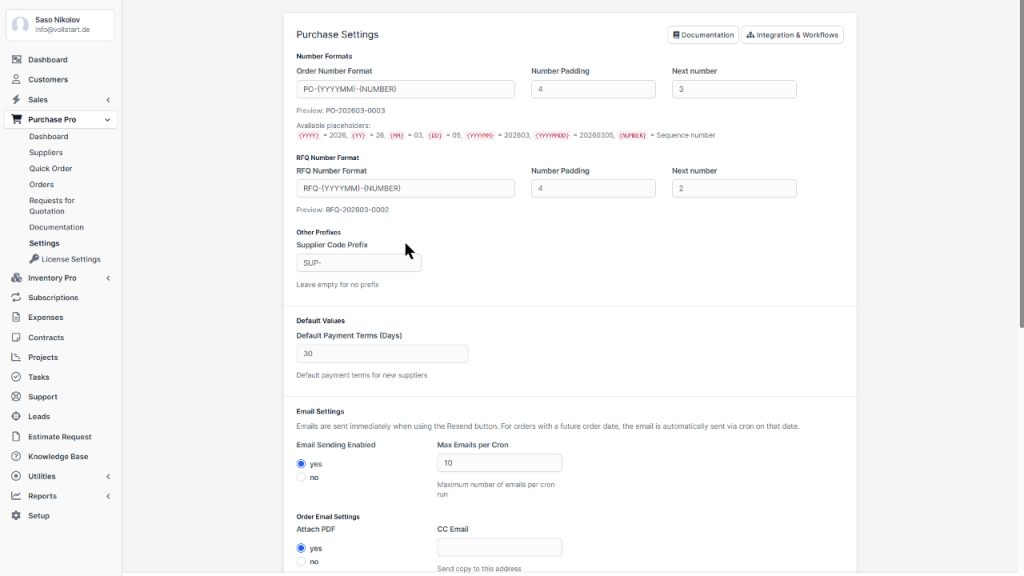
Access all module settings via Setup → Purchase Pro → Settings.
General Settings
Supplier Code Prefix – e.g., “SUP-” for auto-generated codes
Order Number Prefix – e.g., “PO-” for purchase order numbers
Default Currency – Default currency for new orders
Default Payment Terms – Days (e.g., 30, 60, 90)
Default Tax Rate – Applied to new line items
Email Templates
Customize email templates for PO, RFQ, and payment notifications. Use merge fields like {supplier_name}, {order_number}, {total}.
Automation
Auto-number – Automatic order number generation
Auto-send PO – Send email on order creation
RFQ Reminder – Notify staff of pending RFQs past deadline
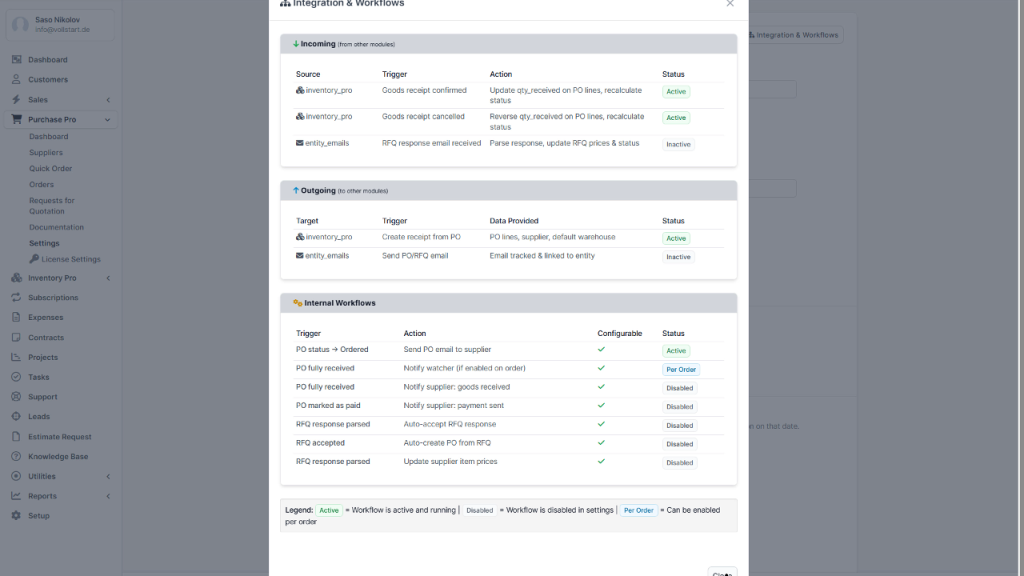
Integrations
Purchase Pro integrates with other VOLLSTART modules to create a seamless procurement-to-fulfillment workflow. Each integration is optional – the module works standalone.
inventory_pro
Goods Receipt – Receiving items on a PO creates inventory documents
Stock Levels – View current stock when creating purchase orders
Preferred Supplier – inventory_pro’s supplier dropdown pulls from Purchase Pro
Supplier Warehouse Mapping – Map suppliers to receiving warehouses
entity_emails
Bidirectional Email – All supplier communication tracked on order timeline
RFQ Auto-Response – Parse supplier email replies with structured blocks
Email History – Full thread view per order and per supplier
invoice_reconciliation
Payment Matching – Bank CSV imports auto-match PO payments
Invoice Linking – Link supplier invoices to purchase orders
shop_pro
B2B Automation – Incoming shop orders can trigger purchase orders
RFQ Workflow – Shop RFQs routed to supplier management
Full Procurement Cycle:
RFQ → Supplier Quote → PO → Goods Receipt → Stock Update → Invoice → Payment
Permissions
Purchase Pro uses the standard Perfex CRM permission system. Configure at Setup → Staff → Roles.
Available Permissions
Permission
Capabilities
View
See suppliers, orders, RFQs, dashboard
Create
Add new suppliers, orders, RFQs
Edit
Modify existing records
Delete
Remove suppliers, orders, RFQs
Note: Settings and module configuration are restricted to Administrators only.
Troubleshooting
Module not appearing in sidebar
Check that the module is Activated in Setup → Modules
Verify your staff role has View permission for Purchase Pro
Clear browser cache and reload
License activation fails
Ensure your domain matches the one registered with your license
Check that your server can reach vollstart.com (cURL required)
Try deactivating and reactivating with the same key
Emails not sending
Verify Global Email Guards are enabled in Settings
Check per-supplier email toggles
Ensure Perfex CRM email (SMTP) is configured correctly
Check Setup → Email Queue for failed emails
inventory_pro integration not working
Ensure both modules are Activated
inventory_pro must be version 1.0.0 or higher
Check Activity Log for error messages
Uninstallation
Navigate to Setup → Modules
Find Purchase Pro and click Deactivate
Optionally click Uninstall to remove the module completely
Warning: Uninstalling will remove all module database tables including suppliers, orders, and RFQ data. This action cannot be undone. Create a database backup first!
Changelog
Version 1.0.0 (Initial Release)
Supplier management with contacts and preferences
Purchase Order (PO) workflow: Draft → Sent → Partial → Received
Request for Quotation (RFQ) with multi-supplier comparison
Supplier Scorecard with weighted rating categories
Goods Receipt workflow with inline corrections
Payment tracking and status management
PDF generation for PO and RFQ documents
Email guards (global + per-supplier toggles)
Integration hooks for inventory_pro, entity_emails, invoice_reconciliation, shop_pro
Cross-module API for supplier and stock data
24 languages supported
In-app documentation viewer
Support
If you need help or have questions about Purchase Pro write us an email.
Wir speichern Cookies auf Ihrem Computer, um Ihr Website-Erlebnis zu optimieren. Sowohl auf dieser Website als auch auf anderen Medienkanälen. Mehr erfahren dazu finden Sie in unserer Datenschutzrichtlinie.
Du kannst deine Zustimmung jederzeit widerrufen, indem du den den Button „Zustimmung widerrufen“ klickst.