Complete guide to setting up and using the Appointment Desk WordPress plugin.
Getting Started
- Create a team and add staff members (Teams tab)
- Create a calendar and assign your team (Calendars tab)
- Add services to the calendar (click a calendar card)
- Add the booking form using
[appointment-desk] or use the auto-generated booking page
The plugin creates a booking page at /appointment-desk/. Change the slug in Settings.
Teams & Staff
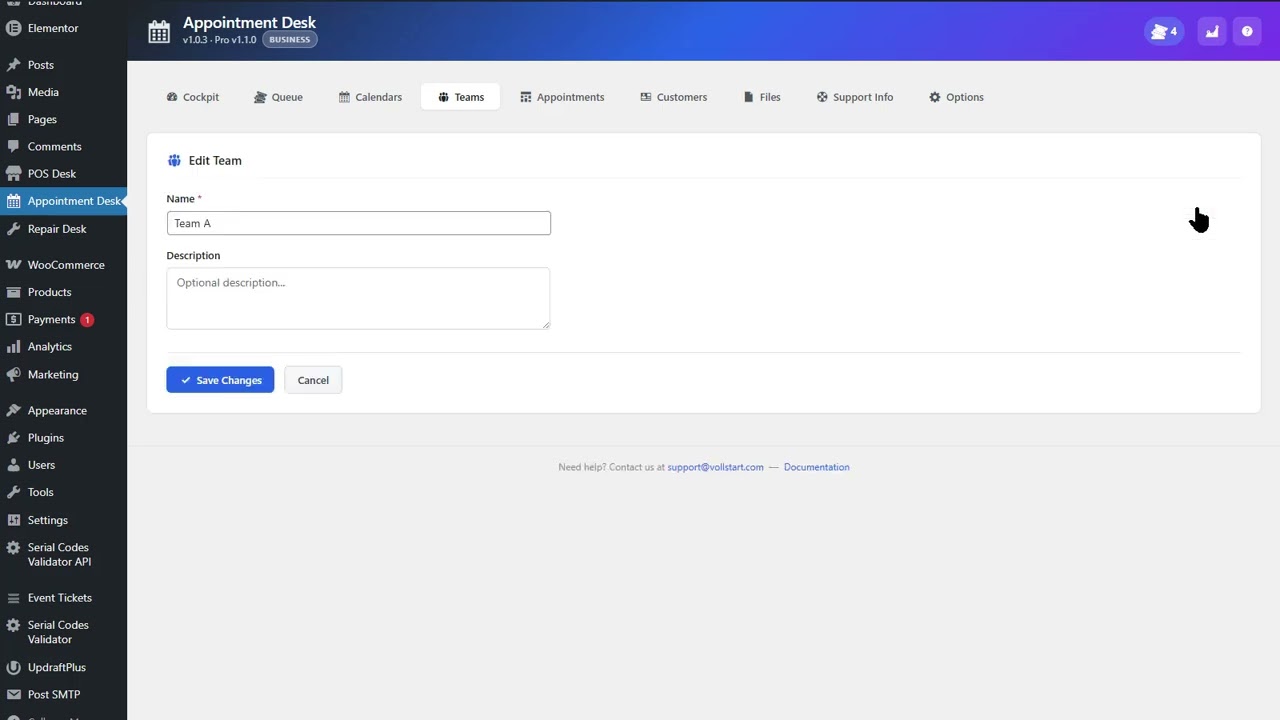
Creating a Team
- Go to the Teams tab
- Click Add Team
- Enter a team name
Adding Members
- WordPress users — Administrator, Editor, or Booking Staff role
- Virtual members — name only, no WordPress account needed
Free: 1 team, 2 members. Pro Unlimited.
Calendars
Calendars represent locations, rooms, or resources.
| Setting | Description |
|---|
| Name | Shown to customers |
| Description | Public description on booking page |
| Color | Calendar color in admin view |
| Active | Inactive calendars hidden from booking |
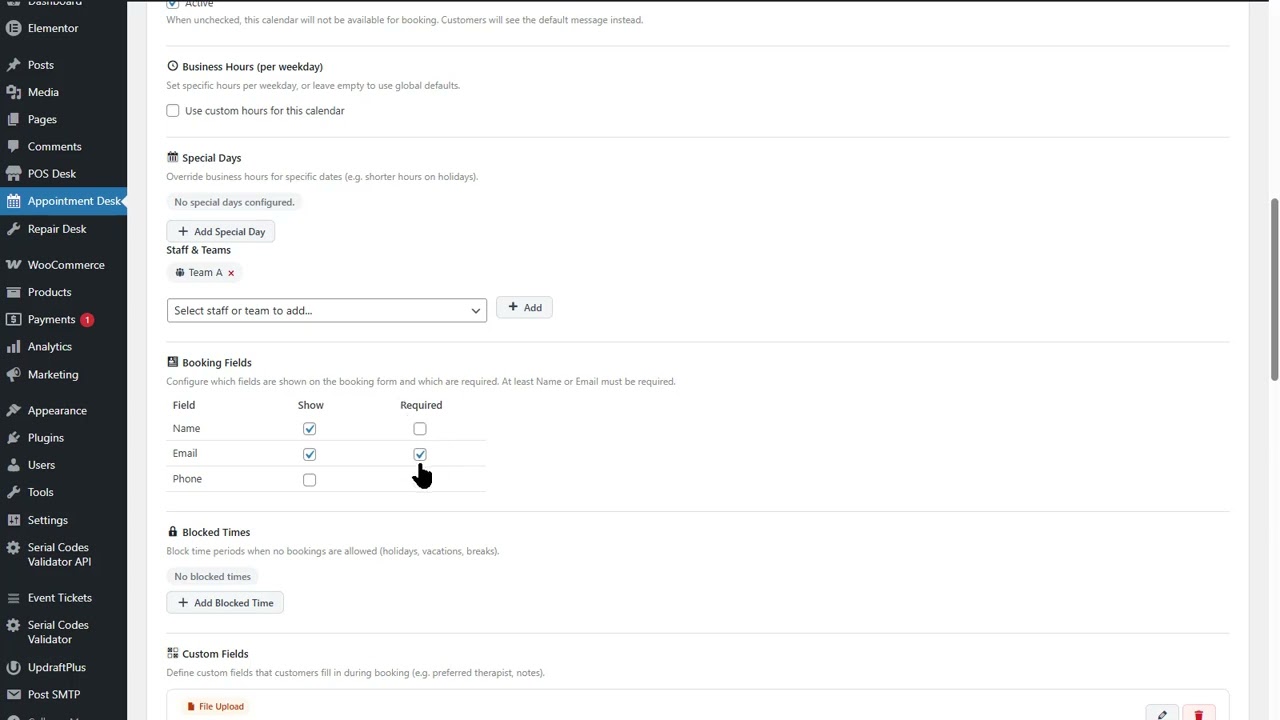
| Business Hours | Per-weekday open/close times |
| Capacity | Fixed number or 1 per staff member |
Free: 1 calendar. Pro Unlimited.
Services
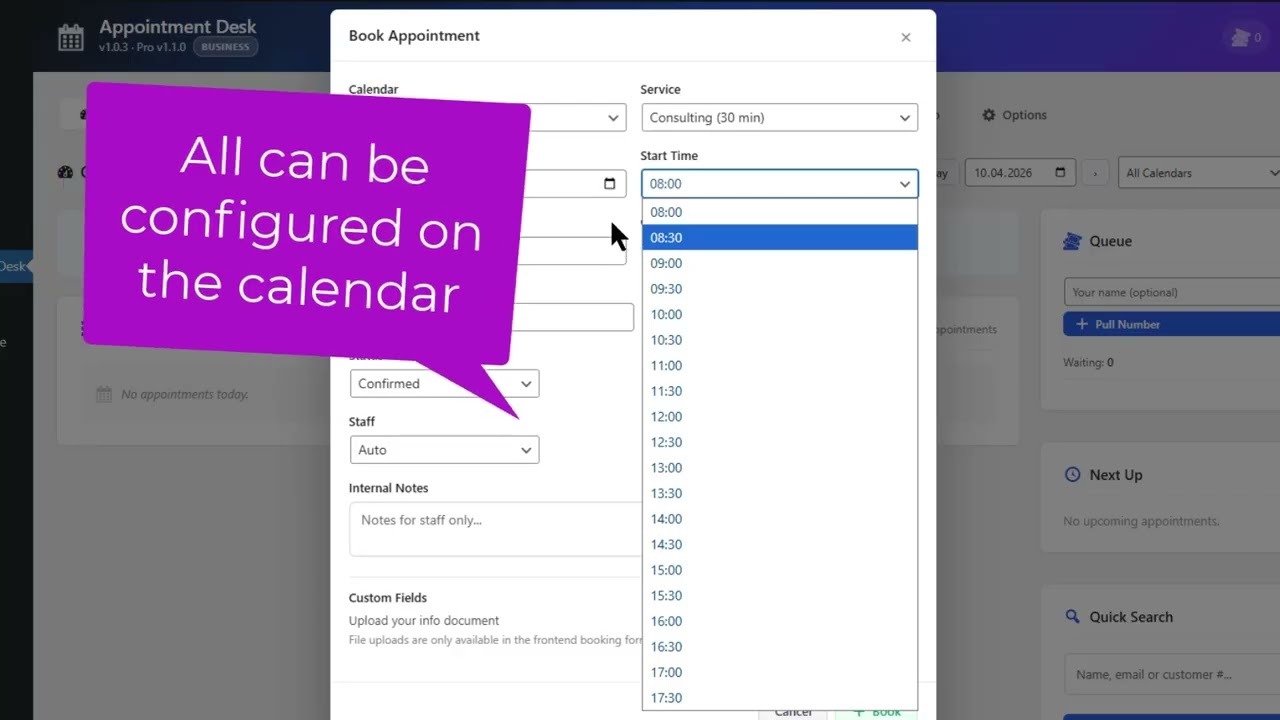
Click a calendar card, then Add Service.
| Setting | Description |
|---|
| Name | e.g. “Haircut”, “Consultation 30min” |
| Duration | Minutes. Determines slot size. |
| Price | Optional. Enables paid booking with WooCommerce. Pro |
| Buffer Before/After | Prep/cleanup time. Pro |
Free: 1 service per calendar. Pro Unlimited.
Appointments
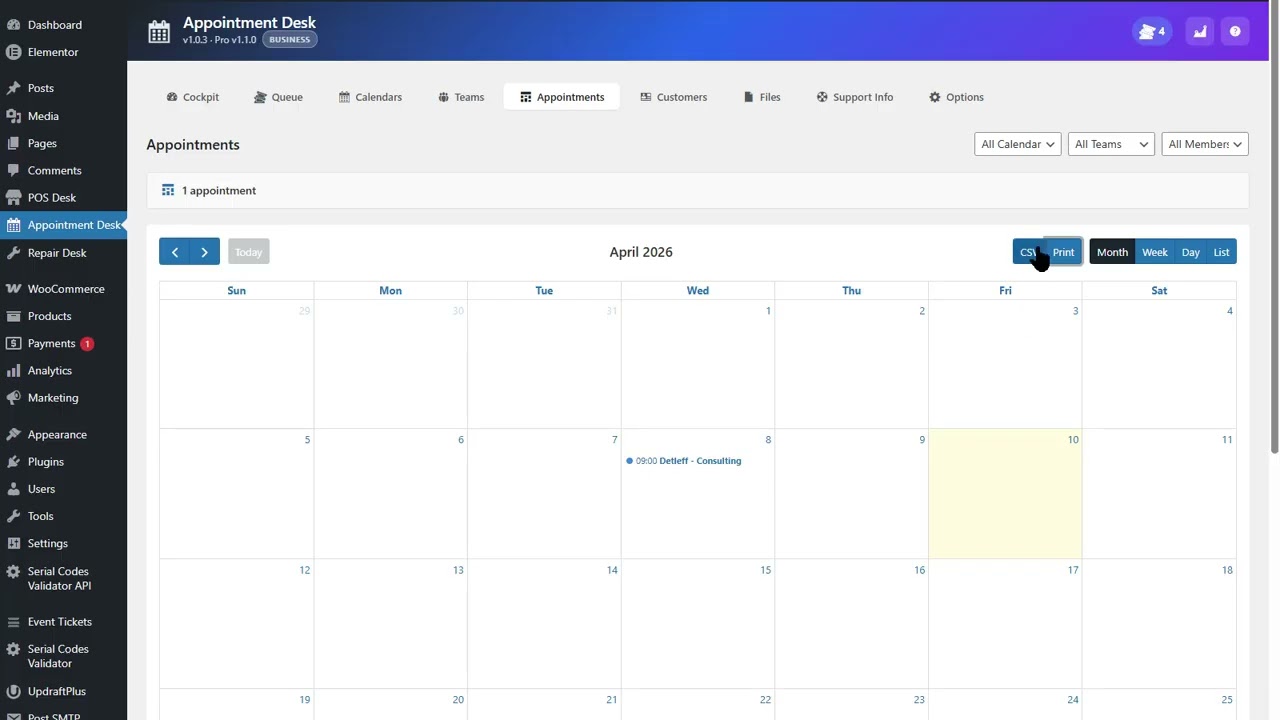
Calendar view with day, week, month, and list modes. Filter by calendar, team, or member.
| Status | Meaning |
|---|
| Pending | Awaiting confirmation |
| Confirmed | Scheduled |
| Completed | Done |
| Cancelled | Cancelled by admin or customer |
| Declined | Admin declines, customer notified |
CSV and Print buttons in the calendar toolbar export the current view with all active filters.
Booking Page
Shortcode
[appointment-desk] — all calendars[appointment-desk calendar="3"] — specific calendar[appointment-desk ids="1,3,5"] — multiple calendars
Slot Holds
Selected time slots are temporarily reserved while the customer fills out the form. Prevents double bookings.
Click the Copy URL button on a calendar card to get its direct booking link.
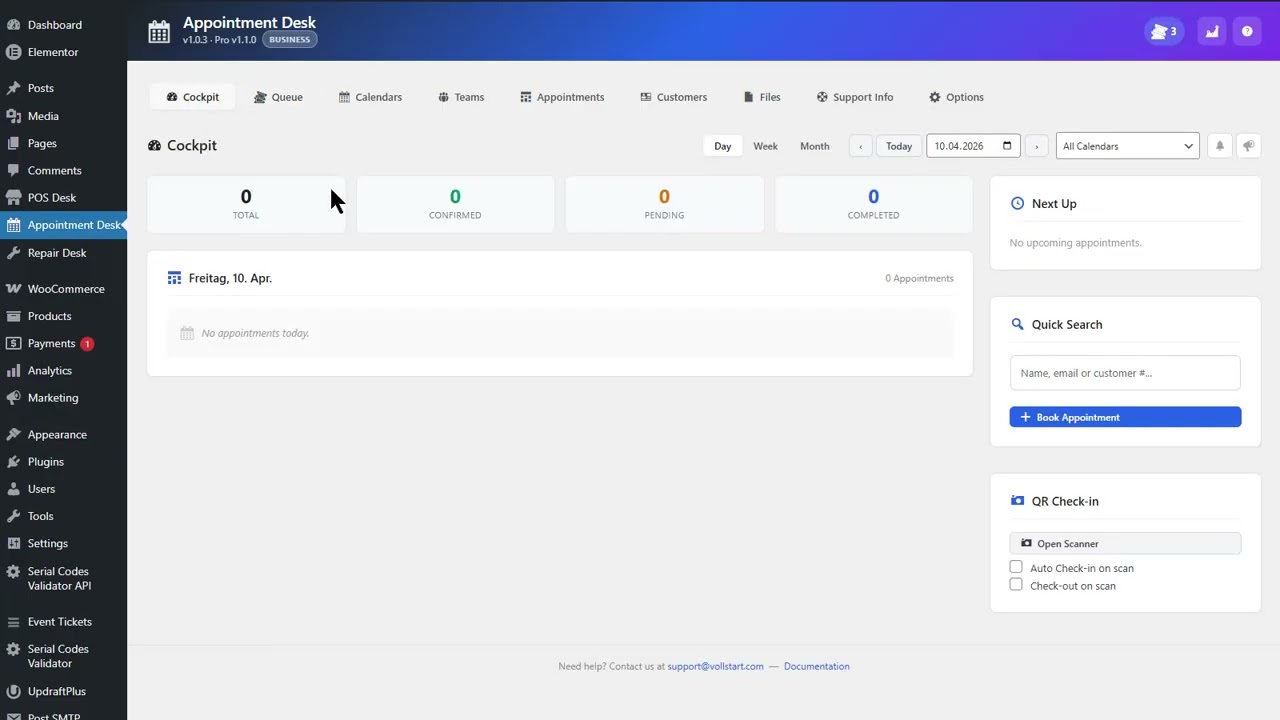
Reception Cockpit
Standalone page for front desk staff. No WordPress login needed — access via auth token URL.
- Day/Week/Month view
- Quick-book for walk-ins
- Check-in / Check-out
- Next Up sidebar
- Dark mode
- Audio notifications
Free: 1 auth token. Pro Unlimited tokens.
Walk-in Queue System
Enable per calendar in calendar settings.
| Page | URL | Purpose |
|---|
| Kiosk | /appointment-desk/queue/{id}/ | Customer pulls a number |
| TV Display | /appointment-desk/display/{id}/ | Waiting room screen |
| Counter | /appointment-desk/counter/{id}/?auth=TOKEN | Staff calls next |
Display modes: Single number or per-counter table. Orientation: Portrait or Landscape.
The counter page is PWA-capable — install as app on mobile/tablet.
QR Check-in
Customers scan QR code at the door. Scanner at /appointment-desk/scanner/. Staff can also check in from cockpit.
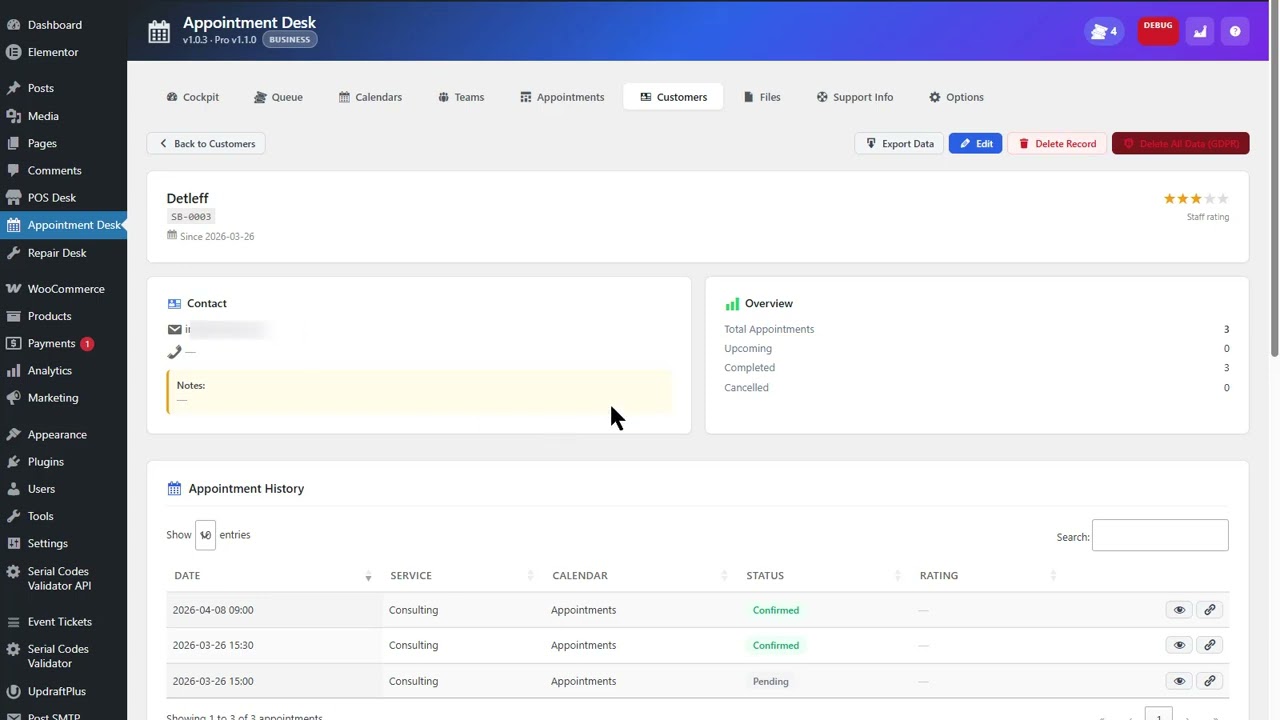
Customer CRM
- Automatic customer numbers
- Search by name, email, phone
- Full appointment history
- Average rating
Email Notifications
| Email | To |
|---|
| Confirmation | Customer |
| Admin Notification | Admin / staff |
| Cancellation | Customer |
| Reschedule | Customer |
| Declined | Customer |
| Rating Request Business | Customer |
All emails include an ICS calendar file.
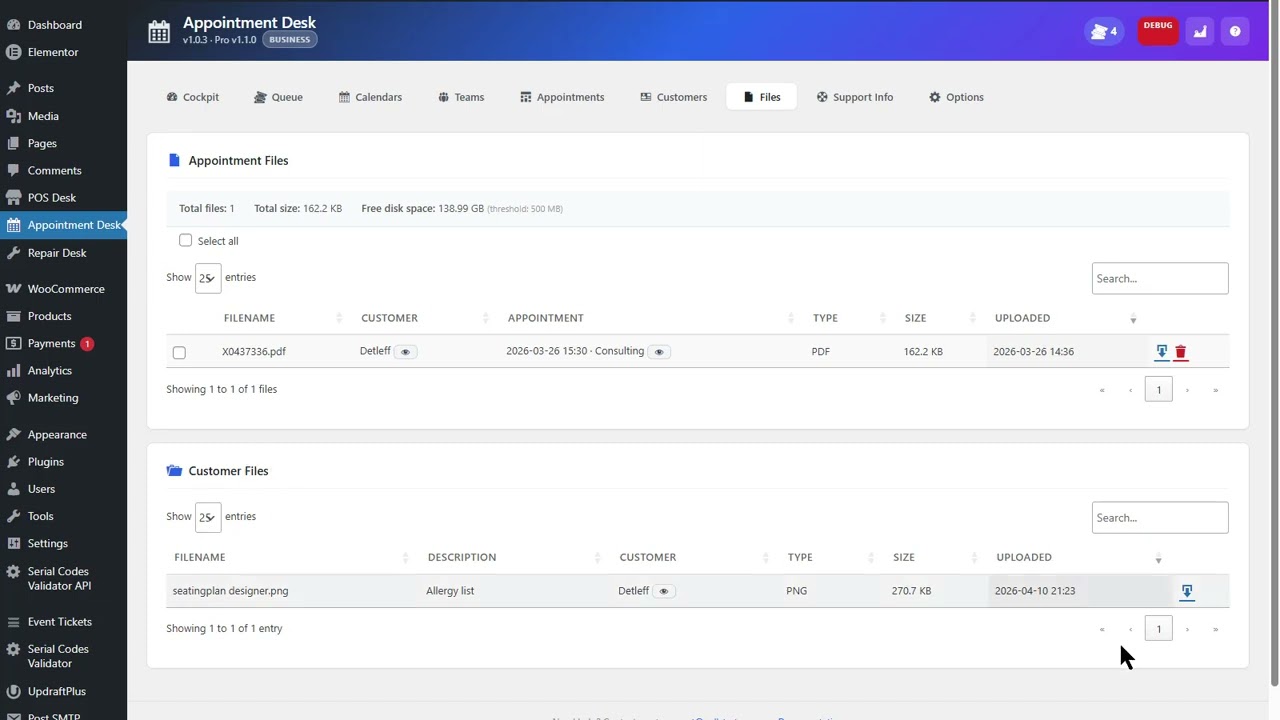
Attachments Pro — attach files from media library per email type.
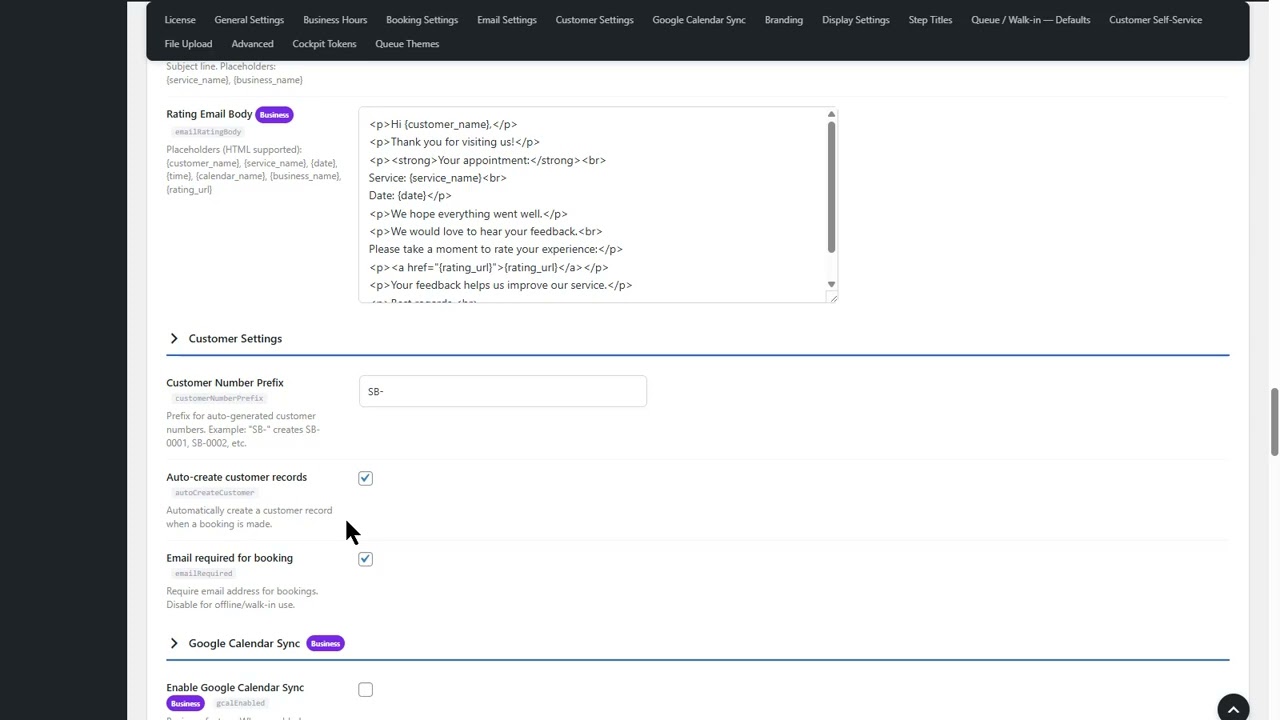
Custom templates Business — full HTML control with placeholders.
Custom Fields
Dropdowns or text fields on the booking form. Examples: “Preferred masseur”, “Special requests”.
Free: 2 fields per calendar. Pro Unlimited.
Blocked Times
- One-time — specific date range (holidays)
- Recurring — weekly pattern (lunch breaks)
Apply to one calendar or all.
ICS Calendar Feed
Subscribe from Google Calendar, Outlook, or Apple Calendar. Click the RSS icon on a calendar card.
Rating System
1-5 stars after appointment. Link in confirmation email. With Business a dedicated rating email is sent.
Settings
| Setting | Description |
|---|
| Business Name/Email/Phone | Shown in emails |
| Auto-confirm | On: instant confirmation. Off: pending. |
| Cancellation Deadline | Hours before appointment |
| Buffer Before/After Pro | Prep/cleanup time |
| Delete data on uninstall | Default off. |
| Remove branding Pro | Hide “Appointment Desk” link |
Shortcodes
| Shortcode | Description |
|---|
[appointment-desk] | Booking form |
[appointment-desk calendar="3"] | Specific calendar |
[appointmentdesk_cockpit] | Cockpit (needs auth) |
[appointmentdesk_queue_display calendar_id="1"] | Queue TV display |
Premium Features
Pro Pro
- Unlimited calendars, services, staff, teams, custom fields
- Unlimited cockpit auth tokens
- WooCommerce paid appointments
- Buffer times
- Queue themes + custom CSS
- Email attachments
- Remove branding
Business Business
- Everything in Pro
- Custom HTML email templates
- Rating emails
- Priority support
Download Free
Get Pro