
Inventory Automation turns your WooCommerce orders into Perfex invoices and inventory movements — automatically. Every checkout creates a Perfex invoice with the matching line items, optionally creates an Inventory Pro delivery note that reduces stock on hand, expands bundle SKUs into their components, and logs every webhook for replay and debugging.
Required dependency: the Inventory Pro module must be installed and active. Requires: Perfex CRM 3.0+, PHP 8.1+.
zip extension)inventory_automation ZIP file and click Install.Tip: After activation you will find “Inventory Automation” in the left sidebar with sub-items for Webhook Inbox, Sales Reports, Health, Documentation, Settings and License Settings.
https://your-perfex-domain.com/inventory_automation/webhook_order_createdprocessed.That’s it. Every new order now creates an invoice automatically.
Perfex CRM - Inventory Automation, Status = Active, Topic = Order created (optionally also Order updated).https://your-perfex-domain.com/inventory_automation/webhook_order_created.HMAC (Hash-based Message Authentication Code) proves that a webhook really comes from WooCommerce and was not modified in transit. The signature is computed as:
signature = base64(hmac_sha256(body, shared_secret))WooCommerce sends it in the X-WC-Webhook-Signature header. Inventory Automation recomputes the signature and rejects the request if it does not match.
All configuration lives under Inventory Automation → Settings: the HMAC secret, an optional IP allowlist, the B2C customer group, auto-delivery via Inventory Pro, automatic payment records, and the auto-rerun cron for failed webhooks.
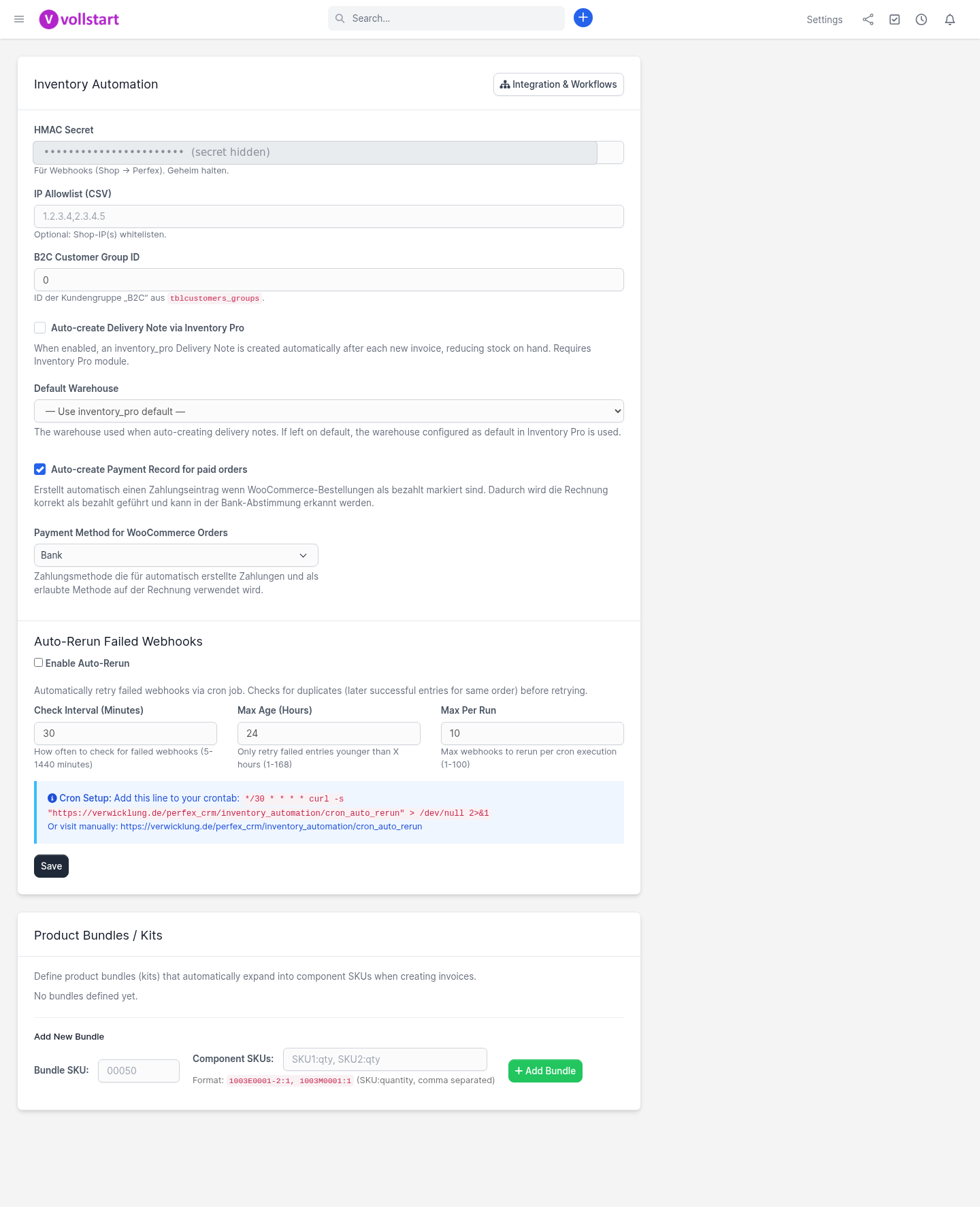
| Setting | Default | Description |
|---|---|---|
hmac_secret |
random 64-char hex | HMAC key for webhook signature verification |
ip_allowlist |
empty | CSV of allowed source IPs (empty = allow all) |
b2c_group_id |
0 | Perfex customer group for newly created B2C clients |
autodelivery_enabled |
1 | Auto-create an Inventory Pro delivery note for every new invoice |
inventory_pro_default_warehouse_id |
0 | Warehouse for auto-delivery (0 = use Inventory Pro default) |
auto_rerun_enabled |
0 | Cron re-processes failed webhook entries from the inbox |
auto_rerun_interval_minutes |
30 | Cron check interval (5–1440) |
auto_rerun_max_age_hours |
24 | Only retry failed entries younger than X hours |
auto_rerun_max_per_run |
10 | Max retries per cron execution |
Find your WooCommerce server’s public IP (e.g. curl ifconfig.me) and enter it under Settings → IP Allowlist. Requests from non-allowlisted IPs are rejected with HTTP 403.
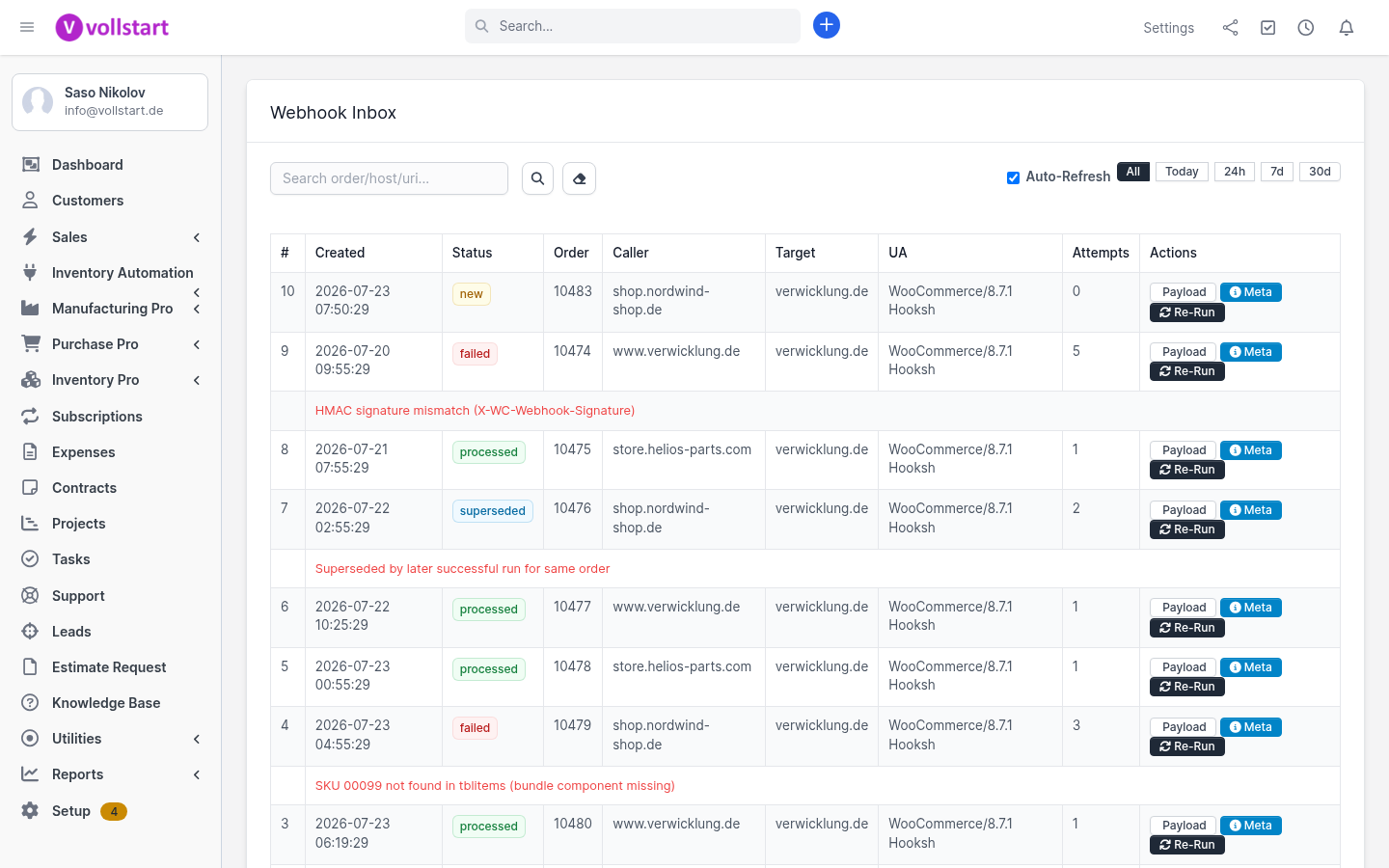
Every incoming webhook is stored in the Webhook Inbox with its raw payload, headers, source host, and processing status. Filter by time range, search by order/host/URI, inspect the payload, and re-run any entry after fixing the underlying cause.
A bundle is a single SKU that represents multiple physical items. Example: bundle SKU 00050 contains 1× 00040 + 1× 00020. When an order contains 00050, the system adds the bundle line at the original price, adds each component line at 0.00, and (if auto-delivery is enabled) reduces stock for all components.
Define bundles under Settings → Bundle Management — one row per component (Bundle SKU, Component SKU, Quantity).
The system tries these Perfex item columns, in order, to find the Inventory Pro item — first match wins:
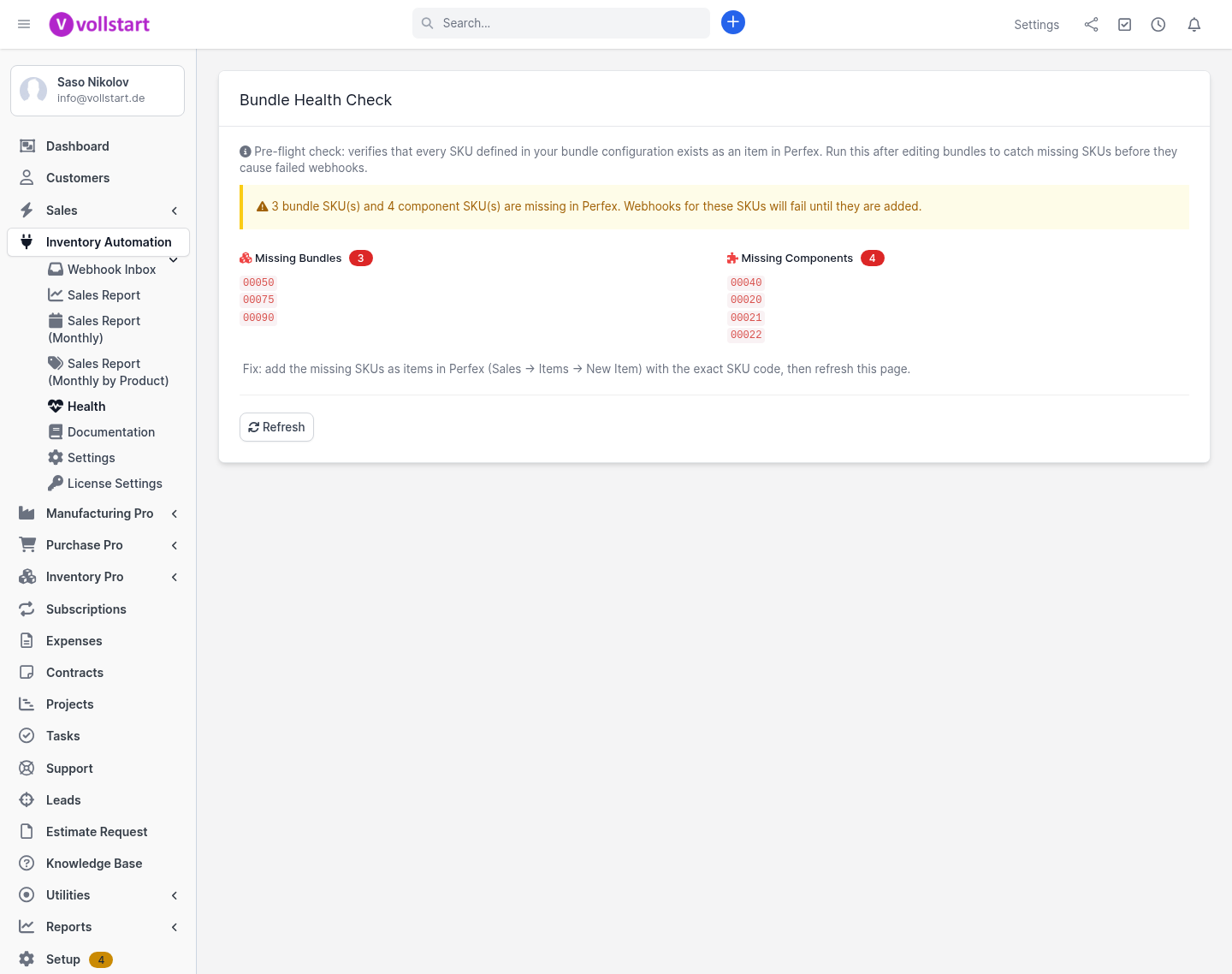
commodity_code → sku_code → sku → item_code → code → descriptionBefore you rely on auto-delivery in production, run Inventory Automation → Health. It verifies that every SKU in your bundle configuration exists as an item in Perfex and flags anything missing — so you catch problems before a live webhook fails.
Three server-side DataTable reports with paging, sorting and free-text search, all exportable to CSV or Excel (full-year data, not just the current page):
Inventory Automation runs in trial mode for 30 days after installation. Once the trial expires the module blocks its pages and the webhook endpoint returns HTTP 403 until a valid license key is activated.
ABO-XXXXX-XXXXX-XXXXX-XXXXX.| Concept | Detail |
|---|---|
| Trial period | 30 days from first installation, full feature set |
| License key format | ABO-XXXXX-XXXXX-XXXXX-XXXXX |
| Domain binding | 1 license key = 1 Perfex production domain |
| Validation interval | Once per day (cached for 1 hour) |
| Server unreachable | Falls back gracefully to the last valid cached result |
The HMAC secret in Perfex does not match the secret WooCommerce uses. Compare Settings → HMAC Secret with the secret shown in WooCommerce → Settings → Webhooks — they must be identical (case-sensitive).
The source IP is not in the allowlist. Add the WooCommerce server’s public IP under Settings → IP Allowlist.
The invoice was created but the SKUs could not be matched to any Inventory Pro item. Open the Perfex item and add the WooCommerce SKU to one of the matching columns (commodity_code, sku_code, sku, item_code, code, description).
The SKU matched a Perfex item, but the Inventory Pro item lookup failed — the component is on the invoice but not on the delivery note. Verify the SKU is in one of the matching columns and that the item exists in Inventory Pro’s stock table.
failedClick the entry to see the reason (JSON parse error, database error, or HMAC mismatch). Fix the cause and press Re-Run. When contacting support, include a screenshot of the Health page and the full error message.
Inventory Automation is part of the VOLLSTART module suite for Perfex CRM. It works standalone for invoicing, and unlocks stock automation together with Inventory Pro:
See the full Inventory Automation product page for pricing and the 30-day free trial.